Using IndySoft Print Server
The IndySoft Print Server is used to broker the physical printing for IndySoft print jobs at a particular location. The IndySoft Print Server is beneficial for users running the WebTier version of IndySoft, and the web server does not have direct connectivity to the physical printers at the various locations. One solution to this issue would be to have each client install IndySoft Web-Tier Tools. Web-Tier Tools has the advantage of also being able to accomplish RS-232 and scanning operations. However, if this additional functionality is not needed and printer routing is all that is required, then the IndySoft Print Server is a good solution.
Put here the text for your expandable block. Scripts are disabled in the editing mode, so click "Unlock & View" to see the box in action.You can edit the text for the "Show More" and "Hide" elements.
IndySoft Print Server runs in the system tray of a Windows computer. Print jobs are read from the database every few seconds (the interval is adjustable - default of 5 seconds) and then printed on the appropriate device.
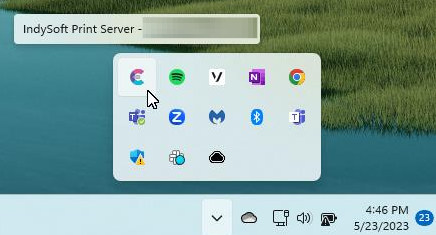
Several options are available from right-mouse click on the System Tray icon:
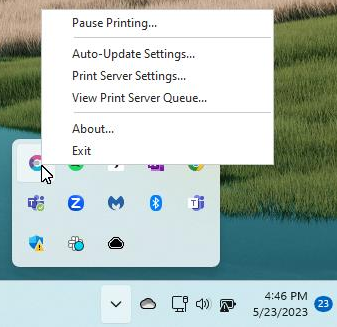
Pause Printing - Use this option to temporarily pause the printing on this workstation. Automatic reconnection is made after a set interval that can be configured from the 'Print Server Settings' dialog.
Auto-Update Settings... - Use this dialog to set up an optional auto-update for the IndySoft Print Server. This interface is the same as in IndySoft client and IndySoft Web-Tier Tools. Select either the HTTP or UNC path to the directory that contains the update files (CAB file and related INF file - as downloaded from IndySoft). Automatic updates occur upon the initial start-up of the IndySoft Print Server.

Print Server Settings... - This dialog contains the various settings for the utility.
The 'Poll Database Every' determines how often the database is queried to see if there are pending print jobs. The default value is every 5 seconds.
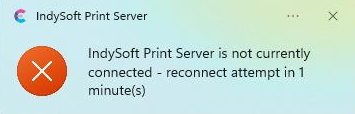
The 'Upon Disconnect, Retry' setting determines the interval between database reconnection attempts after a broken database connection or after the 'Pause Printing' option is manually selected.
 Selecting 'Use Print Server Service' will run the print server service (IndyPrintServerService.exe) as a Windows service, allowing you to continually run and control the service through there as opposed to within the IndyPrintServer dialog.
Input the friendly name of your server in the 'Server Name' field. The value defaults to the Windows workstation name. This server name will be visible in the printer map options available for clients in their User/Location Settings...Printer Mapping.
Finally, this dialog is where the mapping is set up for the local printing. Use the 'Add Printer' button to map a printer. Select the available printer and give it a friendly name. Server Name + the Printer Name is how the mapped printer is shown in User/Location Settings dialogs across IndySoft.
For instance, in the example below, the printer is named 'HP ENVY 5000 Series' and is available through this IndySoft Print Server named 'ANGELENA-M'. So, in the User/Location Settings dialogs within IndySoft, one of the printers available for mapping will be 'ANGELENA-M: HP ENVY 5000 Series'.
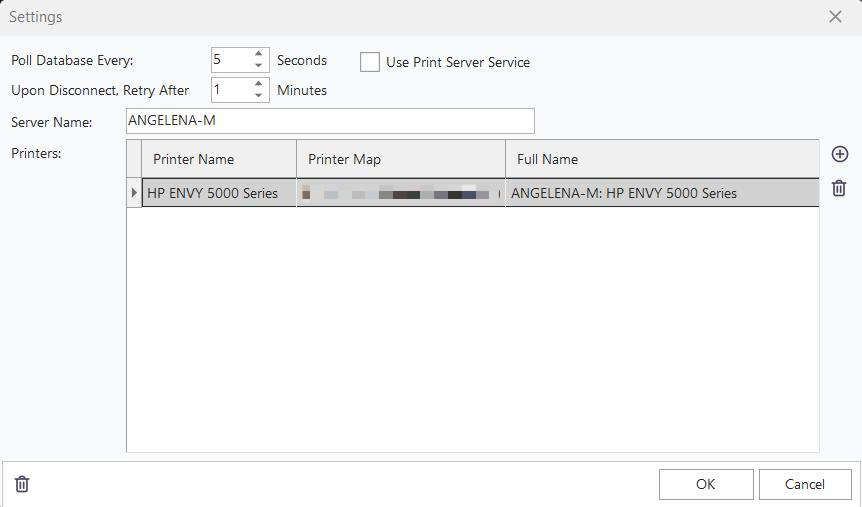
Print Server Settings Dialog
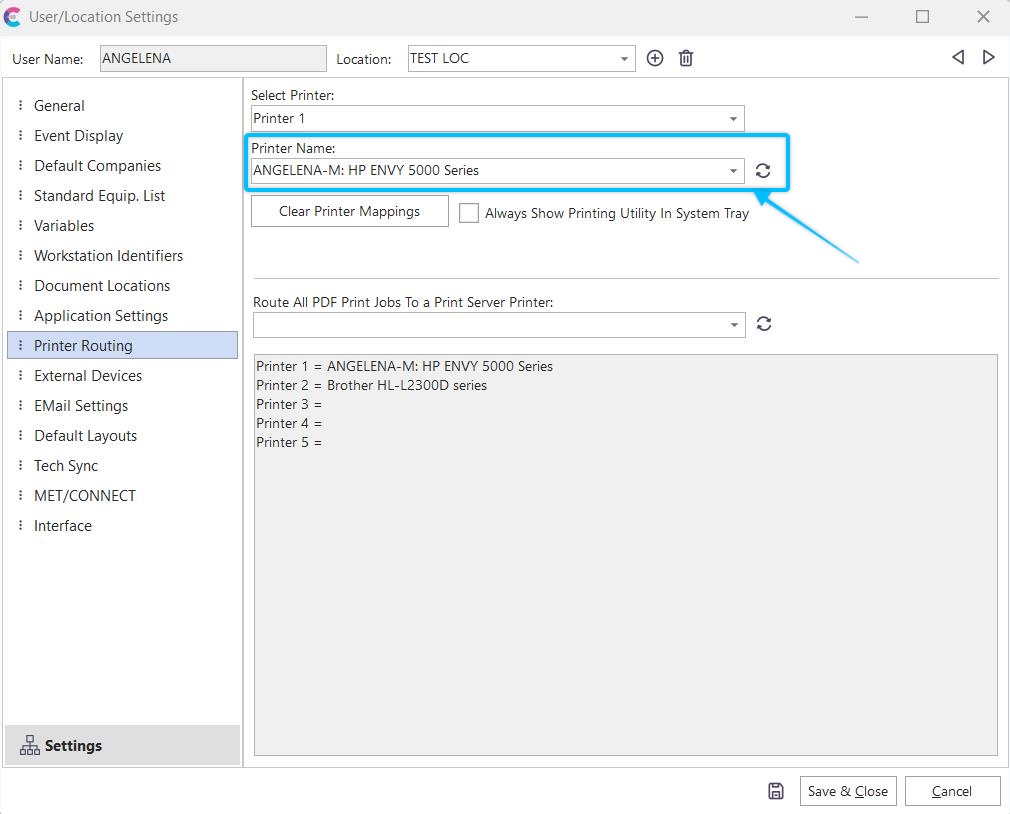
User/Location Settings Dialog - Example of Mapped Printers from IndySoft Print Server
View Print Server Queue...: Use this dialog to quickly review any pending print jobs that have not yet been sent to the printer. This dialog is non-modal - meaning you can leave it onscreen while print jobs are continually sent to the mapped printers. If printing is ever paused, print jobs will still accumulate in the 'Pending Print Jobs' grid - as long as the 'Auto Refresh Pending Print Jobs' button is toggled down. Use the 'Reload' button to refresh the print jobs in the grid (they automatically refresh every 5 seconds if Auto-Refresh is enabled). Print jobs can be deleted from the 'Delete' button.
Finally, any print job in the grid can be saved to a file through a right-mouse click option 'Export PDF to File'.

About - displays details about the current database connection and IndySoft Print Server version.

Exit - to exit the IndySoft Print Server. All print jobs will still accumulate in the IndySoft database but remain unprinted until the utility is restarted. |