Adding Links to Templates
You can now link individual gage information to Templates in IndySoft's Commerical Lab Management
To begin the process, click the Template Link on the Equipment Layout.

This will open the following dialog:

Clicking the ellipses button will place the Template name in the Template Link field.
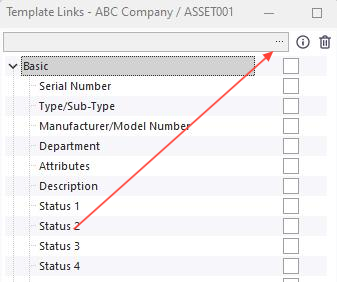

Make a search selection based on the Search By menu and click "OK" to associate that template name to the equipment on the Equipment View screen.
NOTE: some templates may have default template links that will auto-populate when a new item is linked. See help manual for further information on Default Template Links.
To link equipment features to a Template, first open the Template and then make the changes as desired. By selecting the check next to the Manufacturer / Model Number and the Department. This will "lock" these features on the main screen for the equipment that is linked to the Template so changes to those items cannot be made. When finished making the changes, click the "OK" button at the bottom of the screen and the information will be transferred to the equipment linked to the Template.

When the main screen returns, make sure the links have been checked in the Status Panel boxes as well. Then click the "Save" icon and the changes will be complete as shown below. Notice the Manufacturer / Model Number and the Department are red....changes to these areas are no longer accessible.

To complete the linking process, click the binoculars icon next to the Template Link feature on the Status Panel. This will open up the Template and you can make other changes as you see fit. |