Getting Started
Once you have purchased EasyCert as a product, setup is relatively straightforward and can be done in just a few steps.
- Create or Modify Stickers to house your EasyCert QR code.
As an administrator or user with permissions, you can modify your stickers from within the primary application. Before you open printbuilder, find a piece of equipment within your database which has a Calibration type event in its equipment history. Right click on that event and choose the option to "Use Event When Designing in PrintBuilder." This will allow you to have some test data to use when designing within Printbuilder.
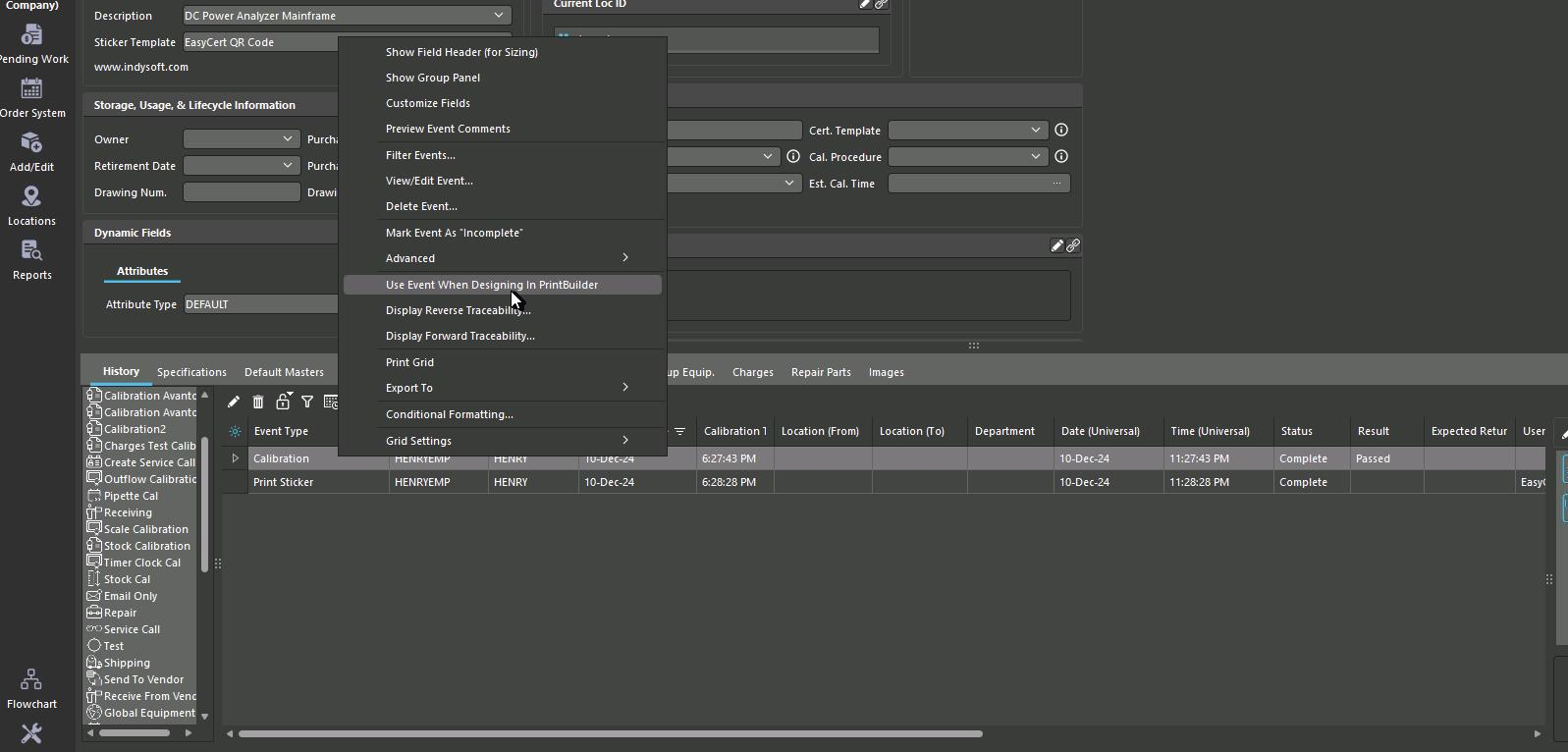
From the admin panel, click on Printbuilder and either create or edit an existing sticker template. (Packing Slips, Receipts, and Certificates can also be used for a similar purpose)
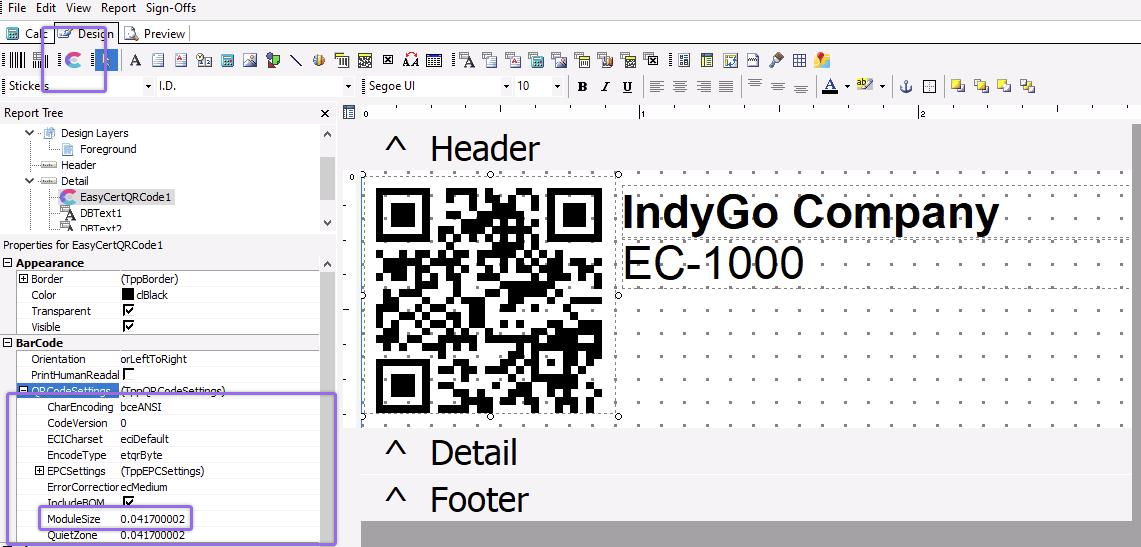
Once your template is open, you will notice an icon in the toolbar which looks like this.  Click on that image and then click within the template to add the EasyCert QR code object. Once you can see the QR code in the template, you will likely need to adjust the size of the QR code. You can do so by expanding the "QRCodeSettings" on the left side in the properties of the object. Adjusting the size manually by pulling the corners/sides of the object will not have the desired effect. The EasyCert QR code was designed to be readable by an iPhone when on a half inch sticker or larger.
At this point, as long as you followed the step to "Use Event When Designing in PrintBuilder" in the history grid before you opened Printbuilder, you should be able to scan the QR code in your preview or in your design tab to see basic asset information and the most recent certificate.
Other Tips!
Do you not have enough horizontal space on your sticker? That's ok! Go to the "File" drop down in the top left hand corner and open "Page Setup." From there you can go to the "Paper Size" tab and change the "Width" of the size of the page.
EasyCert QR codes will always have the same number of characters! This means that if you follow these directions and the QR code fits, it will always fit!
- Establish your Security Preferences
Depending upon your use case, you may require a login to access this information or not. IndySoft allows a few different options.
-
All EasyCert access can require a login. (This is the default behavior)
-
EasyCert access can require a login per equipment company.
-
EasyCert access can be blocked per equipment company.
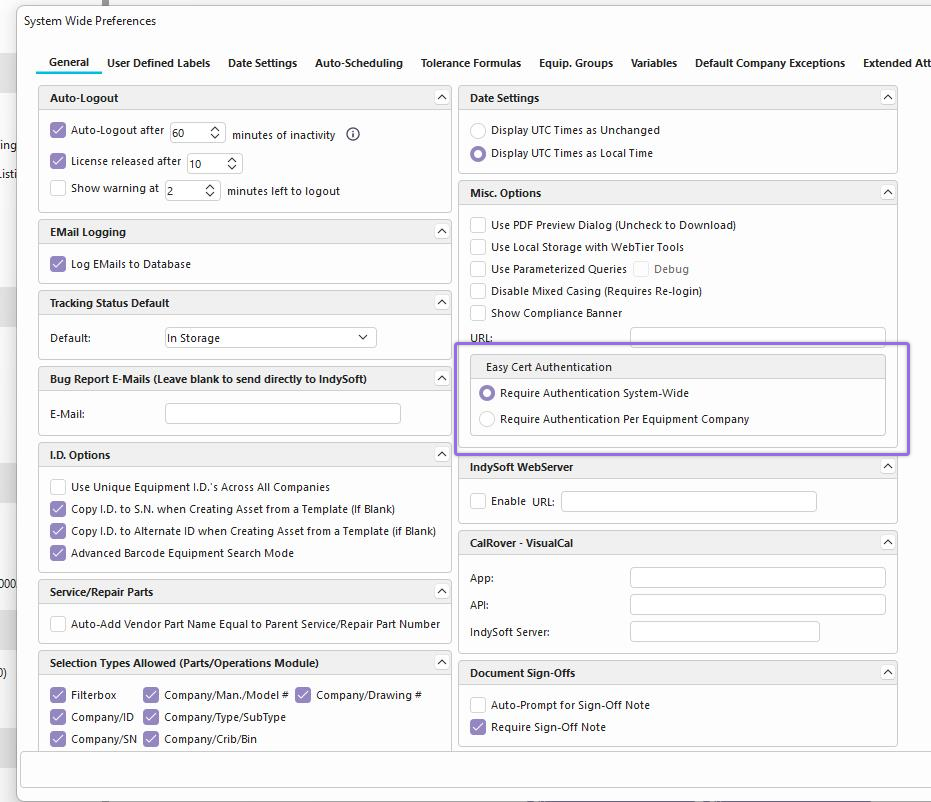
As a system administrator, you can navigate to your system-wide preferences and determine if you want to require credentials system-wide or per equipment company. EasyCert Authentication will default to requiring authentication system-wide. If changing to require per company, that means that EasyCert information can be accessed without credentials unless expressly configured for that equipment company.
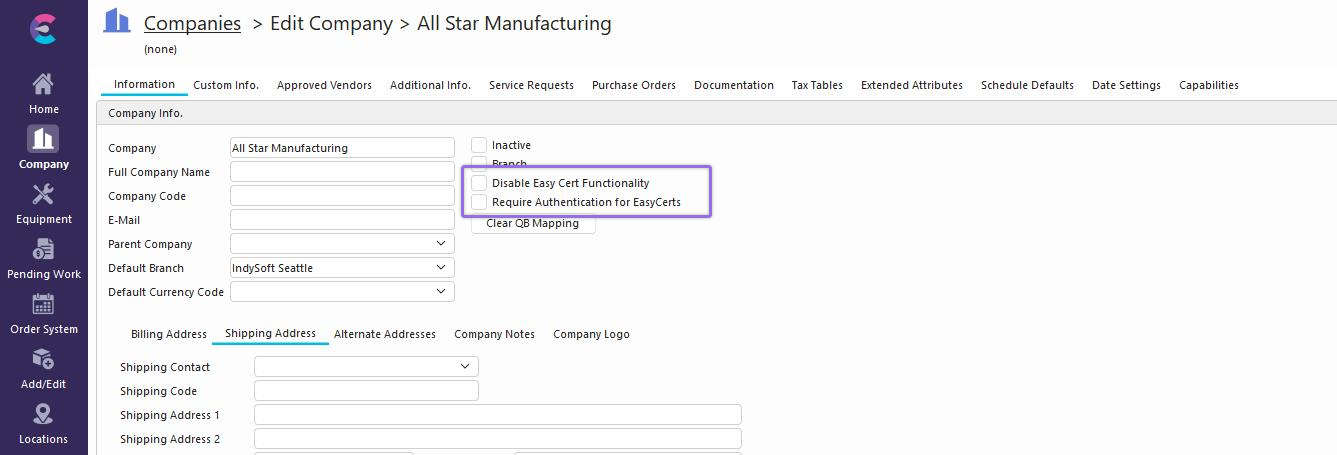
If requiring authentication per equipment company, you have options in the company tab to require authentication for EasyCert access for that organization and disabling EasyCert functionality.
- Create Stickers and Scan!
As a system administrator, you can now adjust your events in workflow configuration to utilize the new or modified sticker templates. We recommend using the newer, dedicated "Sticker Template" field in your equipment view and mapping it into your events which print stickers.