Adding Equipment
Much like the "Search" screen, the add equipment step of an action allows the user to add equipment to an event in up to 5 different ways.
-
Users can type to search for related assets. Type searches will look for matching IDs, Serial Numbers, and Descriptions of assets. Type searching is supported on all devices and has a "Lazy Load" technique so that the application is not trying to load too many assets simultaneously. This means that only the top 10 matches will show by default if searching a larger result set. Users can scroll down to continue loading more matches (10 at a time) or refine their search by typing.
-
The device's native camera can scan an asset's QR code and add the related asset. Click on the icon in the upper right-hand corner to launch the camera. (Note that barcodes need to either be the "GAGE_SN" field or the distinct combination of "COMPANY~GAGE_SN" to scan directly into a device.
-
If you have a supported device that has a native barcode scanner, then you can scan supported barcode types with that scanner. If RFID mode is enabled, the user will see options to scan using the native barcode scanner OR the RFID scanner. If RFID capabilities are disabled, the native barcode scanner (if detected/supported) will be enabled by default but not explicitly shown.
-
The user can scan the room or area to locate assets if you have a supported device with a UHF barcode scanner. RFID scans from this screen allow for high-power or low-power scanning. Unlike the "Search" screen, the user can release the trigger and press it again to continue scanning assets. Only devices paired with tags will be added to the event/action.
-
If BLE tag options is enabled, then the user will be able to select an option from this screen to perform a BLE scan. Upon pressing the button, the user will be able to see a list of assets which are: linked with BLE tags, not already added to the action, and meet the action's selection rule criteria. The user can connect to devices from this option or simply add them directly to an action.
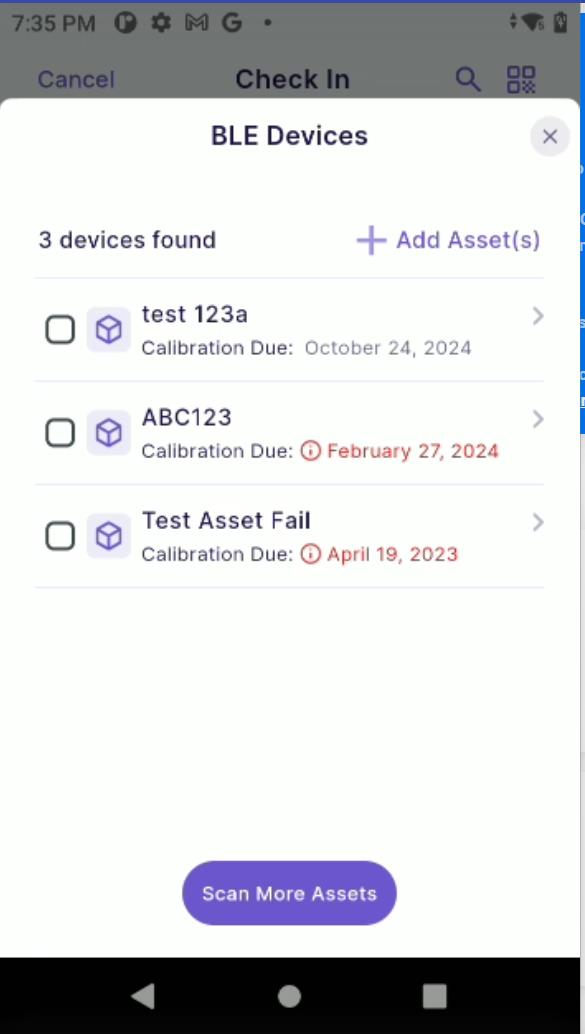
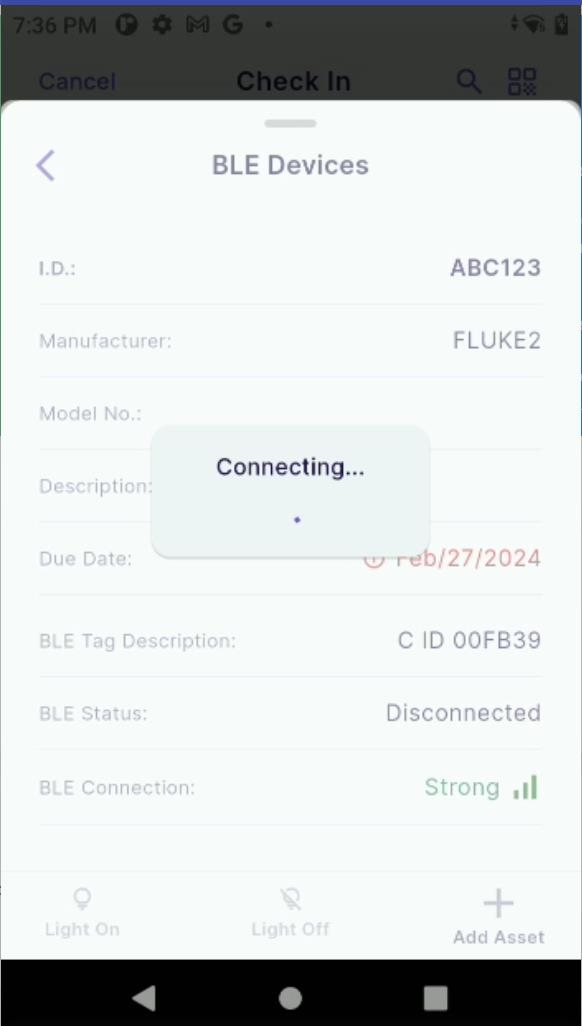
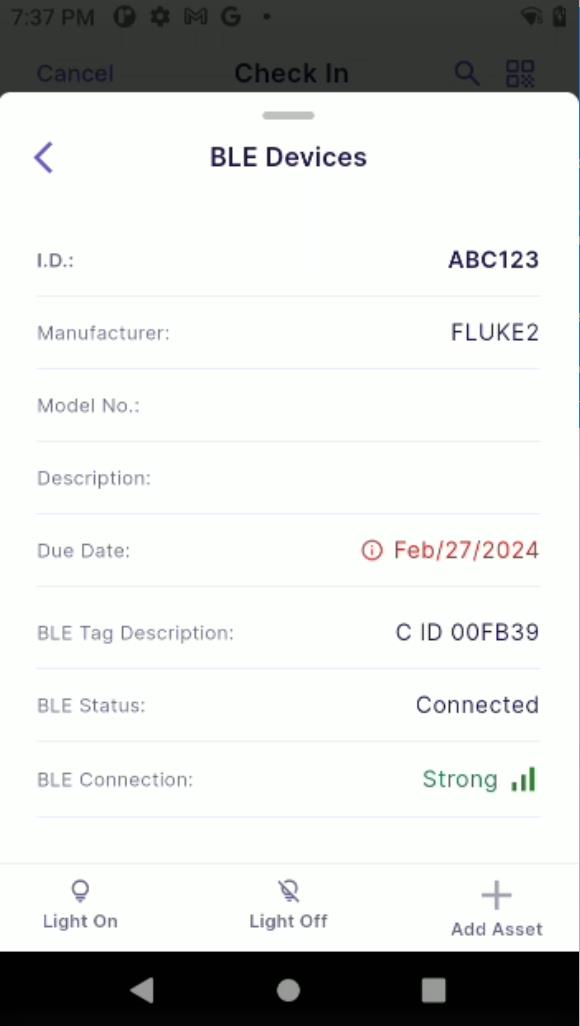
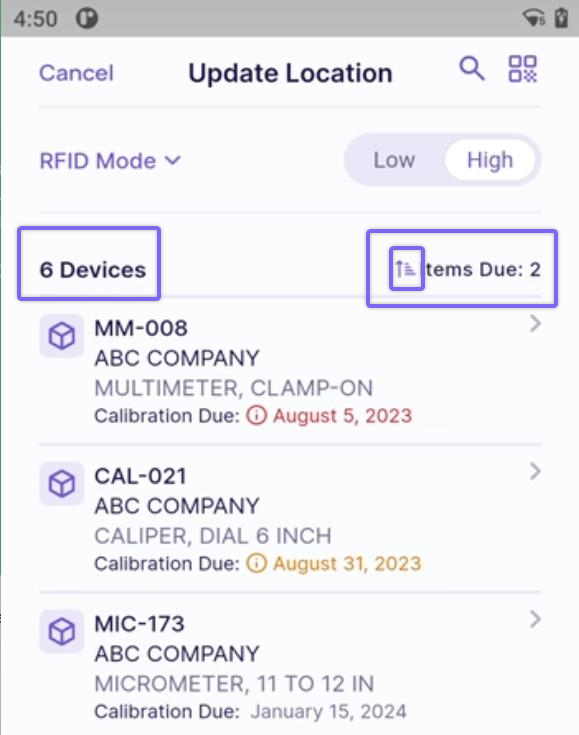
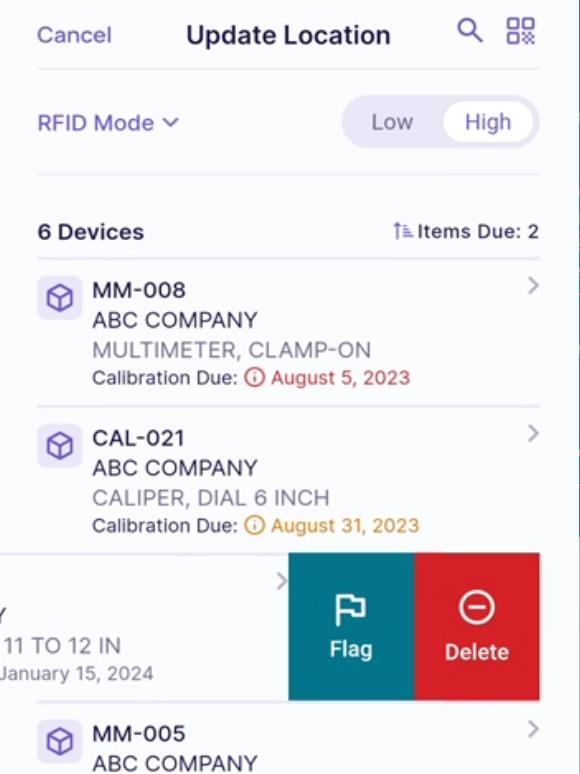
Upon adding assets to the action, the add equipment screen will show the total number of assets selected for the event, the total due for calibration, and will allow the user to sort by due date if they so desire. When an asset is successfully added to an event, the device will beep, and the newest device will show up at the bottom unless the sort option is enabled. Each asset will show up to 4 pieces of information: ID, company (if enabled in settings), gage description, and the due date. Settings can be enabled to automatically sort by due date and to play an alternate noise when a item that is due or coming due is added to the action.
After adding assets, the users may swipe a hard left on the asset to remove it from the list. A soft swipe left will allow the user to either flag or delete the asset from the list.
RFID and BLE Scanning Notes and Options
When scanning tags of related devices into an action, all devices picked up in the area that meet the "Selection Rules" in Workflow Configuration will be added to that action. Any assets that do not meet the selection criteria will be ignored and not added to the action when using RFID or BLE scanning. This is inherently different from adding via scanned barcode or search, as those options will alert you to why something could not be added based on the selection rule.
One common usage of the RFID and BLE workflows would be to both update the current location of equipment within scanning distance and simultaneously collect instruments due for calibration or service. When doing so, the inventory scan portion would allow the user to update equipment quickly and use the RFID "Locate" or "BLE Scan" features to find items due for calibration. After scanning the room for all possible assets and adding them to the action, the user can either auto-sort by the due date or click on the filter to sort by the due date in the event.
Locate and Flag Options
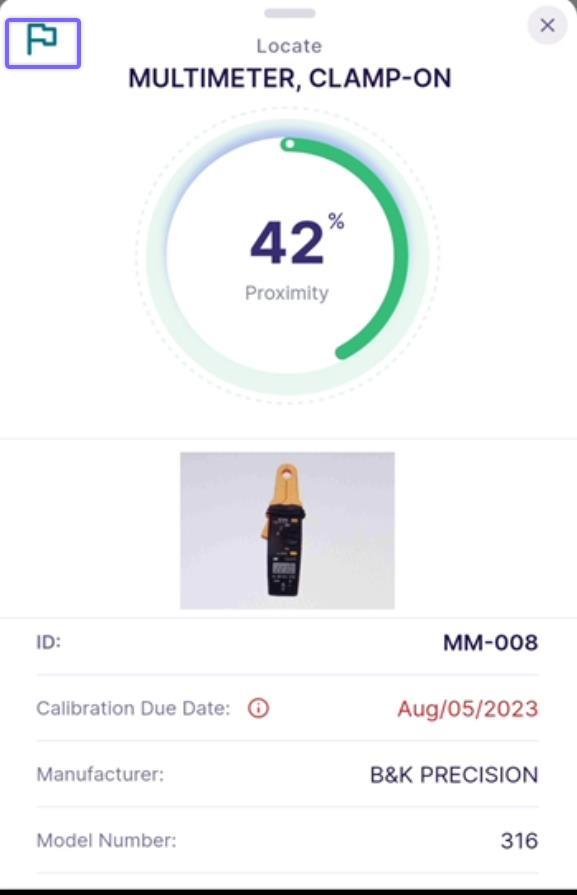
RFID Mode The user can also utilize the locate feature to assist in physically finding equipment in an action. If using an RFID scanning device and the asset listed is paired with a tag, the user can tap on the asset in the event and pull up the Equipment Details screen with the proximity wheel. The user can press the RFID device trigger to assist with finding the asset based on the strength of the returning signal from the tag.
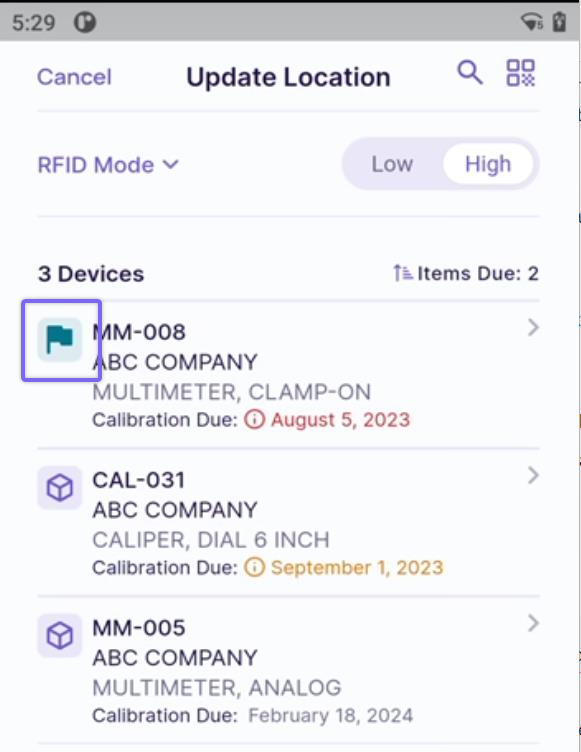
Once the item is located, the flag feature can be used to help the user remember which items on the list they have found/collected. There is no implication or meaning of the flag other than a visual cue to help the end user see in the list that they have collected or performed another function on the listed assets.
Canceling an event after adding equipment will offer to "Remember" that equipment for the next time you run that event type. If you select "Yes" to remember the equipment, the next time you try to run that event from the same session, IndyGo will offer to use the saved equipment.