EMail Layouts
Email Layouts are referenced from various places - but most noticeably from Workflow Configuration...Report Rules...EMail Distribution tab. Each email distribution can be one of two styles:
·Text Only
·Email Layout
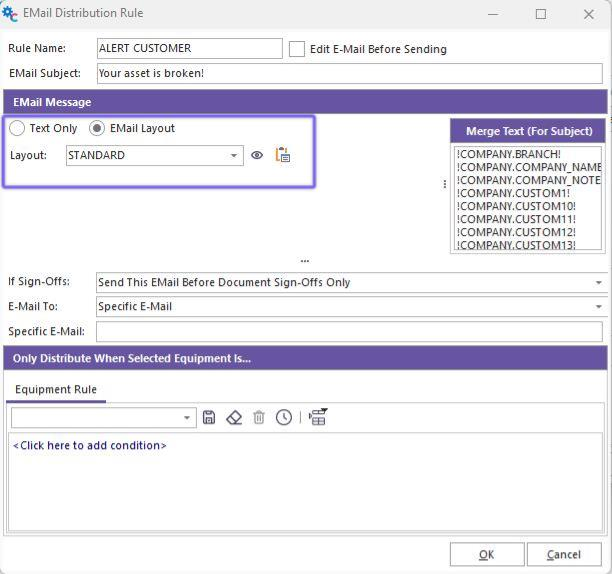
EMail Distribution Rule...Email Layout Option
When 'Text Only' is selected, then a simple text memo is shown below the option, where the EMail Body can be input. To the right, the 'Merge Text' options can be used in the EMail Body (and EMail Subject). If 'Email Layout' is selected, a 'Layout' drop-down is displayed below. This allows you to point to an EMail Layout set up in LayoutBuilder. The layout can be reviewed/edited from the 'Edit Layout' button to the right of the drop-down. Use the 'Launch LayoutBuilder' button to launch LayoutBuilder and create a brand new EMail Layout. If you would like to reload the available EMail Layouts without restarting this dialog, then right-mouse click on the 'Layout' drop-down and select 'Re-load layouts':
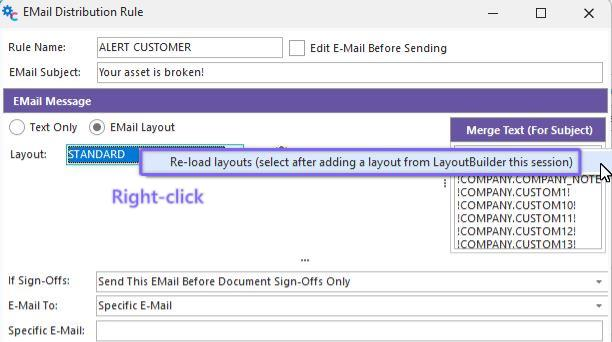
Re-load layouts
These EMail Layouts allow html-type emails to be quickly created in the familiar LayoutBuilder interface. These layouts are created within the rtf-based editor in LayoutBuilder but are converted to html before use in an email. For this reason - it is typically best to keep their design as simple as possible - to ensure that the final email will look best in all email clients and browsers. You can launch directly into the selected email layout by clicking the  icon. The same merge text options available to text-based emails are also available within the EMail Layout design in LayoutBuilder:
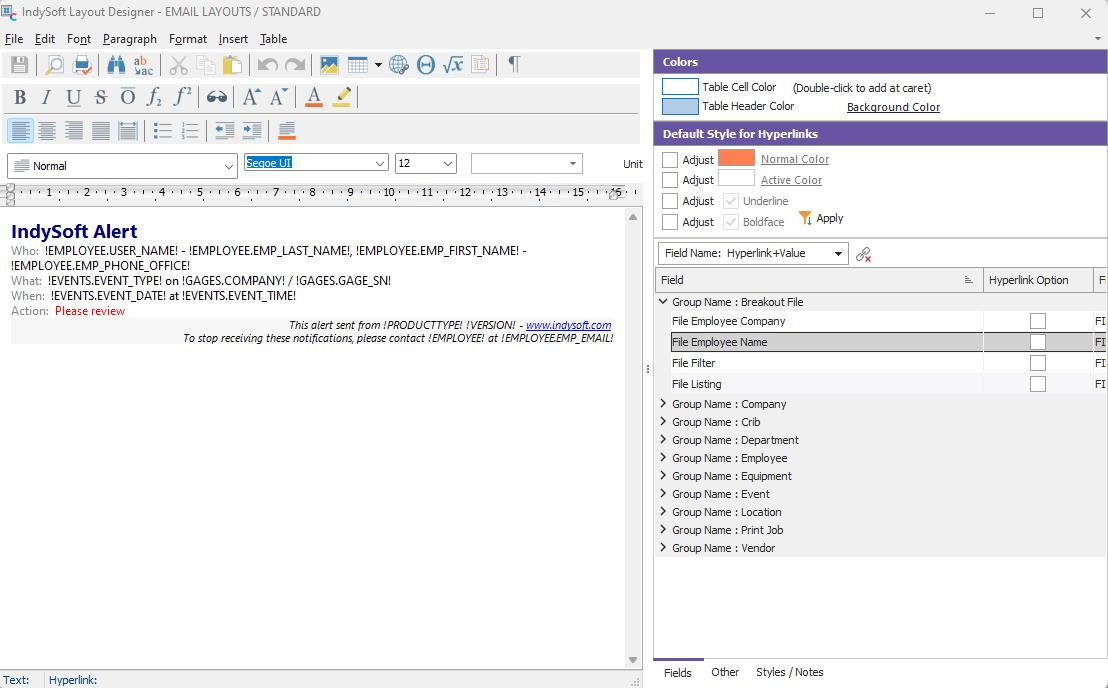
Example Email Layout
 Email Layout Design Tips
·Use tables - these work well in HTML and easily align all information
·No crazy fonts; keep it simple. Pick fonts that users will have in their destination system, or else risk a substitution when the email is read (changing your layout)
·Not too busy. Complicated layouts and excessive text raise the odds that the recipient will skip reading your message.
·Use the Export to HTML Option in LayoutBuilder to test how the output will look in various browsers and email clients before moving to production.
·Don't get confused as SPAM - investigate any automatic filtering rules on your internal email system and follow any rules required to ensure your emails are always delivered. Test the delivery - don't assume. Please see the sections below for more details on this group.
E-Mail Layouts
Fields
ØBreakout File
ØCompany
ØCrib
ØDepartment
ØEmployee
ØEvent
ØLocation
ØPrint Job
ØVendor
Merge Items
ØCustom Labels
ØGeneral
ØLogin Scenario
ØProduct Details