Performing Events - Left Hand Panel Types
Left-Hand Panel Types
When displaying events, several options are available for the left-hand panel. These include showing employees, IndySoft or custom logos, or a navigation panel to quickly jump from one step of an event to the next.

Show Left Panel - Example
When this format is selected within the Work Flow Configuration Wizard - Event Steps, the Employee field can be input from the left-hand panel in the events screen, regardless of the current step selected in the wizard. If the selected Employee has an image associated from the Add/Edit Employees Wizard (see the Employee Listing section for more details), then this image will also be displayed. Note: this Employee field could be placed in the 'Event Information' step instead of on the left-hand panel. Also, if this event is an 'Employee Transfer Event,' then two employees (along with their images) could be potentially displayed on the left-hand panel. See the Work Flow Configuration - Miscellaneous section for more details.
For each Employee selected, in addition to the displayed image, three edit boxes are provided below the image that automatically shows the Full Name, Title, and Department. When using the Employee as the left-hand panel, the panel's width can be modified by clicking and dragging the vertical line to the right of the panel.
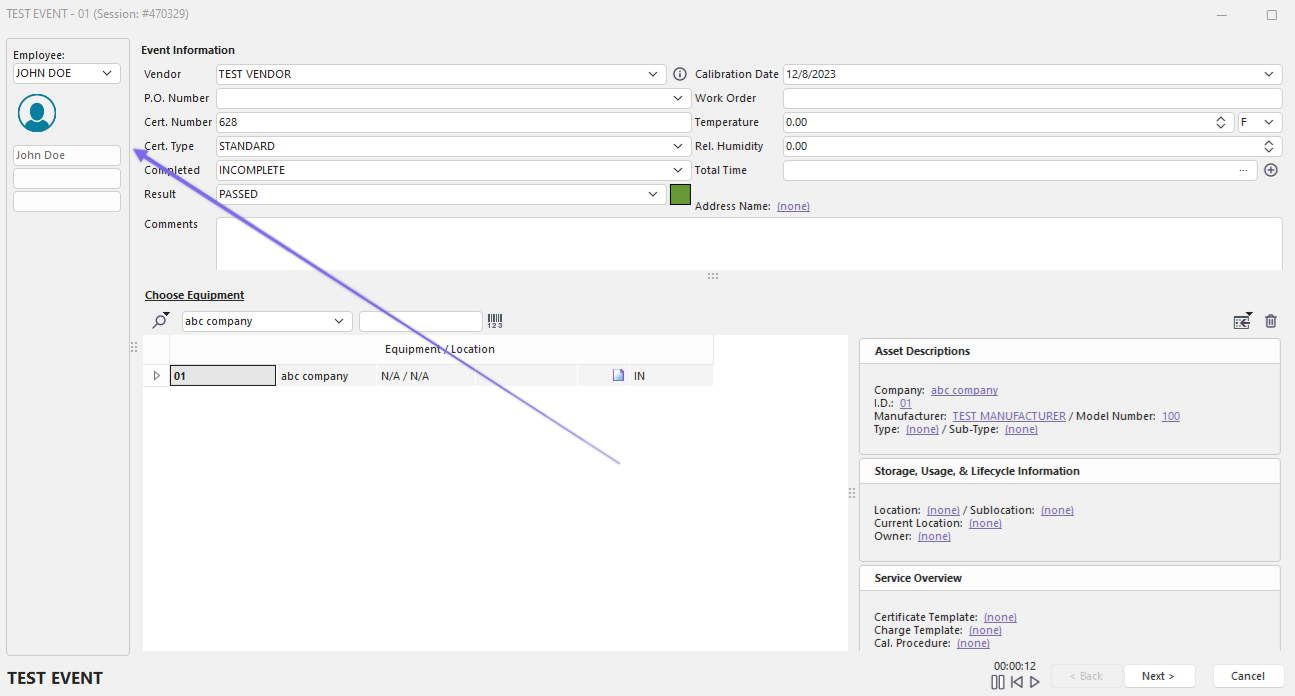
Left-Hand Panel - Employee, With Image
A second option for the left-hand panel allows for a simple display of the IndySoft logo on the Left Hand Panel. Thanks for the free advertising - notice the logo sizes nicely across various screen heights. When using the IndySoft logo, the left-hand panel cannot be resized to a different width. Notice that the 'Employee' field is now in the Event Information section but is not required.
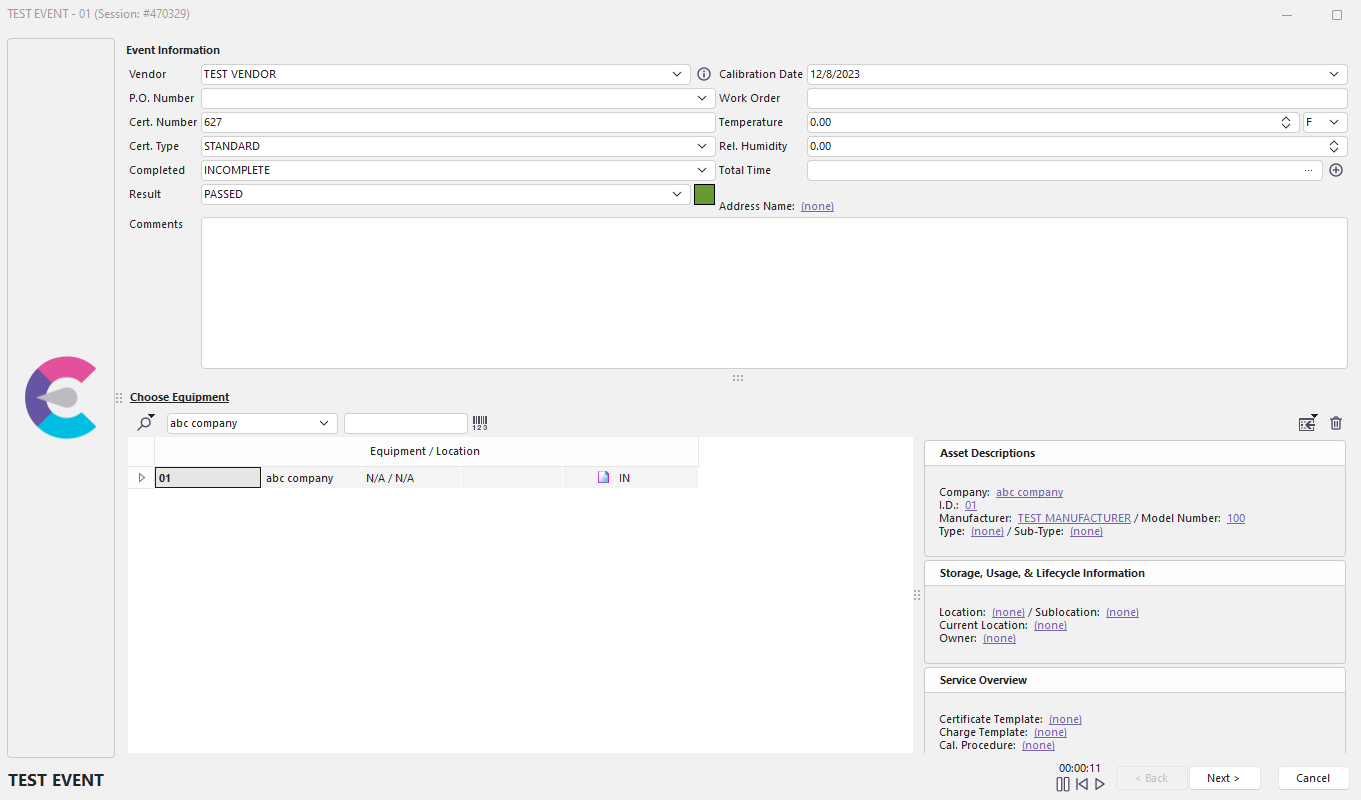
Left-Hand Panel - IndySoft Logo
A third option for the left-hand panel is to insert a custom logo instead of the IndySoft Logo. The logo must be a jpeg image. When this left panel type is used, the left panel's width can be resized by clicking and dragging on the resizing bar to the right of the left panel. The image will resize when the left-hand panel's width increases, or the form's height increases.
Select the custom logo jpeg image in Work Flow Configuration Wizard - Event Steps:
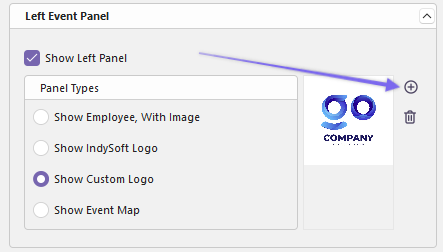
Left-Panel Type - Add Custom Logo
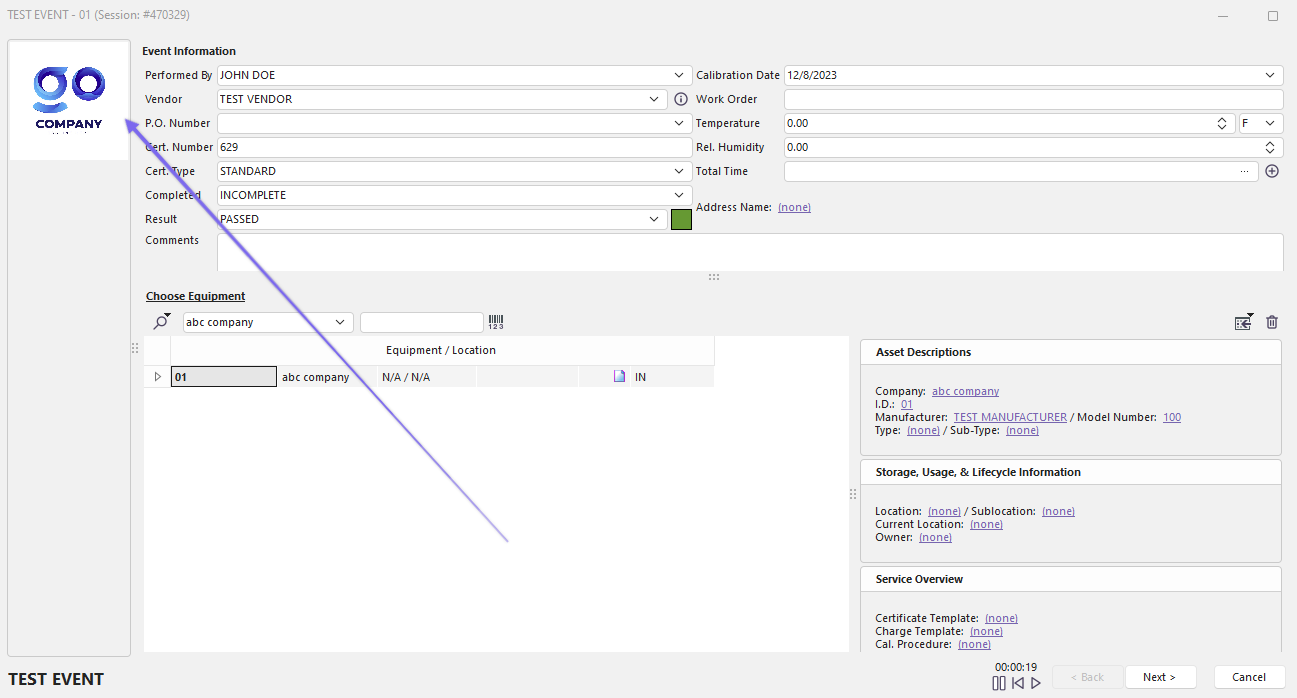
Left-Hand Panel - Custom Logo
A final option for the left-hand panel is to show an Event Map. This event map lists all the available/necessary event steps, shown in their order, from top to bottom. Users can click on any event step on the map and immediately go to that step. The event steps will change to blue as the mouse is flown over the steps. This Event Map is beneficial when there are multiple event steps, and constantly pressing 'Next/Back' is not preferred, or for quickly returning to a step if some information needs to be added later.
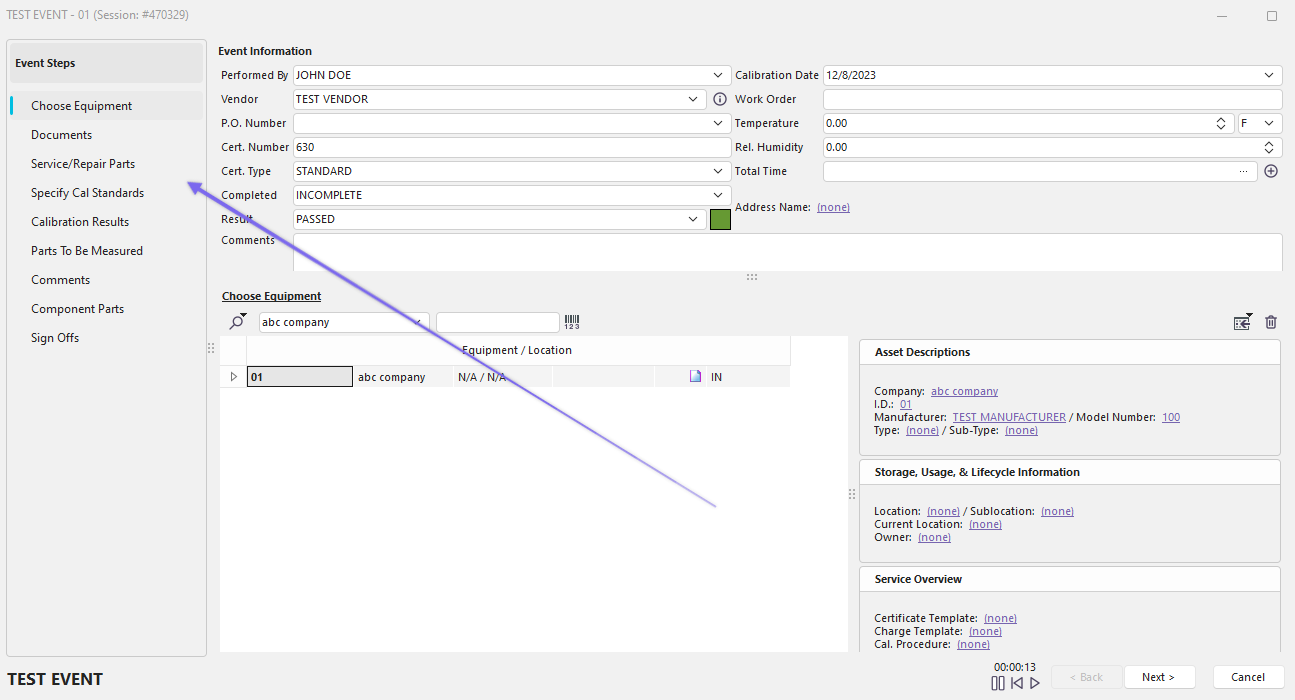
Left-Hand Panel - Event Map |