Order System Estimate Review and Contract Review
As a System Administrator, in 14.2, you can enable the Beta Order System Contract Review option in the Order System Preferences. The 2 requirements for enabling this feature are:
Other concepts that are generally required/recommended are the:Taxonomy Tree for Storing Referential pricing and capabilities, Service Levels, and Service Sites.
Estimate and Contract Review Options provide Lab Managers an interface to Review Work Orders and Estimates for the purposes of: confirming pricing for related services and equipment, confirmation that the performing body (Vendor/Branch) for the described work does not have any reported capability loss, finding and updating the key business service descriptors (Vendor/Branch, Service Site, and Service Level), and allowing managers to find other Vendor/Branches who are reporting that they can perform the service for that equipment. Contract Reviews are related to the Work Orders and Estimate Review to Estimates.
After enabling the contract review interface in Order System Preferences, users with proper permissions can clearly see the Estimate Review from the "Estimate Work" tab of Estimates and the Contract Review from the "Scheduled Work Portion of Work Orders.
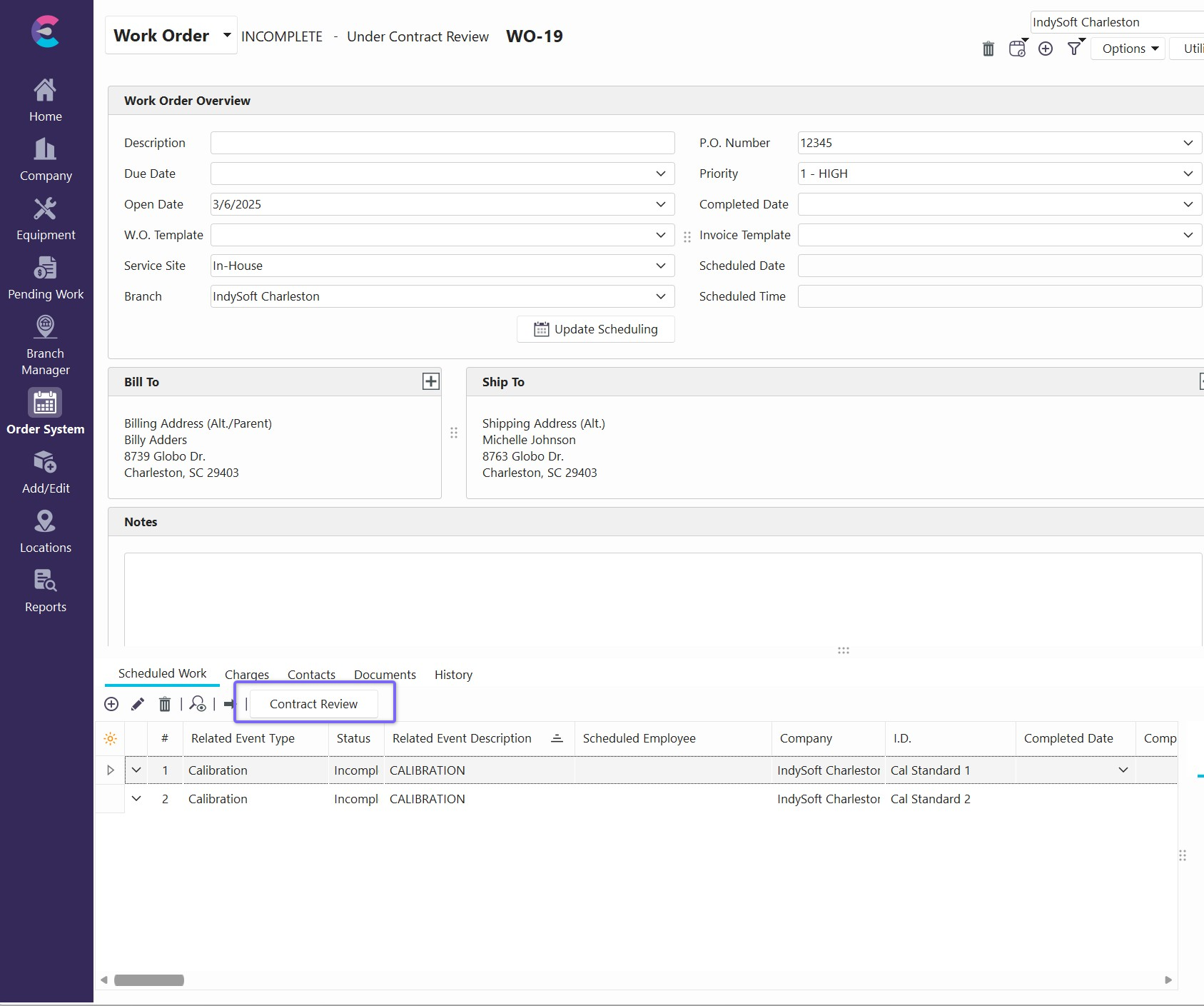
Upon Pressing the contract review button, a screen will open showing all of the Scheduled (or Estimated) Work from the Order. Exposed will be key fields in the grid. On the left you can see Non-Editable fields and on the right, you will see the editable fields which are the key descriptors for the Work to be performed: Vendor, Service Level, and Service Site along with Priority and Review Status.
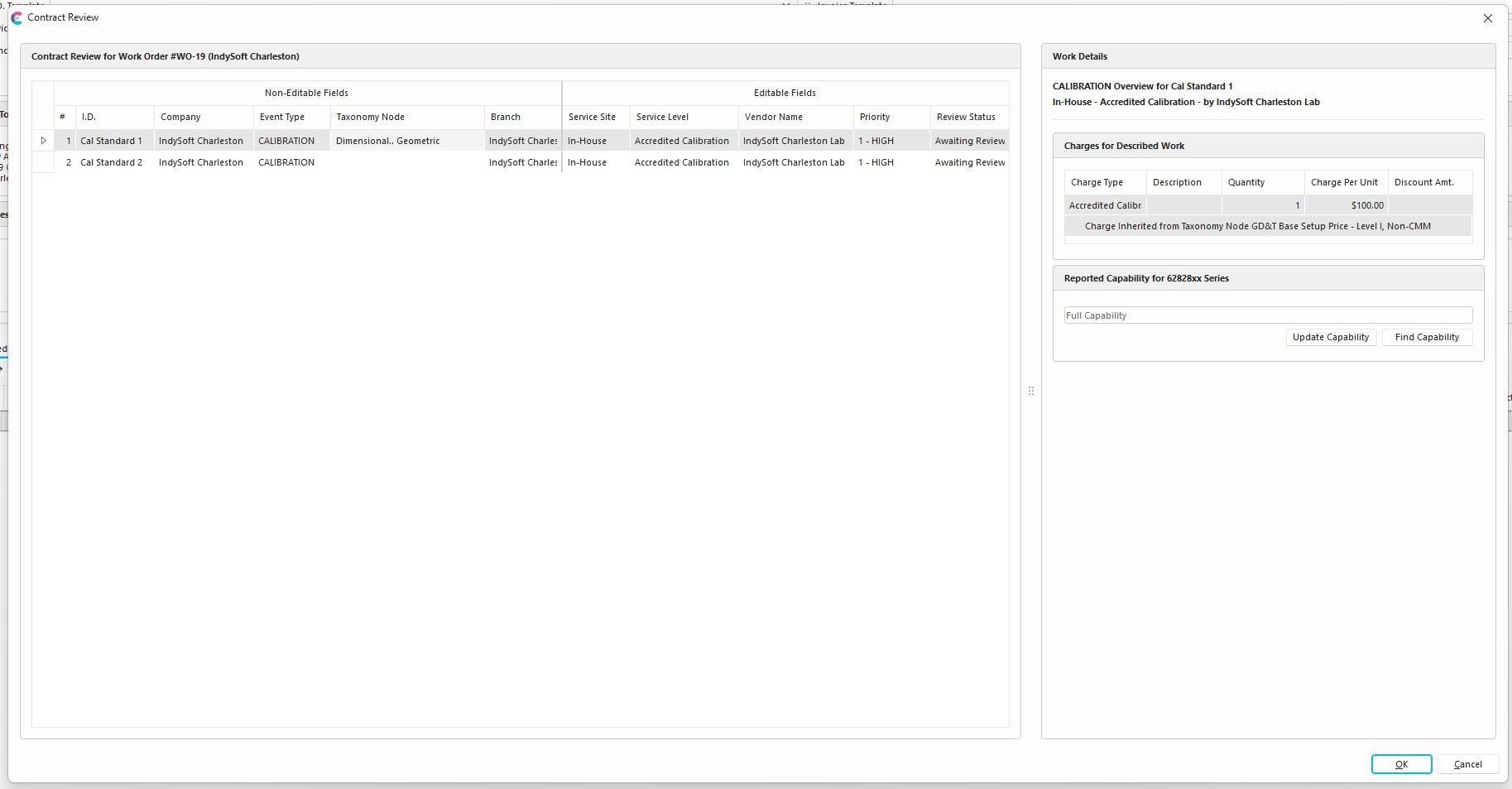
As a convenience, any fields in the Order Detail (or Line-Item) which are key to the business logic are defaulted in a logical and consistent manner from the Equipment and Main Order Form (Header). These are defaulted upon opening the contract review interface or upon opening the Scheduled/Estimated Work.
Service Site will be inherited from the Work Order or Estimate Header Service Site field if not specified for the Line-Item. Service Site describes if the work will be performed "On-Site" or "In-House" and can have implications to pricing, capability, and calibration procedures which make it a critical service descriptor.
Note that "In-House" and "On-Site" cannot be removed from the list of Service Sites and have inherent functionality. Additional values can be added or removed but will not have the same functionality.
Service Level will be inherited from the Equipment "Service Level" field for work described for a known asset. If the equipment field is blank, then this field will need to be specified in order to look up capability or taxonomy specific features. Note that Service Levels are Charge types which are explicitly flagged as Service Levels in the Add/Edit interface.
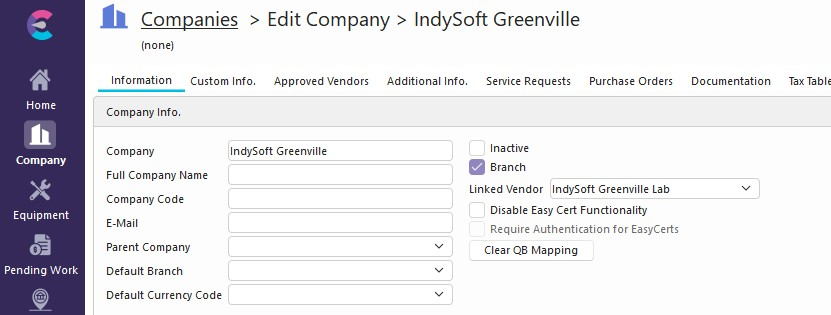
Vendor Name is inherited in work orders and estimates via the related "Branch" field from the Main Form or Header. This inheritance is dependent upon the described Branch being linked to a System-Wide Vendor from the related Company Tab or Add/Edit Entry. In this case, the Branch would be "IndySoft Greenville" and the Vendor would be the "IndySoft Greenville Lab." This association is what drives the Vendor/Branch functionality. If the Order Header does not have a Branch field, then the Vendor will be inherited from the Customer's Default Branch or from the Branch specified in the user's Vendor or User Location Settings.
The Vendor/Branch link also provides a unique functionality in the Contract/Estimate review. Updating the Vendor to a Vendor/Branch will also update the "Branch" field at the line-item level. This can be observed real-time when making that change to the Vendor field. If the Vendor is updated to an external vendor (Vendor who is not linked to a Branch), then the Branch field will update to the inherited branch from the work order header.
Priority can also be stored per line-item starting in version 14.2.
Review Status is a new concept in 14.2 and, by default, has two options: "Awaiting Review" and "Ready." Additional statuses can be created separately in the Add/Edit System for Estimates and Work Orders.
Work Details (Right-hand Panel)
The Work Details section allows the user to look up critical information for the Estimate or Contract review. The two primary lookups are Charges (which can be displayed as "Charges for Described Work" or "Applied Charges") and "Reported Capability."
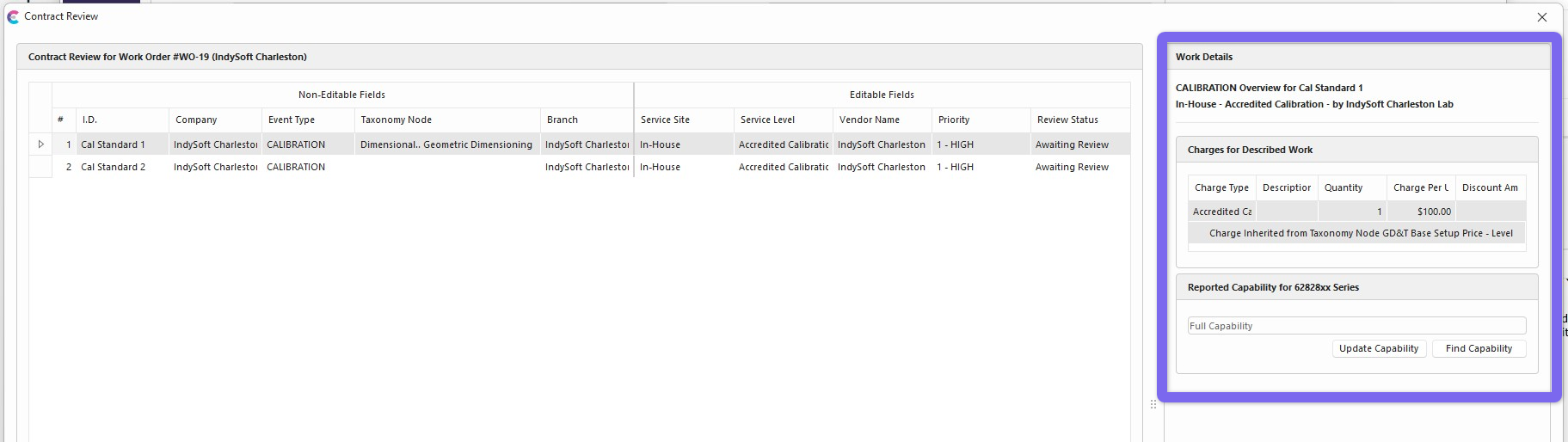
Charges for Described Work show what the overall cost of the described work would be if it were performed as described. It mimics the behavior for how charges will be pulled into a given Event. In general, from the Contract Review in a Work Order, the pricing would be pulled from Service Agreements, Estimates, Equipment (Included Templates and Charge Templates), and then from the Taxonomy. Estimate Review behaves in a similar way but does not include other Estimates.
Applied Charges show the Total Charges that were actually applied and associated with the described/selected line item. If the Applied Charge is populated, then the Described Work Charge is hidden. Applied charges would only show in the contract review once the actual work was completed. They would show in the Estimate Review as part of the Review Process. The Estimate Review Process provides the ability to look up charges and apply them from the Applied Charges section, whereas the Work Order Contract review does not.
Reported Capability can only be utilized if the Taxonomy is known for a given Line-Item. Users with proper permissions for that particular Vendor/Branch can update the Capability in a similar way to doing so in the Taxonomy. The user with permissions will see the specified Vendor's capability and be able to either add a capability, remove a capability, or edit the capability. If a capability loss is known, then the Reported Capability section will show not only the reported capability but also the Loss Reasons and restoration date, if any.
Users can change the capability directly in the interface. Changes to the capability will apply to the Taxonomy Node where it was inherited from.
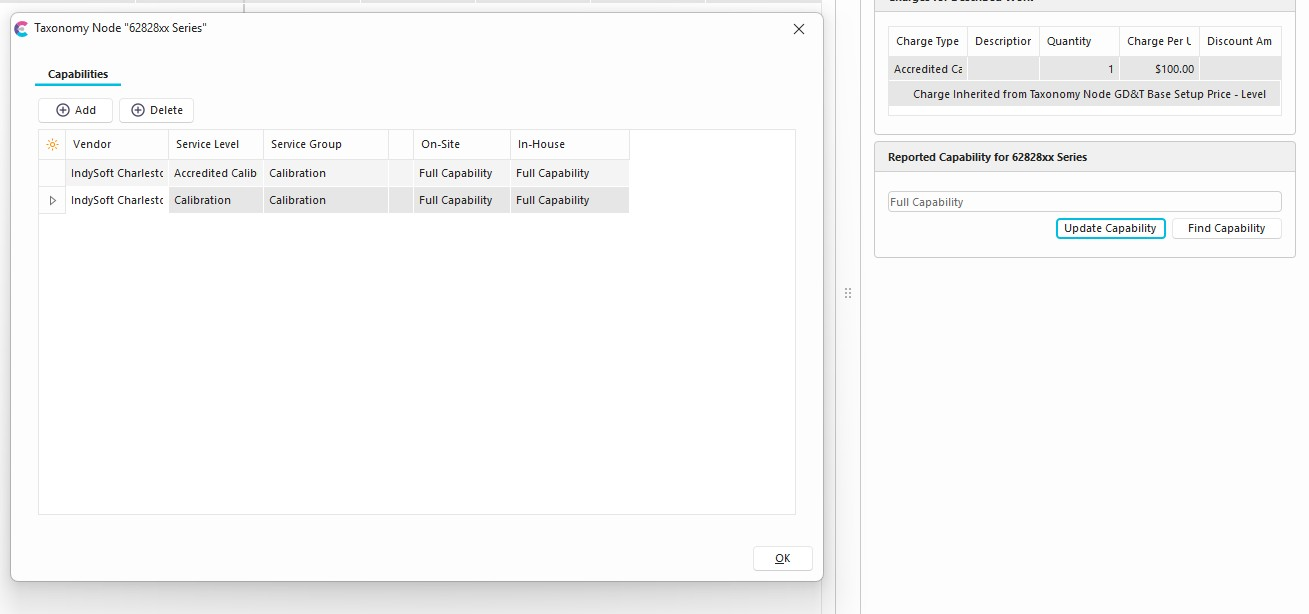
Capability Loss in the right-hand panel.
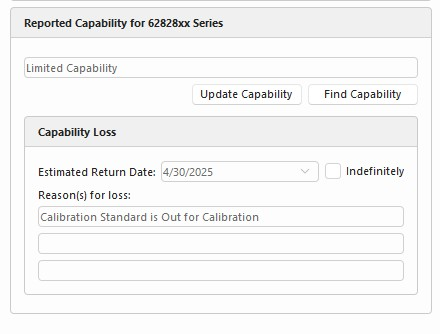
If the Find Capability option is used, then the user will be able to see other Vendor/Branches in their system which have reported Capability of the "Full Capability" Capability Group in the top of section. The bottom section will show all Vendor/Branches who have "Partial" or "No Capability" Capability Group along with the expected restoration of Full Capability. Double clicking on a Vendor will update the Vendor/Branch for that Line Item and can then be seen in appropriate contexts from the Pending Work and or Branch Manager Tabs.
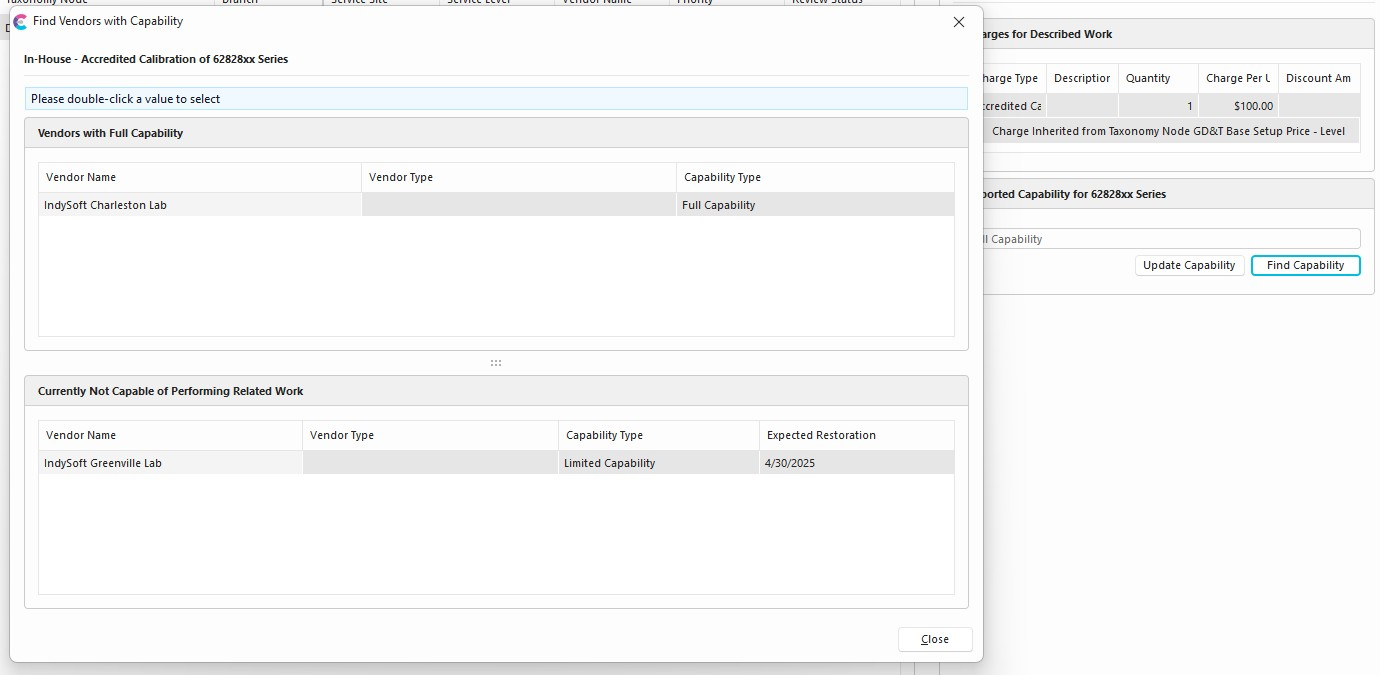
Other Considerations
When Contract Review is enabled, selecting a Line-Item from the Estimated or Scheduled work will show the new Service Fields Section. Here users can specify the Taxonomy Node without knowing the asset for the purposes of serving as placeholders for Capability and Pricing Lookups.
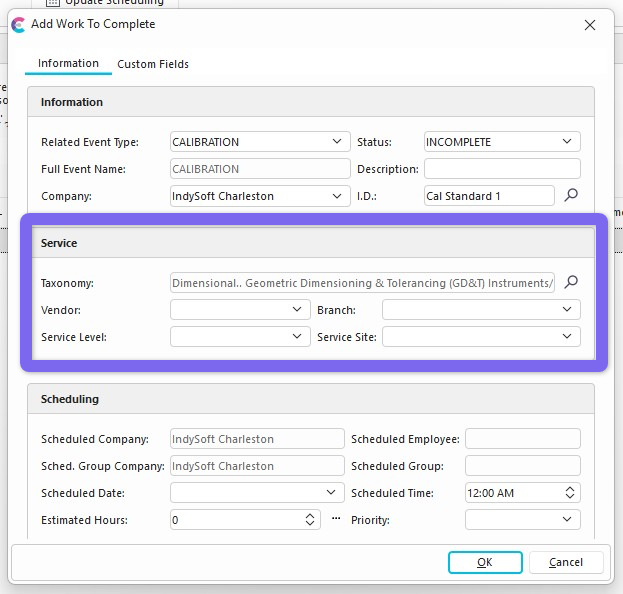
When double clicking on an Estimated Work Line-Item, the User can also see related pricing and add charges related to the Estimated Work. This same option is available in the Total Described charges in the Estimate Review Process.
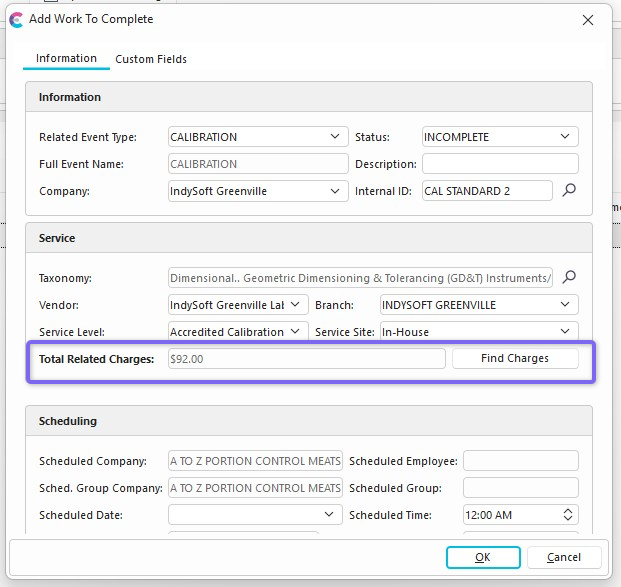
Upon pressing Find Charges, the user will be taken to a screen where they can see the possible charges to be added and the proposed charge to be added to the work.
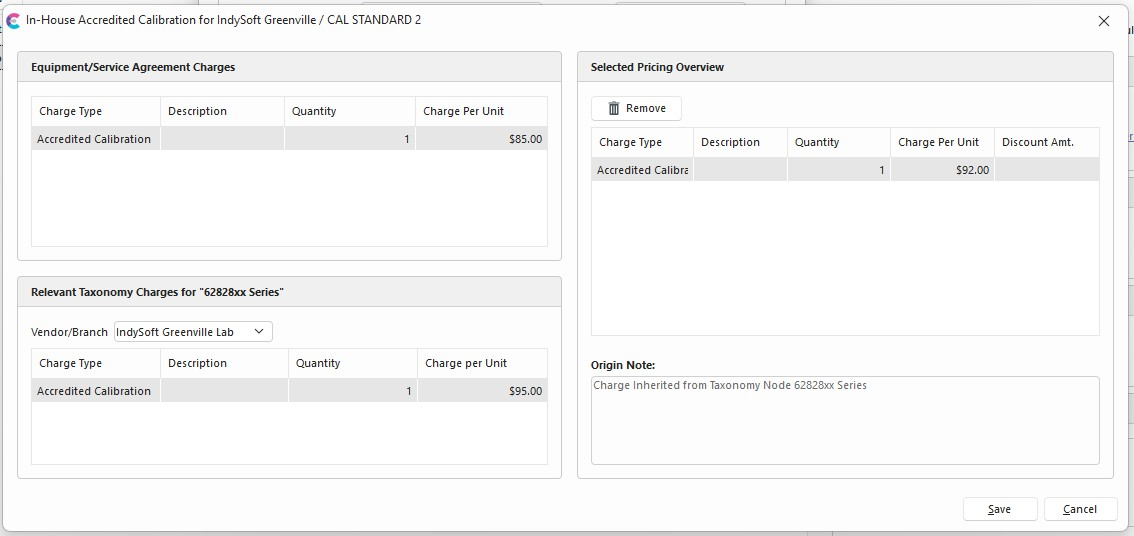
Equipment/Service Agreement Charges are on the upper left side of the view and come from the Service Agreement or Equipment Level.
Relevant Taxonomy Charges are on the lower left side of the view and only appear if all fields in the "Service" section of the pending work are filled out and that a relevant charge exists.
Selected Pricing Overview represents the charges associated with this line-item on the estimate. Upon opening this form, if no charge is associated with the Estimated Work, then IndySoft will automatically populate the most specific charges as long as it finds one in the right-hand side. The most specific charges will default from: 1. If a matching charge is not linked, but already exists on the Estimate, 2. From the Equipment/Service Agreement Charges, and 3, From the Relevant Taxonomy Charges.
The Origin Note will describe where the charge selected on the right side came from. Removing a charge from the Selected Pricing Overview will actually delete a charge from the related Estimate if it actually exists. Any other charge additions will only be saved to the Estimate upon pressing "Save" in the interface.