Running IndySoft Without an Install
How to Create a Network Instance of IndySoft
When IndySoft is distributed across many computers, the 3-tier platform provides a straightforward deployment model. As well as being installed using the familiar Windows-based installation programs, IndySoft can also be run directly from a network drive with no workstation-specific requirements necessary. To do so, there are a few steps you must first take.
1. Choose the workstation on which you want to install the standard 3-Tier thin client installation. Ensure that all users utilizing the network instance of IndySoft will have read access to this drive. Install the 3-Tier client and specify during the installation the computer name or IP Address of your Application Server.
2. Once installed, start your IndySoft Database Settings (look in your program folders for IndySoft for this icon). The following screen will appear.
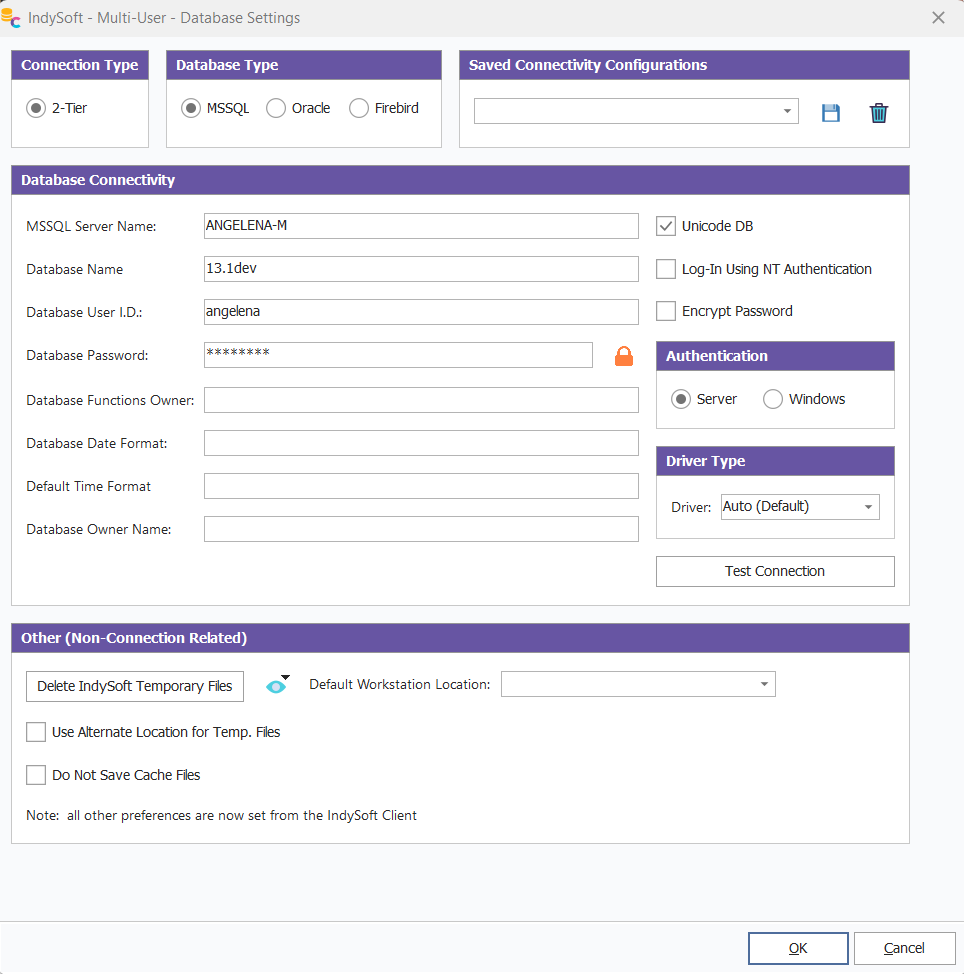
Database Settings
3. Press the "Test Connection" button to ensure you can connect to the IndySoft application server. When you are sure that the connection has been established successfully, you are now ready to set up the IP address and port # for all workstations utilizing the network instance of IndySoft.
4. From the bottom of the Database Settings dialog, press the 'Goto IndySoft Directories' button, then confirm that the 'Goto IndySoft Documents Directory' has '(Currently In Use)' to the right of the menu item. If the 'Goto Installation Directory' has '(Currently In Use)' noted, then the next step is unnecessary. Use the menu option to go to the IndySoft Documents Directory—close Database Settings dialog.
5. From the IndySoft Documents directory, locate 'CONNECTIONSETTINGS.INI'. Copy this INI file to the IndySoft installation directory on any workstation where you want to enforce the same connectivity settings.
6. The last step in this process is to point any workstation to the file named ISDASHBOARD.EXE in the directory where you installed IndySoft. For example, if a user had their F: drive mapped to the IndySoft directory on a server, you would create a shortcut icon pointing to F:\isdashboard.exe.
Note: Once the ConnectionSettings.INI file has been created, you can no longer modify your application server name or port from within the Database Settings dialog. Instead, you will see a screen that looks like the following.
To edit the application server name, you must either delete the connectionsettings.ini file or edit the ini file directly. The ConnectionSettings.INI file looks like the following:
[CONNECTIONSETTINGS]
SERVERNAME=192.168.1.80
PORT=9000
HOURDIFF=0
DBOWNER =
SERVERNAME - specifies the IP Address or Server Name.
PORT - specifies the Port #
HOURDIFF - specifies the hour difference between the server and your workstation
DBOWNER - specifies the option owner name for the IndySoft tables. This is only required if your table requests require an owner name to be specified. |