Add/Edit Lists - General Interface
Add/Edit lists represent the drop-down lists available on the IndySoft main screen and events wizards. These lists are keyed according to Company/Library (unless marked as 'System-Wide'). When selecting items from a drop-down list in IndySoft, you choose from Add/Edit items specific to your current Company. Default companies can be set up to allow for the selection of items from a common company, regardless of the company specification of the selected equipment. See User/Location Settings - Default Companies for more information.
All Add/Edit lists in IndySoft are accessible and editable from the Add/Edit tab (with proper permissions). The add/edit lists have a standard interface for adding, editing, and viewing items. We will use the Employees Add/Edit as an example:

Basic Add/Edit Screen Layout
The add/edit screen has two primary sections: a toolbar on top for adding/editing/removing/filtering records and a grid below that lists all filtered list records. Records are generally filtered only from the 'Company' drop-down above the grid. This drop-down box constrains the records returned to the grid to correspond only to items belonging to the selected Company. Specific add/edit lists feature an extra drop-down menu that allows for the restriction of data based on a primary 'master' field. An example would be the 'Model Number' add/edit, which includes a 'Manufacturer' drop-down box to the right of the Company for constraining the Model Numbers to only one Manufacturer. These are required filters.
Grid Options
The add/edit grid can be further filtered by using the small black arrow available to the right of each field header in the grid. When this black arrow is selected, you are given options for filtering the grid records according to the data in the selected field: As an example, we will choose a 'Custom' filter for the 'Employee' field (drop-down menu in each field):

Custom Filter
When 'Custom' is selected, you can establish one or two specific filters for the chosen field. Let's filter so we only see alphabetical conditions that contain 'A':

Custom Filter Dialog
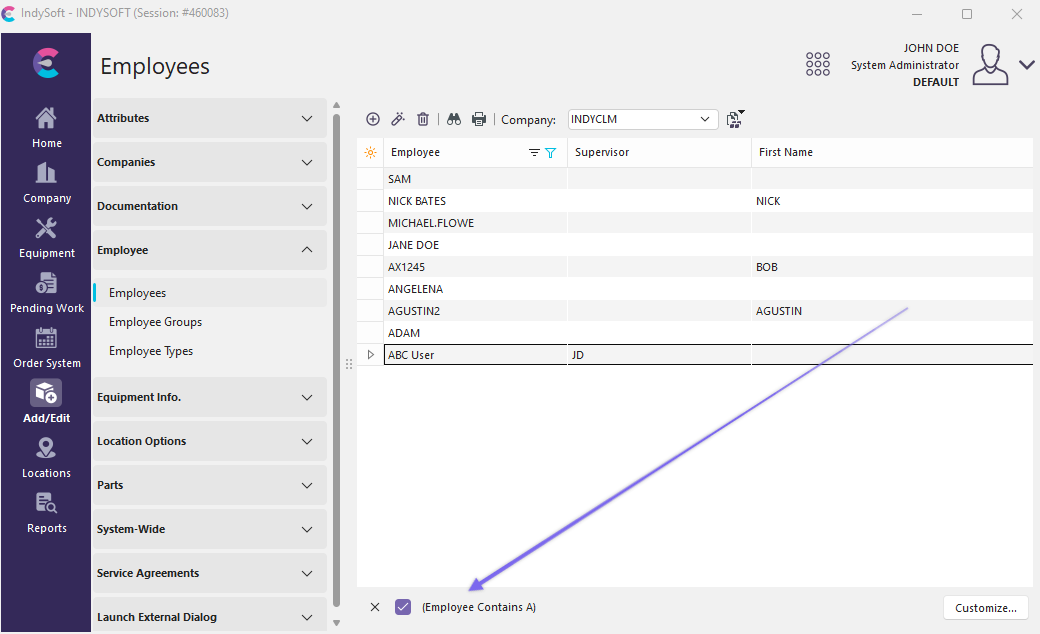
As a result of this 'Custom' filter on 'Employee,' we limit the grid records as shown below. Notice the custom filter condition is listed in the lower-left corner of the grid.
 ../Storage/indysoft-help-publication/bw_clip0186.png
Custom Filter Reminder / Remove
To remove the custom filter condition, click on the X in the lower left-hand corner of the grid. If you right-mouse click inside the add/edit grid, the following options are available:

Add/Edit Right-Mouse Click Options
Show Group Panel
This option will create a dark gray space above the first record in the add/edit grid. You can then highlight field headers in the grid and drag/drop them into this dark gray space. This operation will create a grouping based on the selected field. Multiple fields can be grouped at once. When the grid result set is grouped, the records will organize in an outline tree, with each tree node corresponding to a unique item in the grouped field.
 ../Storage/indysoft-help-publication/bw_clip0185.png
Field Grouping Example
Customize Fields
This option will pop up a small floating window. You can then drag/drop fields from the add/edit grid into the floating window (to remove them visually from the grid) and vice versa. The look and feel of the add/edit grid (the number of fields, their relative positions, and sizes) is always saved per add/edit type, workstation, and user. The positioning of fields can also be modified by dragging/dropping field headers before/after other field headers. Note **:**The field header section can be expanded to take up more than 1 row. See the example below for the 'Customize Fields' dialog and a multiple-row header.
 ../Storage/indysoft-help-publication/bw_clip0184.png
Customize Fields Example
Save Grid to an Excel File
With this option, you can save the entire contents of the add/edit grid to an Excel (xls) file for later use. You will first be prompted for directory location and filename. See Save Grid To An Excel File for more details.
Save Grid to an HTML File
With this option, you can save the entire contents of the add/edit grid to an HTML file for later use. You will first be prompted for directory location and filename.
Toolbar Options
As many as six buttons are available on the top of the add/edit dialog:
 New Item (Insert)
Press this button to add a new add/edit to the current list. A popup dialog will appear with appropriate detail fields for the current list. When you have entered the new record, press the 'OK' button to commit the records to the database or press the 'Cancel' button to exit the operation.
 View Item(s) (Return)
Press this button to edit the currently selected item. It is possible with the add/edit grid to select multiple records at once. When multiple records are selected, and the 'View Item' button is pressed, the key field (s) will be grayed out in the popup dialog since the detail item settings in the popup dialog will need to be applied to more than one record (the key field(s) must stay unique).
 Delete Item(s) (Delete)
Use this option to delete a record from the add/edit list quickly. You can select multiple items in the grid (highlight a record, then highlight a second row while pressing the Shift key on your computer keyboard).
 Find Item (Ctrl+F)
This popup dialog allows for the entry of a set of search characters. When 'OK' is pressed, the characters entered in the 'Search By These Characters...' dialog will be used to perform an incremental search within the current grid result set. The closest possible item will be selected.
 Print Grid (Ctrl+P)
This option will pop up in the IndySoft Print Preview Window. See Print Grid (Preview) for more details.
 Copying lists from Company to Company
This option will allow you to copy lists from Company to Company. You can merge these lists with other companies or replace the lists of another company. Pressing the button will make the following menu item appear.

Merge or Replace Selection
Merging - Choosing this option will take a list and merge it with an existing one. This is useful when you don't want to destroy an already created list. Instead, this will append the current list to the one already built.
Replacing - This option will either replace an existing list (or create a new one when one doesn't exist). |