Database Connectivity - 3-Tier Clients
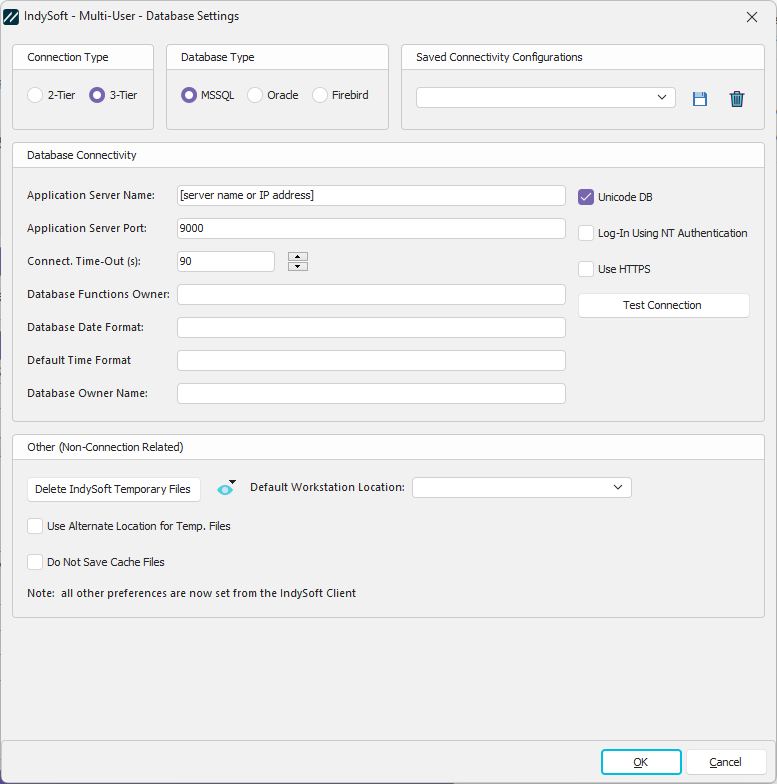
Database Settings - Database Connectivity - 3-Tier Clients
Database Connectivity
Note that the options are the same for all 3 Database Types: MSSQL, Oracle, and Firebird. The IndySoft 3-Tier Server controls the connectivity to the database. These are simply settings to connect back to the application server (connected to the database).
Application Server Name - enter the computer name or IP address of the computer running the IndySoft Application Server.
Application Server Port - enter the port number that should be used for communication with the IndySoft Application Server. This port should also be set up within the Application Server settings.
Hour Difference From DB Server - if your client installation is running in a different time zone than the database server (not necessarily the application server computer), then you should enter the hour difference here. This setting is essential for client caching to function correctly. This value should be left at zero if you are in the same time zone as the database server. If you are on the West Coast and the database is on the East Coast, you would be 3 hours behind and should enter -3 into this field. The hour difference should be a positive number if you are ahead of the database server location.
Use App. Server Data - turn on this checkbox only if your IndySoft Application Server is set up to run in compression mode. If this setting is inconsistent with the Application Server, you cannot log in to IndySoft.
3-Tier Communication Type - there are three options available:
·TCP/IP - This is the default (and suggested) connectivity between the client and the Application Server. Most networks are already set up for this protocol.
·HTTP Tunnel - In this mode, the client communicates with the IndySoft Application Server through a web server ISAPI dll. The web server is not necessarily the same computer running the application server. This mode is advisable when you need to get through a firewall. The web server can be run on Port 80, etc. When this mode is selected, you will see additional options for:
Internal App. Server: the IP address or computer name corresponding to the application server's location from the 'Application Server Name' computer. The 'Application Server Name' computer is the computer that is the web server - that you are tunneling through.
Internal Port Number: the port that can be used for the 'Application Server Name' computer to communicate to the 'Internal App. Server' computer. This must correspond to the port # the application server is already set up to use (in the Application Server Setup dialog).
Internal DLL Location: the subdirectory and dll filename that points to the 'AstaIOHttp.dll' on the web server. This is typically in the '\scripts' subdirectory of the web server.

If you want to test the connectivity based on the previously entered options, press the 'Test Connection' button. If your connection is successful, you will see a confirmation. If an error occurs, you will also be alerted.
Optional Database Options
Modifying these settings is typically unnecessary - please do not modify them unless instructed by your System Administrator.
Database Date Format - this field stores the default date format used by your database.
Database Time Format - this field stores the default time format used by your database. (This should almost always be the same as the default database date format)
Database Owner Name - this field stores a database owner name that will be prefixed onto any table name reference from within IndySoft. This field defaults to the standard default owner name.
Database Functions Owner - this field stores a database owner name that will be prefixed onto any function reference from within IndySoft. This field defaults to the standard default owner name. |