Parts
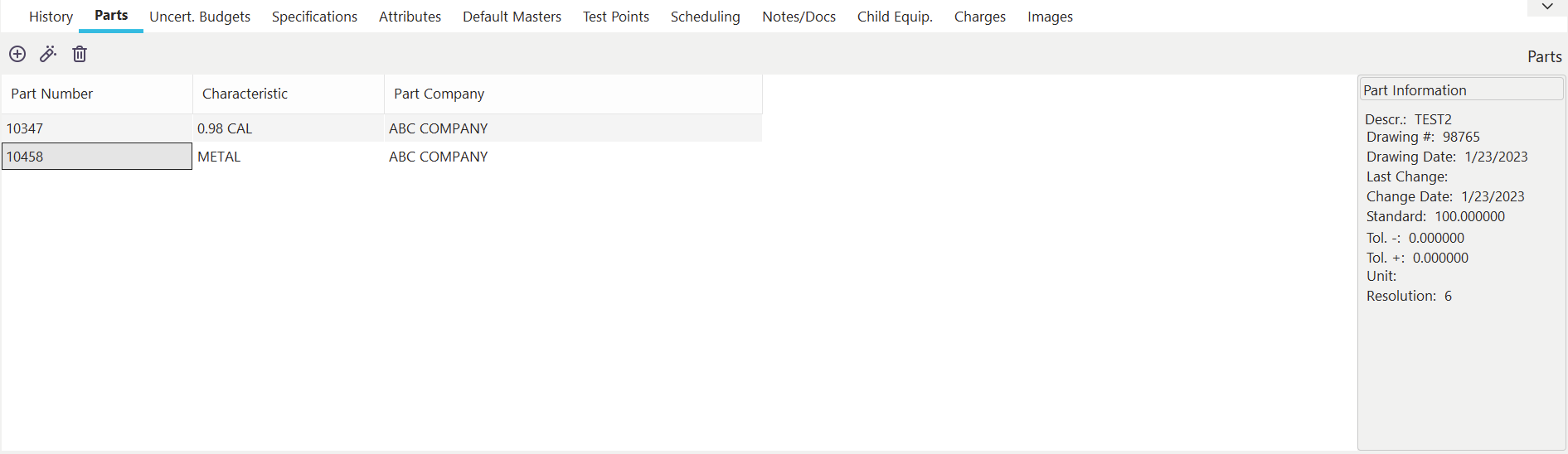
Parts Tab
Associating Parts with Equipment
The Parts tab allows you to specify default parts to be measured for the current equipment. The dialog below displays this tab.
 Add Parts To Be Measured
To add a new part to be measured, press the 'Add Part To Be Measured' button, and the following dialog will be displayed:
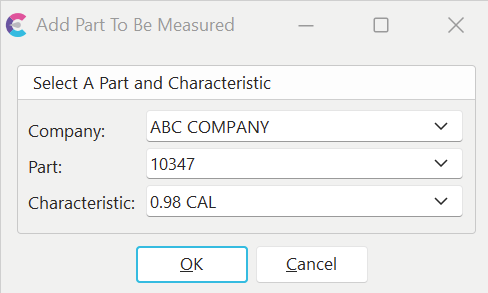
Adding a Part To Be Measured
Choose a Company, Part, and Characteristic. All three fields are required. Once you have selected your part and characteristic, press the OK button. Your entry will appear in the displayed grid.
Part Information
On the right-hand side of the screen, there is a panel that shows information about the currently selected part and characteristic. The dialog shows the part description, drawing number, drawing date, last change revision, last change revision date, the standard value of the characteristic, the plus and minus tolerances for the characteristic, the unit of measure used when measuring the part, and the resolution for the part tolerance. The panel is displayed below.
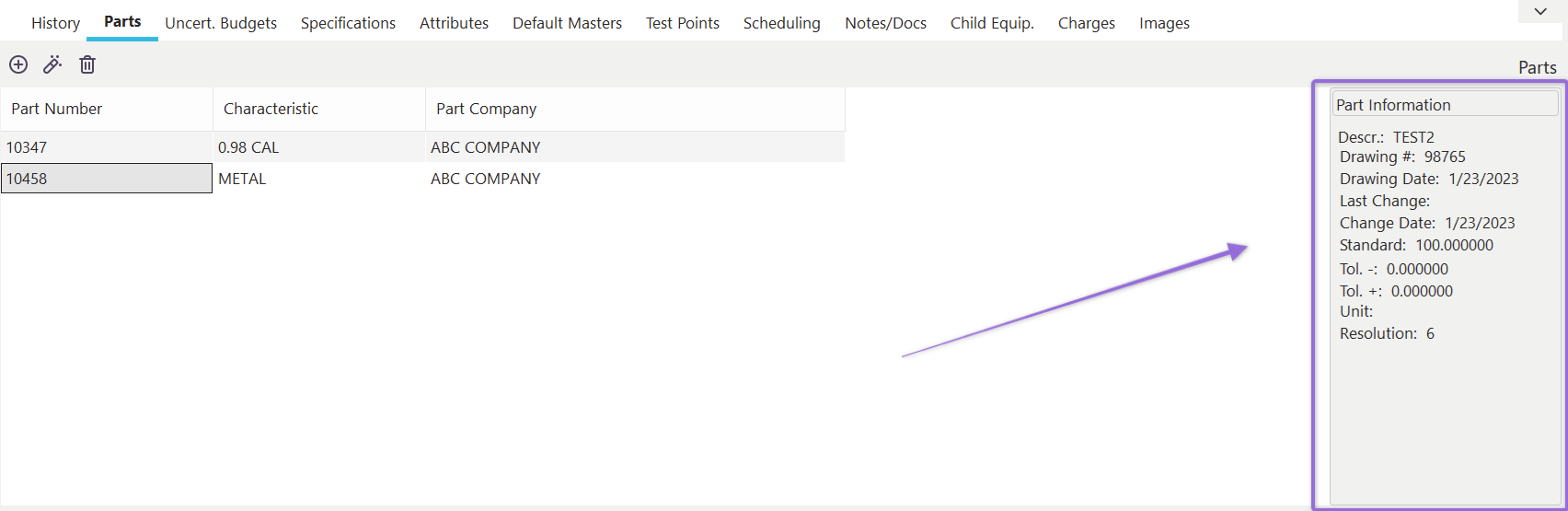
Part Information
 View Part Information
Press the 'View Part To Be Measured' button to view part information in detail. Pressing this button is equivalent to modifying the Manufactured Part record in the Add/Edit...Parts...Manufactured Parts wizard.
 Remove a Part To Be Measured
Press the 'Remove Part To Be Measured' button to remove a part to be measured. The deletion must be confirmed before proceeding.
How the Part To Be Measured Information is Used
Once part and characteristic information is selected for a piece of equipment, any event that collects part data will automatically be populated with these default parts and characteristics. For example, by default, IndySoft collects parts measured by equipment during a Check-Out event. Whenever you perform a Check-Out event, the default part data automatically defaults to the parts/characteristics specified in this tab. The following is an example of how a check-out would automatically default to the parts listed in the 'Parts To Be Measured' tab.
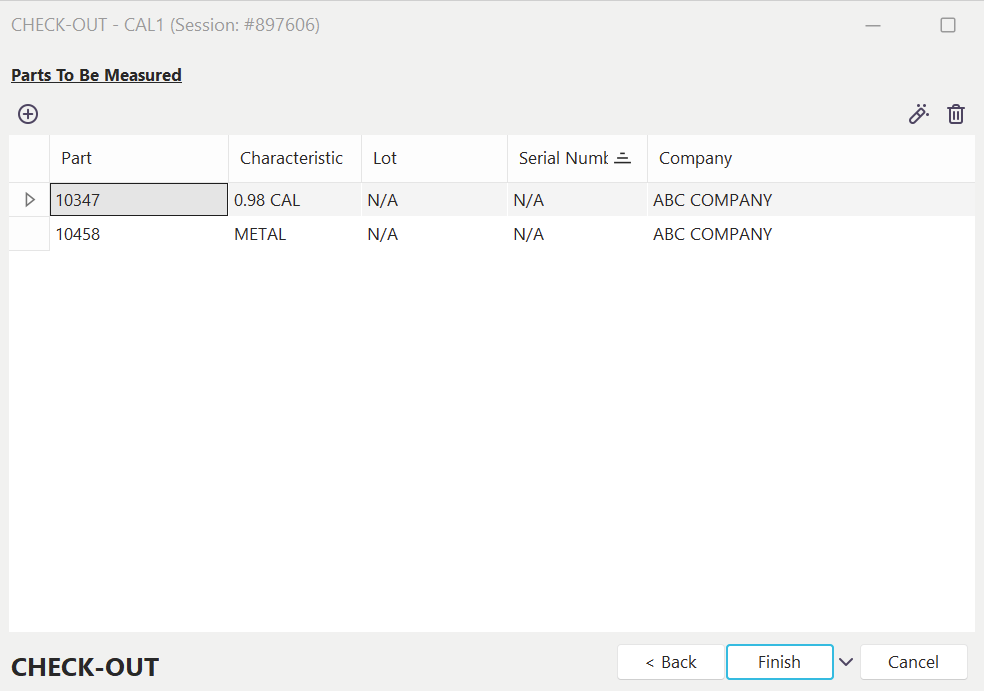
Parts Measured During Check-Out Example |