Advanced RS232
For some balances, getting the connection settings to work can be troublesome. To help with getting the settings right, the Advanced RS232 (see Update Layouts) has been created to replace the legacy TEST RS232. The various elements are described below:
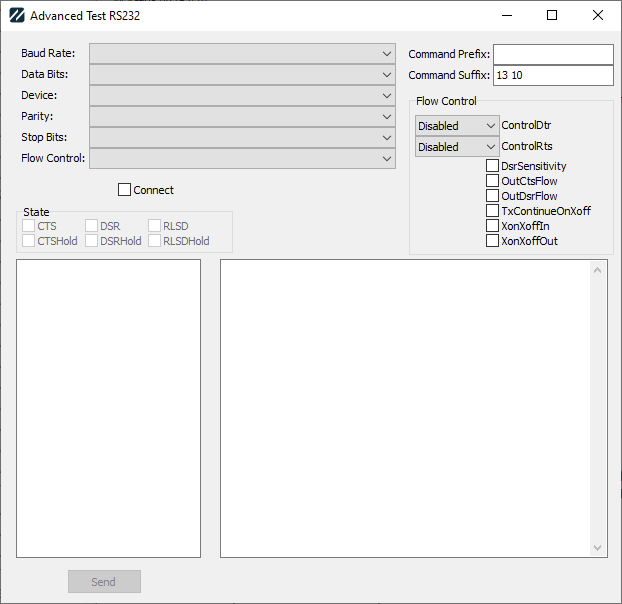
Baud Rate: this is the speed the RS 232 device communicates at.
Data Bits: this is the number of data bits used in communication. Options are 4, 5, 6, 7, or 8, with 7 and 8 being the most commonly used.
Device: this is the comm port to connect to, from COM1 to COM255.
Parity: this is the parity for communication. Options are None, Odd, Evn, Mark, or Space.
Stop Bits: this is the number of stop bits used. Options are 1, 2, or 15.
Flow Control: this controls how the device and computer will negotiate communication. When you make a choice in the dropdown, the individual properties for the communication will be indicated in the Flow Control box to the right.
Flow Control has three basic options, with various tweaks available as well:
None: This disables all controls, but does check DsrSensitivity.
Rts Cts/Hardware: This sets ControlRts to Handshake, checks OutCtsFlow, and checks DsrSensitivity
Xon Xoff/Software: This checks XonXoffIn and XonXoffOut, along with DsrSensitivity.
The tweaks are as follows. You can choose one of the above options along with any combination of the below three. "None" is replaced with the below:
Dtr Dsr: sets ControlDtr to Handshake, and checks OutDsrFlow
No Dsr Sens: unchecks DsrSensitivity
TxCon: checks TxContinueOnXoff
You can also play with the dropdown/checkbox options in Flow Control and ignore the Flow Control dropdown while attempting to determine the correct values.
Command Prefix: Some balances require a special prefix to indicate a command. Enter the decimal value for the ASCII characters to use as the prefix.
Command Suffix: Balances generally require a special character sequence to indicate the end of command. By default, this is CR LF (13 10). Enter the decimal values for the ASCII
Connect: Attempts to connect to the device. If successful, the State box will indicate the various pin states in the RS232 communication. This can be useful when debugging connections.
The left-hand memo is used to type in commands to send to the device (click Send to transmit).
The right-hand memo will list messages sent and received, including both the plain-text and hex values. Responses from the device may be split up into multiple messages. This is normal.