Add/Edit...Employee...Employee Groups
Creating Employee Groups
By creating Employee Groups, you can assign groups of employees to receive notifications that specifically affect them. Employee Groups are an essential part of IndySoft's e-mail routing system. An Employee Group will allow you to set up a group, give it a name, and assign Employees to that group. For example, you might want to be able to alert all Lab Managers when you receive a rush order from a customer. You can create a group of LAB MANAGERS and have Events automatically emailed.
To add to or manage the Employee Group, click the Add/Edit dashboard option and select Employee...Employee Groups from the drop-down menu.
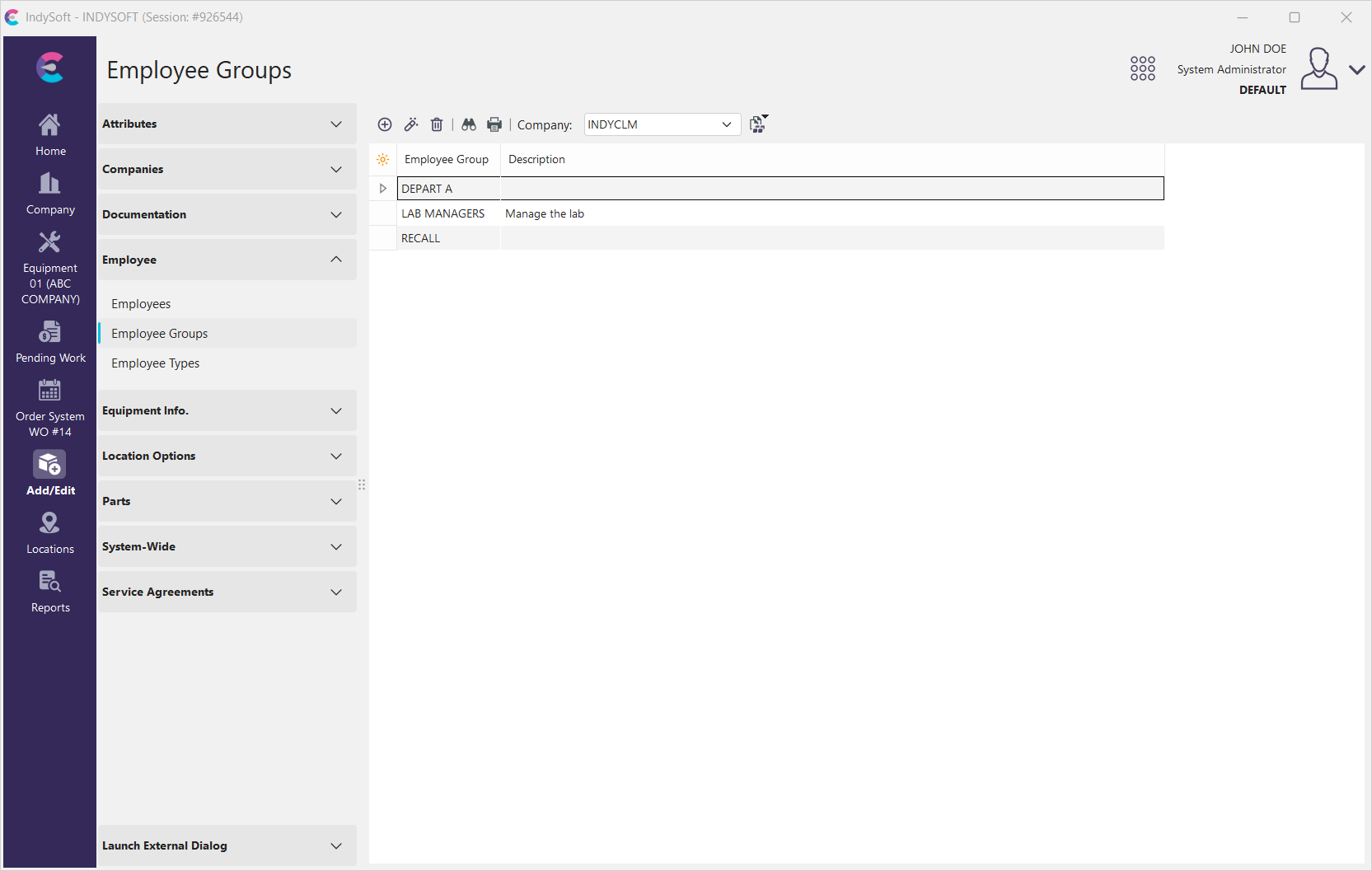
Add/Edit Employee Groups Dialog
Make sure to specify which company you're populating with Employee Groups. Click 'New'  to create a new Employee Group for that company.
Employees Tab
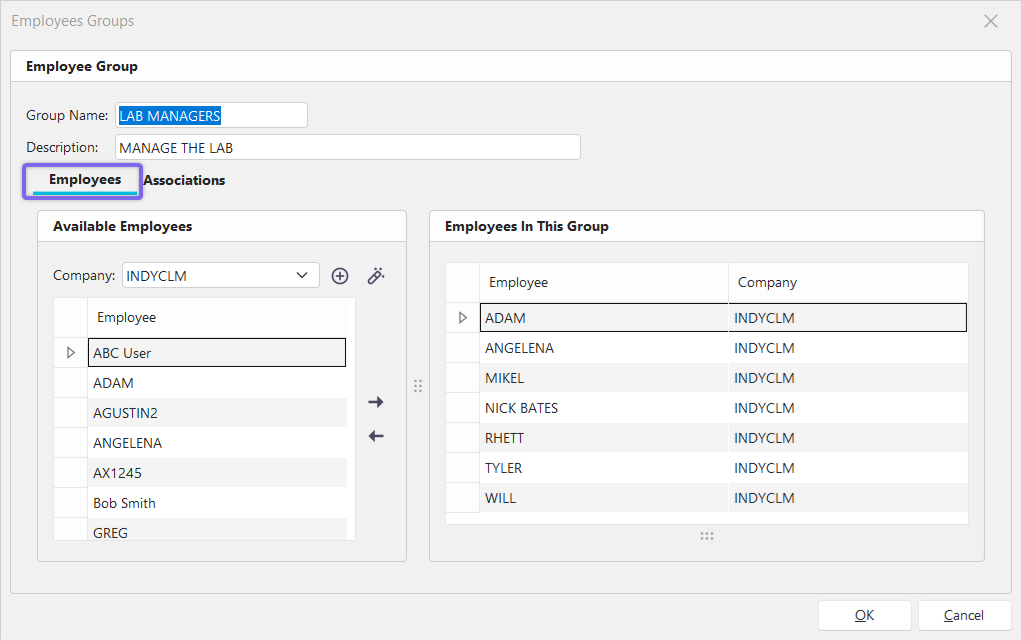
Add/Edit Employee Group Dialog
The screen is split into three parts.
1. Employee Group
Group Name - Name the Group you're creating. Limit of 15 characters.
Description - You can give a brief description of the Group. You are limited to 100 characters.
2. Available Employees
This section will show all the active employees per the company you've selected from the drop-down list.
3. Employees In This Group
This section will become populated when you single-click and highlight the employee from Available Employees Section and Click the  button to move them into the group you're creating. To remove the employee from that group, Click the
  button to remove them from the current Group you're making.
Associations Tab
The Associations tab is a significant time saver! Instead of compiling multiple employee email addresses every time you want to notify them of an event, you can associate the employees based on their Department, Crib, or Bin locations.
Group Name
Give the Group a name.
Description
Fill in a description of the Group you're creating.
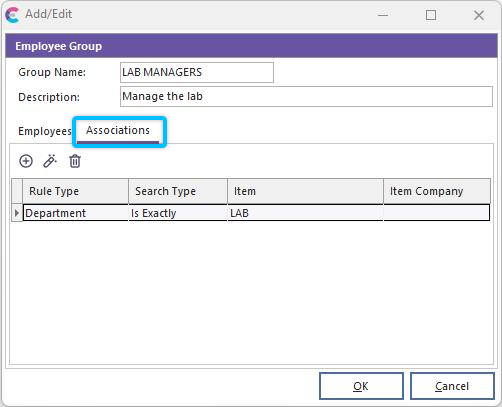
The Associations Tab from Employee Groups
Click 'New'  to create a new Employee Group Association.
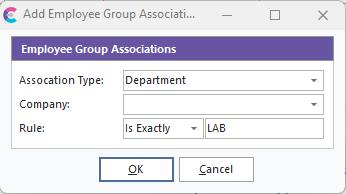
Add Employee Group Associations
Association Type
This is a subcategory of the Group, further filtering the notification based on location, department, or crib.
Company
Select the right company for this association.
Rule
The three choices: Is Exactly, Starts With, or Contains. Then enter the variable.
For more information, see Workflow Configuration...Report Rules.
 Productivity Tip
The Add/Edit Employee Groups dialog box can be filtered and customized in many ways. See General Interface for more information.
Buttons and Icons are detailed here.