Client Version Updates - File Based
Software Updates - File Server Based
Two methods exist for setting up an 'Auto-Software Update' system with IndySoft. This system will allow you to automatically distribute new software updates to your end users -- without requiring a new installation on every workstation. This method describes updating your clients via a standard file server (as opposed to a standard Web Server, detailed in the previous section). The following describes how to set up the update files on the server and the settings on each client workstation.
Setting Up The File Server
With your IndySoft installation CD, you will have 2 files available in your appropriate installation folder under a folder called AutoUpdate. The 2 files will be called IndySoft.cab and indyupdate.inf. These 2 files are needed in the update process. To use them in a file server situation, copy both files to a shared directory on your network that is accessible via UNC naming conventions. Write this UNC path down, as your workstations must point to this in the future.
Updating the .INF file
Next, you will need to edit the indyupdate.inf file to modify the [file1] setting. You will need to point file1 to the location of the IndySoft.cab file. i.e. url=\yourserver\resource\IndySoftUpdate\IndySoft.cab (note, this is usually the same location as the .inf file)
What the IndyUpdate.inf file contains:
[update]
newversion=9.0.40 <-- This is how IndySoft determines if it needs updating. It compares the version of isdashboard.exe to the specified latest version
localversion=isdashboard.exe
[action]
query=A new version of IndySoft was found. Update your workstation now? IMPORTANT: You must first close the IndySoft login screen before proceeding with the update.
[files]
count=1
[file1]
url=\yourserver\resource\IndySoftUpdate\IndySoft.CAB <-- The line you must edit to reflect your own network location of the .CAB file
compressed=1
Adding File Server Based Update Support For Each Client
Next, you must open the Auto-Update Settings dialog on each workstation and choose the 'Enable File Update' option as shown below. Next, you will need to specify the location of the indyupdate.inf file.
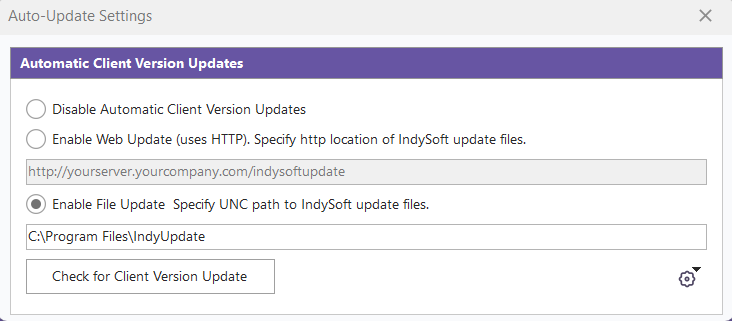
Automatic Update Dialog - File Based
Receiving the update
That's all there is to it. Every time a user logs into IndySoft, the software will check for a version update and let the end user know when this update needs to occur. The user will be notified of the installation progress during the upgrade. A standard 'Windows installation' is not performed, so no access rights need to be given (except to write to the hard drive).
Checking for Updates
Press the' Check for Updates' button to check and see if you have a software update. You will be notified if your software needs updating.
 Save Settings as Default (Admin. Only)
Use this button to save the desired settings as the default settings for new installations. This ability is only available to administrators. The following dialog will appear before saving:
 |
|