Work Orders
Work Orders
With CalRover, the Work Orders screen displays all orders that are assigned to the currently logged in technician. To perform a calibration, simply double click the appropriate Work Order number.
There are 4 columns displayed in the grid:
- Work Order #
- Description
- Due Date
- Status
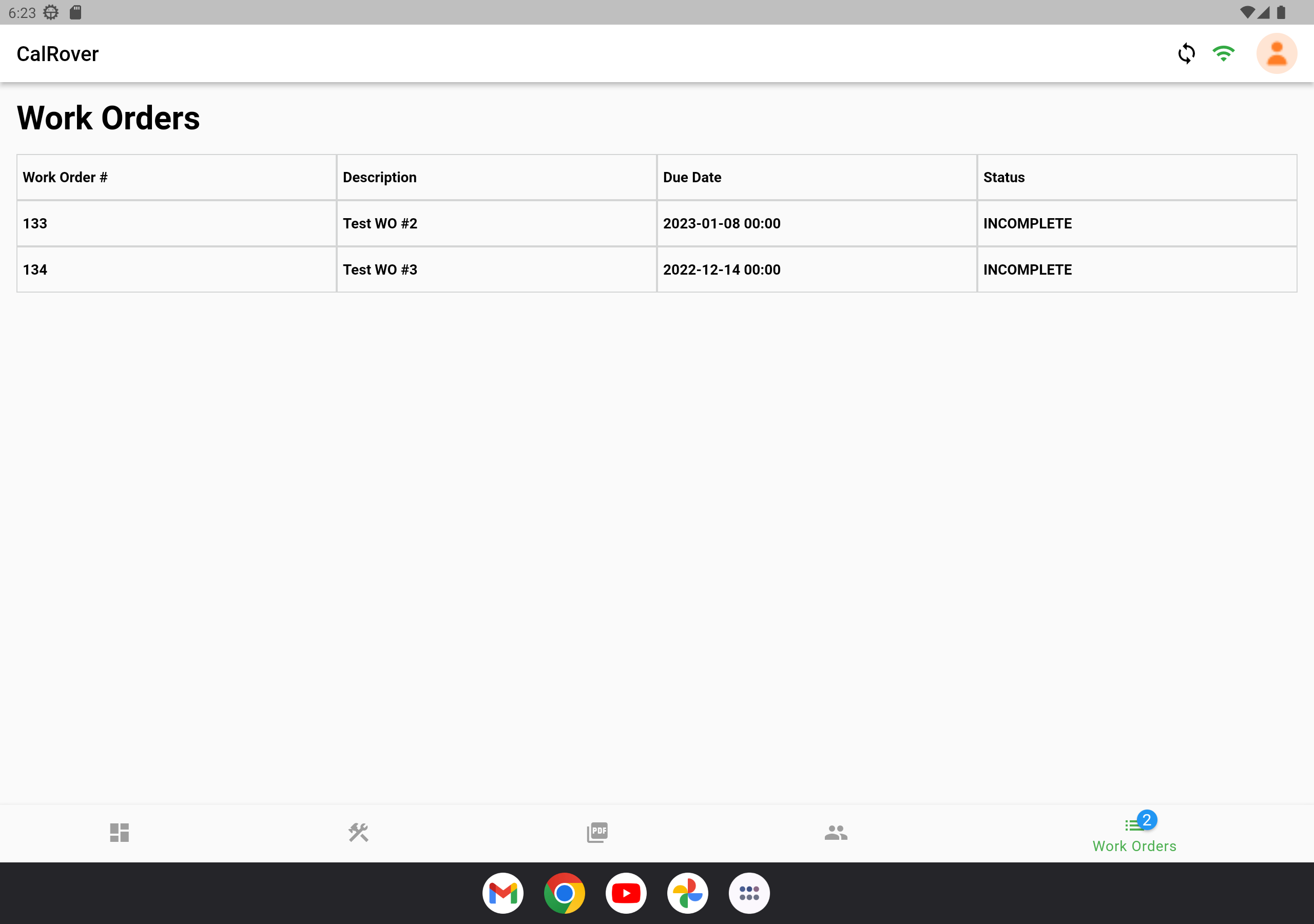
Work Orders Screen
Double clicking the appropriate order/job will present the following Work Order Details screen:
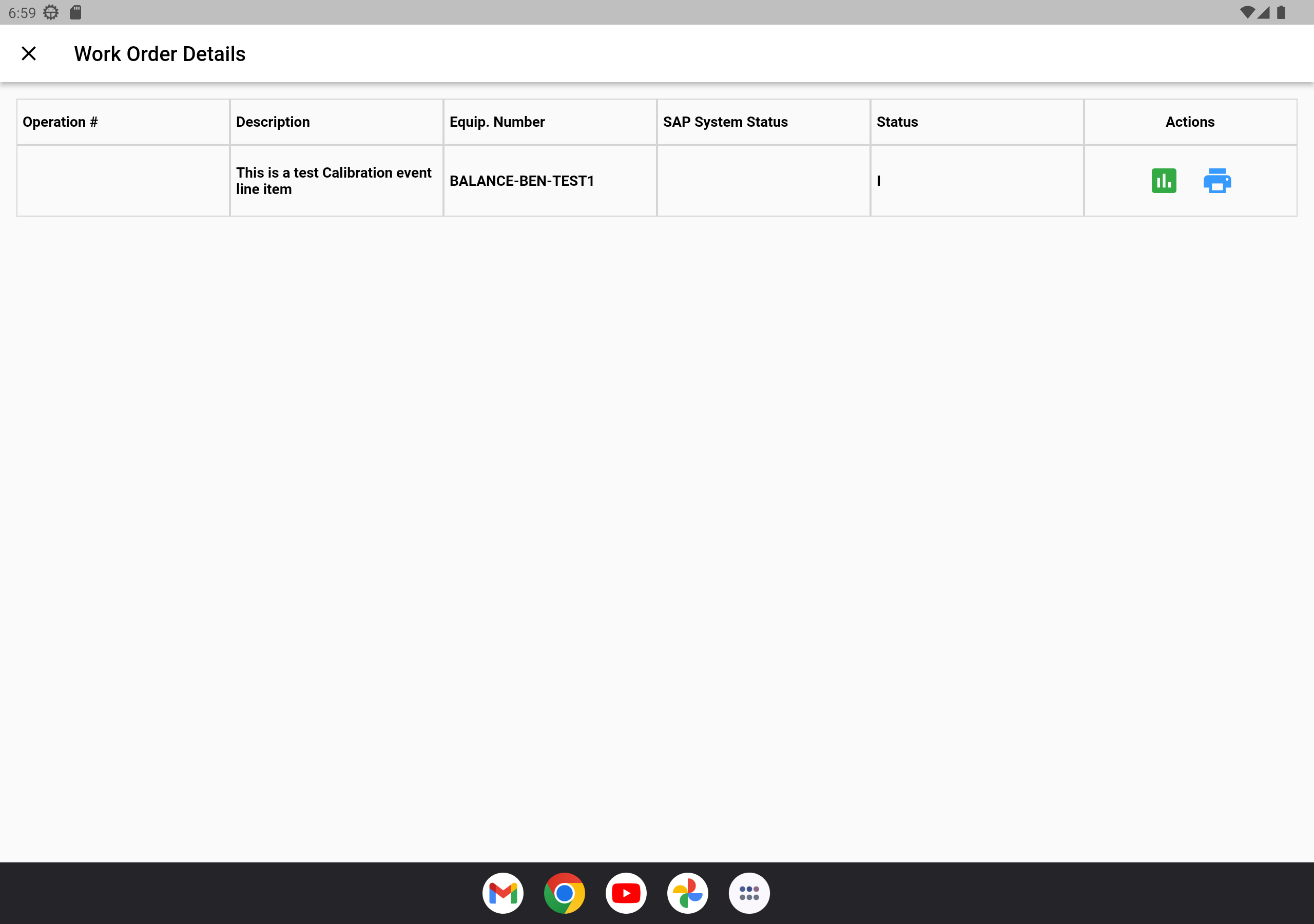
Work Order Details Screen
From here, you can perform 2 actions on the equipment listed:
- Calibration Data Collection (Run Calibration Event)
 2. Print Calibration Stickers
© IndySoft. All rights reserved. Send feedback on this topic to IndySoft.