Adding Equipment Information
To add a new piece of equipment, first, select the company you want to add the equipment to, then click the "Add New" icon 
located on the Equipment Layout.
Once you have selected "New" a New Equipment dialog will open.
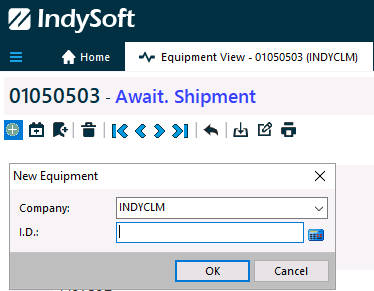
Enter the new I.D number for the piece of equipment (this acts as the unique identifier for each piece of equipment) and click "OK". The screen will clear and you can begin the process of entering a new piece of equipment.
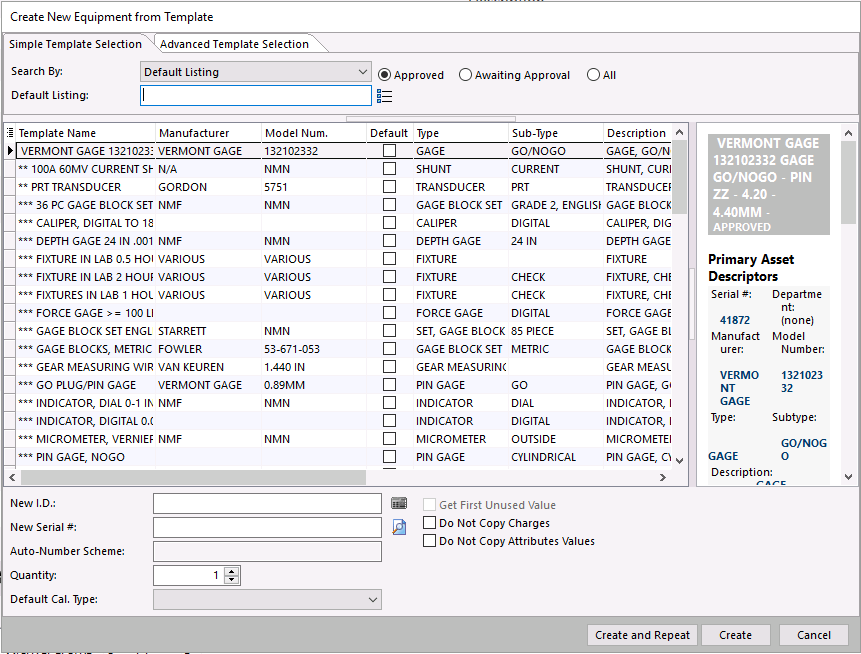
Adding equipment from "New Equipment Based on Template" can allow for faster information entry as well as improved uniformity of data. To add equipment from a template select the "New Equipment Based on Template" icon 
NOTE: Template editor will add directly to the company that is currently selected on the equipment view screen.
Search by allows for the selection of templates based on the following:
Default Listing - The Template name
Type/Sub-Type - The combination of the Type and Sub-Type fields
Manuf./Model Num. - The combination of the Manufacturer and Model Number
Templates can be displayed based on their approval status by changing the radio buttons to the right
If the equipment is added using the "Add New" icon the record will appear as below. If a template was used the fields with template links will be populated.
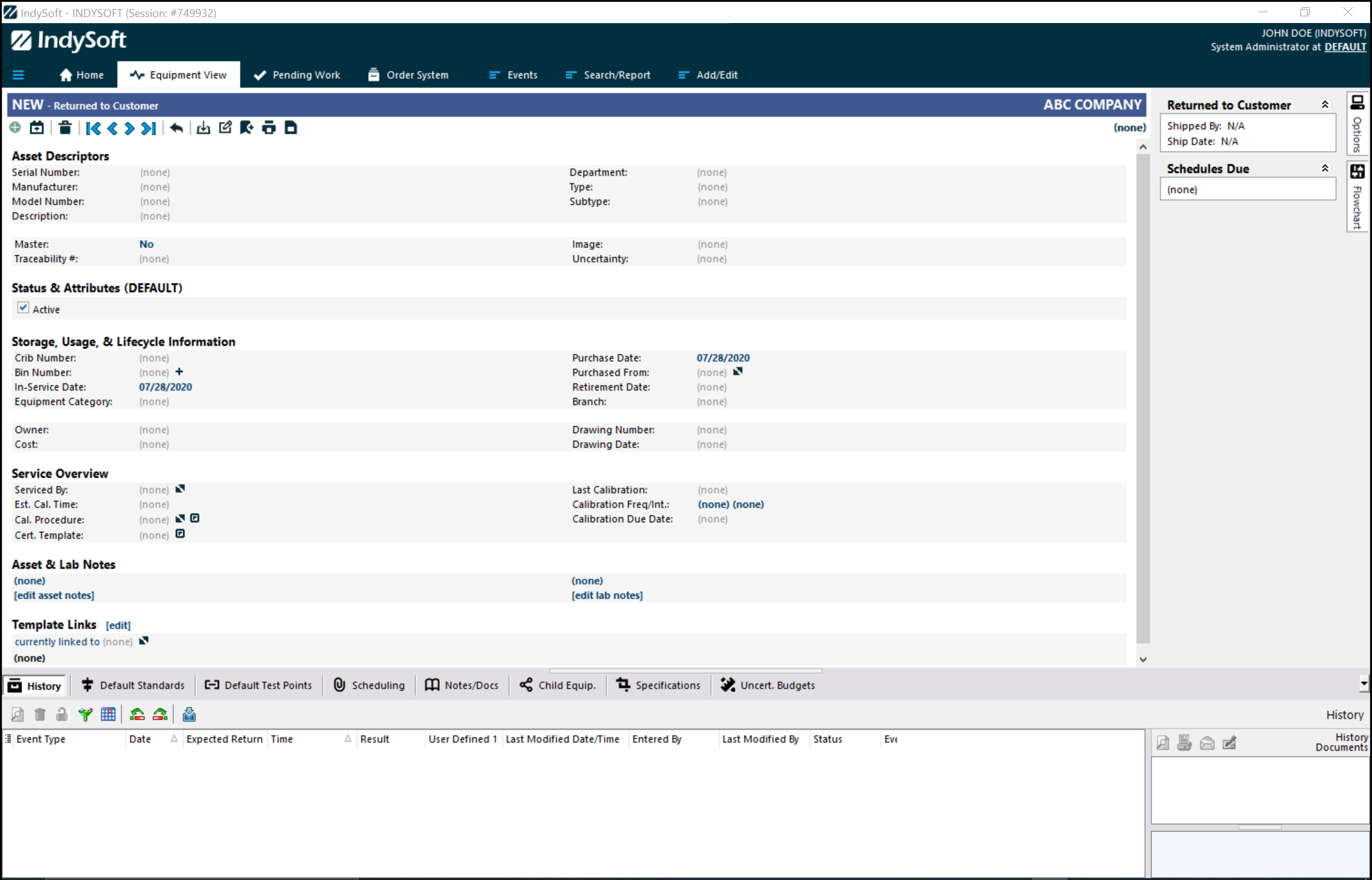
You can edit the information on the Equipment Layout by simply clicking on the "(none)" beside each piece of information.
NOTE: The Additional Info, and Calibration information tabs have now been conveniently placed on the Equipment Layout instead of being assessed through the Tabs. |