Client Application
In version 14, IndySoft has introduced the IndySoft Portal client application IndySoftPortal.exe -- this utility is included by default with our new installers. There are multiple uses for the IndySoft Portal application:
- Field Service - Creating/Accepting invitations
- Auto-Update functionality - applies to the client, WebTier Tools, and Print Server
- Accessing release notes across versions
- Accessing installers/downloads
From within the client, the portal application can be accessed from the main screen arrow dropdown:
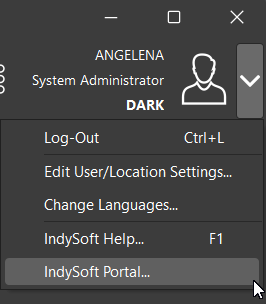
If you have access to the web portal portal.indysoft.com, then you will be able to log in with the same credentials to the IndySoft Portal application. Once logged in, the following dialog will display:
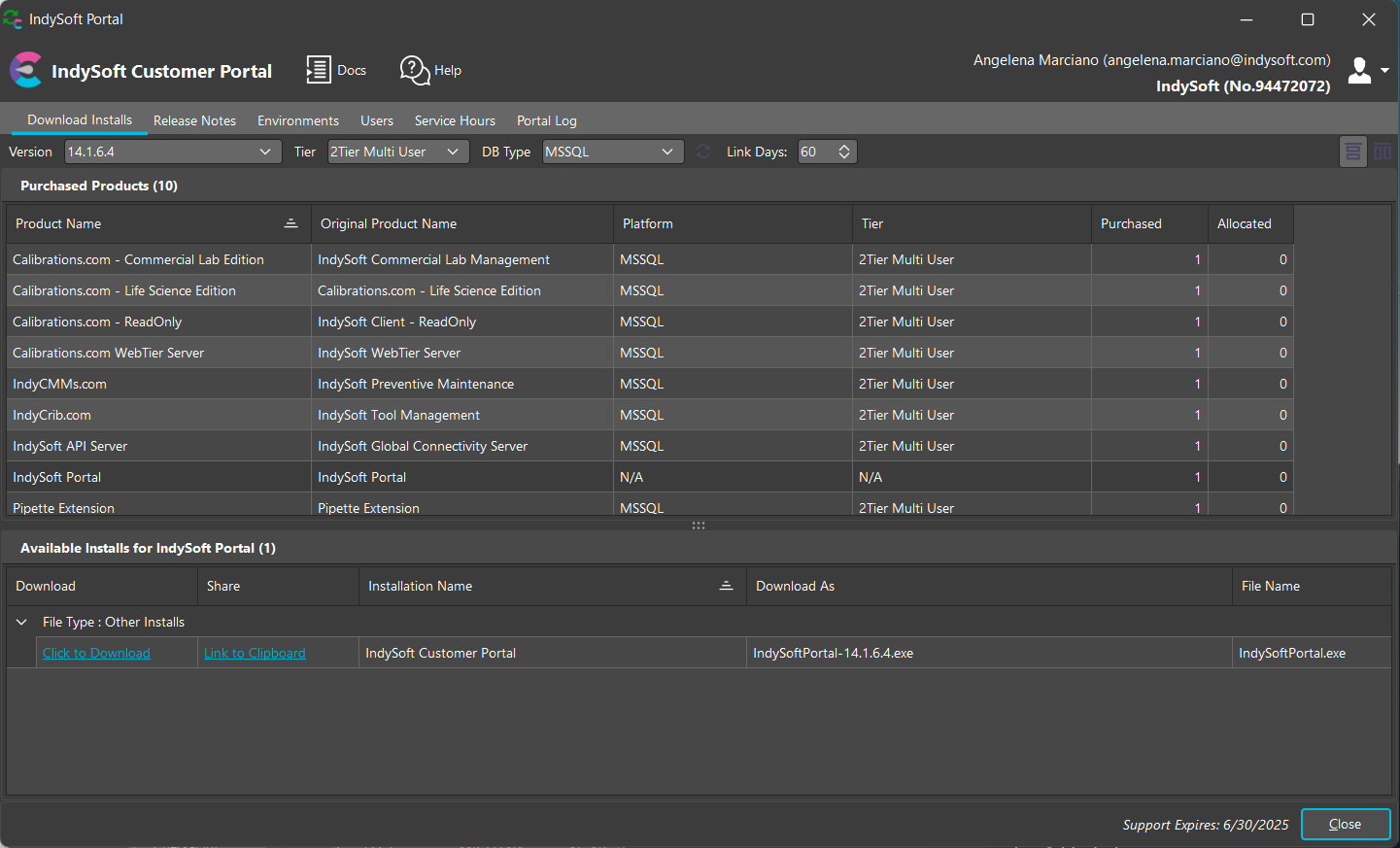
There are six tabs that are displayed in this dialog:
- Download Installs From the 'Download Installs' tab, users can sort through all the potential installers available for download. The available products depend on the product/license type associated with the customer. For example, if the customer has access to Single User based on their purchases, then they should be able to adjust the Tier dropdown to be 'Single User' and display all related installers available for download.
- Release Notes The 'Release Notes' tab lets users sort through all release notes. There is a filter to sort between specific versions. In the grid, we display fields such as version, description, issue number, type (bug or feature), and video link.
- Environments From the 'Environments' tab, admins can set up auto-update functionality if they have an active support contract. Note: the support expiration date is displayed in the bottom-right-hand corner
- Users The 'Users' tab represents all users associated with that company (based on Customer Number). From here, admins can also invite new users and remove users who should no longer have access.
- Service HoursThe 'Service Hours' tab allows users to view the history log of service hours utilized. This tab displays fields like service date/time, number of hours, description, and project name.
- Portal LogThe portal log tab allows users to check who has accessed which downloads/installers within a company. IndySoft Support can also view the download history of all customers from here.
IndySoft Portal Improvements - Video
Client Auto-Updates
To set up automatic updates in your environment, login to the IndySoft Portal application and navigate to the 'Environments' tab. Here, you will be provided with a list of your environments.
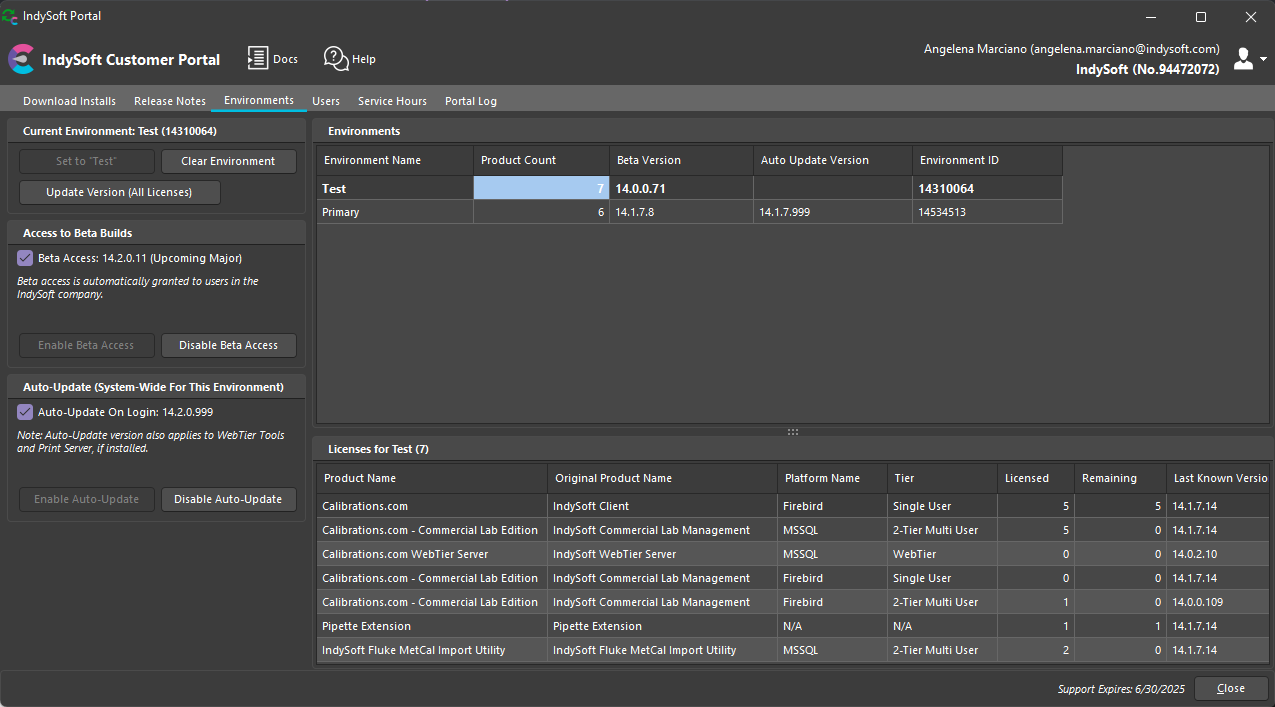
You can select which environment you would like to set up auto-updates in by highlighting it in the grid and selecting the 'Enable Auto-Update' button. Upon selecting this option, the user will be prompted to select which version they would like to set the environment to auto-update to.

The Beta Access section only applies to the environment where you would like to test beta updates (such as the beta nightly builds). By default, IndySoft employees have access to download beta builds. For example, if you are performing QA testing then you may want to turn this option on so that your environment automatically updates to the latest beta each time you launch the dashboard - this way, you do not miss any updated builds for testing purposes. Customers can request access to beta builds if they are interested in testing in a separate environment.
Currently, this auto-update functionality applies to the main client as well as Print Server and WebTier Tools.