Setup Print Options
In Step 2, select the various options in the window for sorting, title, and type when printing.
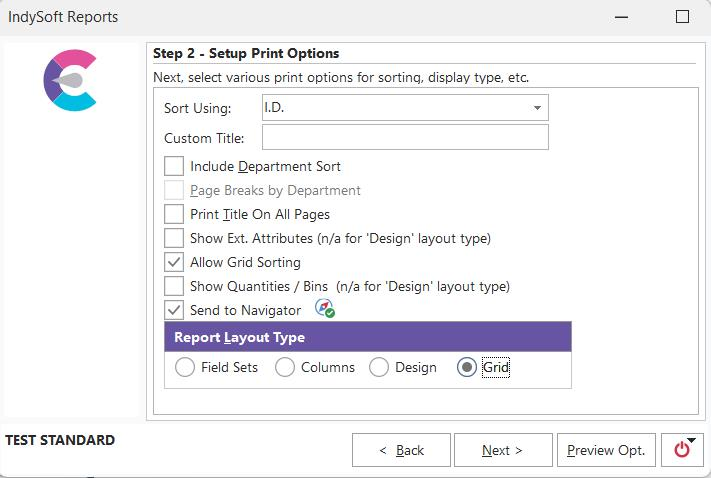
Standard Reports - Setup Print Options
Sort Using
Use this combo box to choose how you want the current report to be sorted. Each chosen report type populates this combo box with the appropriate field sort choices. Once this choice has been made, it will be saved per user when the report type changes or the reporting module exits. The chosen sort order will be written in the report's page header under 'Sorted By.'
Custom Title
Use this optional field to print your custom title on the report. If this field is blank, the default report title will be printed instead.
Department Sorting
When performing reports that return a list of gages, the option is frequently given to sort the gages in the report by department. If this option is chosen, then 'department' will be added to the report sort order (typically after sorting by the company and before sorting by the field chosen by the Sort Using combo box.) When the report is printed with this option selected, the current department is listed just to the right and below the current company, with a box surrounding the name.
Page Breaks by Department
When sorting by department, an additional option called 'Page Breaks by Department' becomes available. When this is checked, a page break will be inserted after each department change.
Print Titles on All Pages
Checking this box will cause the title to print on all pages; otherwise, the report title will only print on page 1 of the report.
Show Ext. Attributes (n/a for 'Design' layout type)
Allow Grid Sorting
Send To Navigator
This option becomes available when setting up a report that returns a list of equipment. When it is selected, and the report is previewed or printed (or sent to EMail, file, etc.), a list of the equipment returned by the report is sent to the Navigator. This provides a convenient way of populating the navigator window, much like the EquipmentFinder. Occasionally, this option is also available for reports that return a list of events. In this case, the navigator will be populated with all the equipment represented by the events in the report. Press the navigator button to configure how the list of equipment is sent.
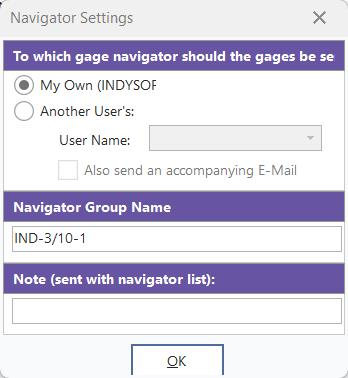
Navigator Settings
Three basic options are set using this dialog: 1) Which navigator will be sent the list of gages, 2) what should the navigator group be called, and 3) any accompanying notes that should be sent with the equipment list can be inserted here. If the equipment will be sent to 'another user,' then sending an accompanying e-mail also becomes available.
Report Layout Type
Most report types allow for the choice between two report layouts. A brief description of each follows:
Field Sets
This report type is best for reports that contain only a few fields, where the sort order needs to be especially obvious. The fields included in the report are displayed from left to right across the page, each taking only as much space as necessary. The width of the field is determined by the width of the field data or the width of the field title (whichever is larger.) If a field cannot fit at the end of the current line, a new line of fields is added for the record. Additional lines containing fields begin just to the right of the beginning of the record. Key sort fields are often shaded. Here is an example of a page from a field set report:
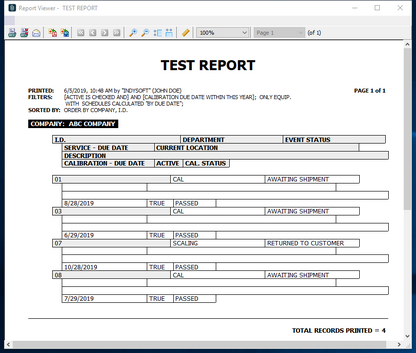
Report that uses Field Sets
Columns
This report type is best for reports that have a lot of fields. The fields displayed in the report are displayed from left to right, using the number of columns specified in the Modify Page Setup. The width of each field is determined by dividing the printable area by the number of columns to be printed. Keyed fields are sometimes shaded. Occasionally in this report, certain fields will be set to take up an entire line (across columns) because of a large amount of data. Here is an example of a page from a column report:
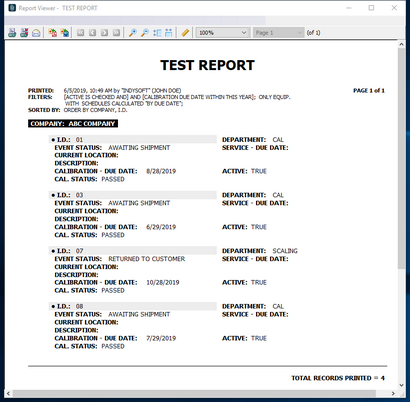
Report that uses Columns
Design
The design mode will print the data out in a report designed in PrintBuilder.
Grid
Selecting this option will give you an 'Excel' type Grid report. You can edit the grid, move fields, and re-size the columns before printing. |