Globally Linking Gages to Templates
NOTE: Recommended for System Administrators only. Proceed with Caution.
To link current equipment from a system-wide perspective to a Template, you will have to perform a Global Equipment Change.
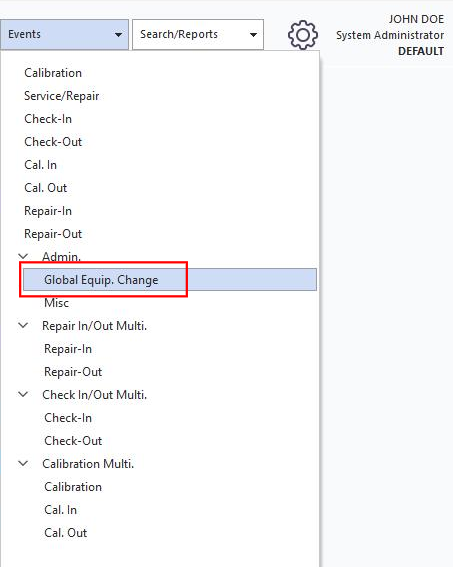
Start by clicking the "Events" option on the main screen menu. From there select "Misc" and then "Global Equipment Change."
After the Global event launches, Select the gage information based on the way you want to include all the equipment that applies. In this example, the type has been chosen so all Caliper Types will be linked to the Template that will be chosen in the last step of the event. You could go further into the filter and use the sub-type or even the manufacturer. It is really up to you as to how you want to describe the equipment to be linked.

Click "Next." The date and time are automatically added to the event. Click "Next."

In this case, the "Equipment" is already selected. Click the "Modify" icon  .
.

The "Modify Equipment Fields" dialog box will pop up. Here is where you will select the Template you want all the equipment to be linked to.

Click "OK", then click "Finish" and the equipment is now linked to this Template. |