Pairing Assets with Passive and Active Tags
The IndyGo application allow users with proper privileges and devices to be able to pair with both Active BLE tags and Passive RFID (UHF) tags. Based upon the type of tag you are pairing, the process will be different.
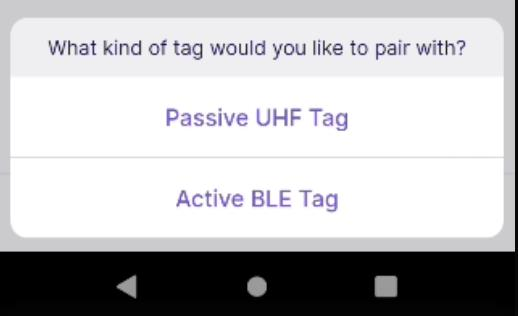
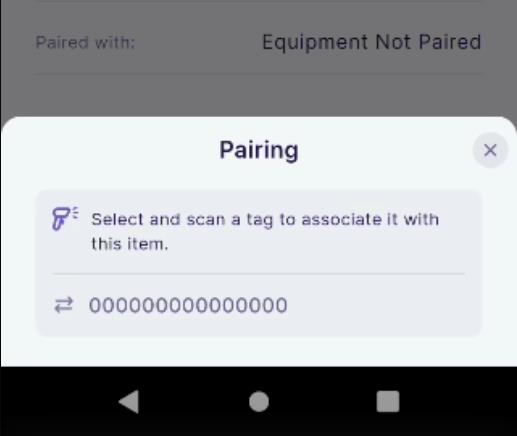
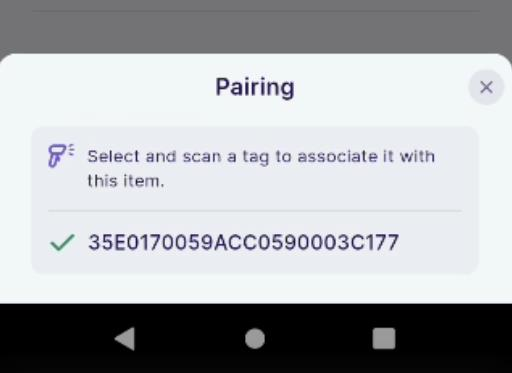
Pairing Passive UHF Tags - If using a supported RFID scanning device (Chainway C72, C66, R6, Zebra MC Series, 8500), then the user will be able to tag Passive (UHF) RFID tags with assets. After searching for and selecting an asset in the "Search" screen, the user can press the "Pair" button. If using an RFID device AND BLE tag options are enabled, then the user will need to specify the type of pairing process they would like to perform. Upon selection of Passive UHF Tag, the user will be taken to an option to scan a tag to pair with it. This will use the Low Power setting to help ensure that the user is only picking up the desired tag. (If BLE Tag Options are disabled in Settings, then the user will automatically be put into the Passive UHF tag operation without needing to distinguish so.)
Pairing Active BLE Tags - Users with permissions who also have BLE Tag Options enabled in their Settings can perform this operation. When pairing, the user will be presented with available BLE devices in the area. The user should see these in alphabetical order and tags which are already paired with assets will have an icon indicating that they are paired. After selecting your desired tag, the system will connect to the tag and finally will ask to confirm if it is an IndySoft timing tag or and ELA Blue Series tag. Upon selection the user will be taken to the related equipment and be able to turn the tag's light on and off while in the connected state.
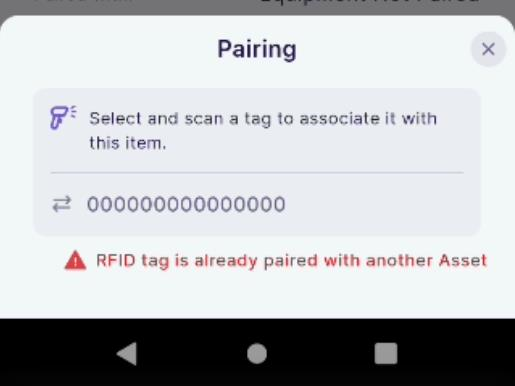
An asset cannot be paired with multiple tags simultaneously.
Unpairing an Asset -- If a device is paired, BLE tag options are enabled or the device has RFID capabilities, and the user is not blocked from doing so in security settings, then the user can "Unpair" an asset from a tag.