Creating an Estimate from an Event
 | Note: This section is only applicable to the Commercial Lab version of IndySoft
Creating an Estimate using an Event
Within step 16 of Workflow Configuration, you can set up an auto-launch rule to create an Estimate. There are a few key points when configuring this event to ensure the Estimate creation is successful. Firstly, we need to expose the Charges tab under the 'Labor / Repair Items' event tab, which can be enabled in step 3 of workflow config. You will also want to configure which Charge Types to pull into the Estimate from within the Charges tab of workflow config. on this event (step 20). Once you have the charges tab displayed in the event and charge types set in step 20, the last step is configuring the auto-launch rule in step 16 of workflow config. Additionally, you can configure the Miscellaneous checkbox to 'Hide Repair Parts Tab' if repair parts do not apply to you.
See the 'Create Estimate' event example below for more details.
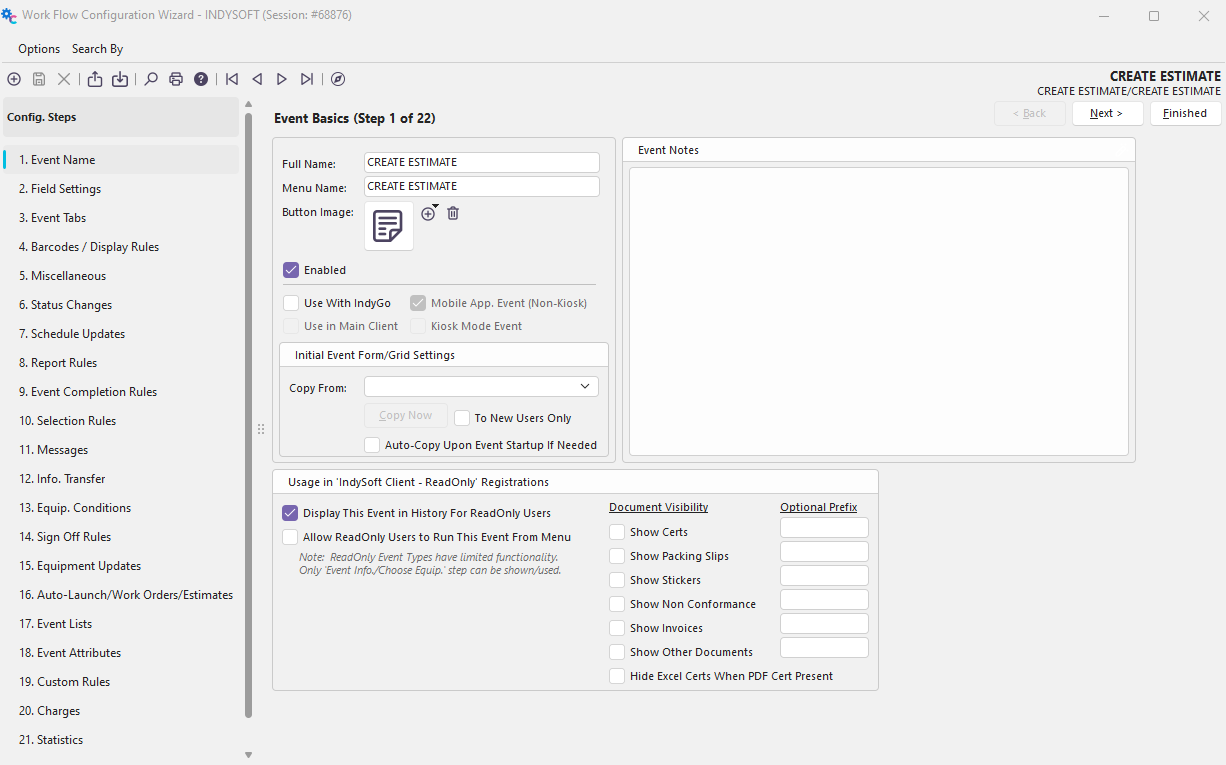
The most important step to set up when creating this event is the Auto-launch rules - See Workflow Config Step. 16: Auto-Launch/Work Orders/Estimatesfor more details
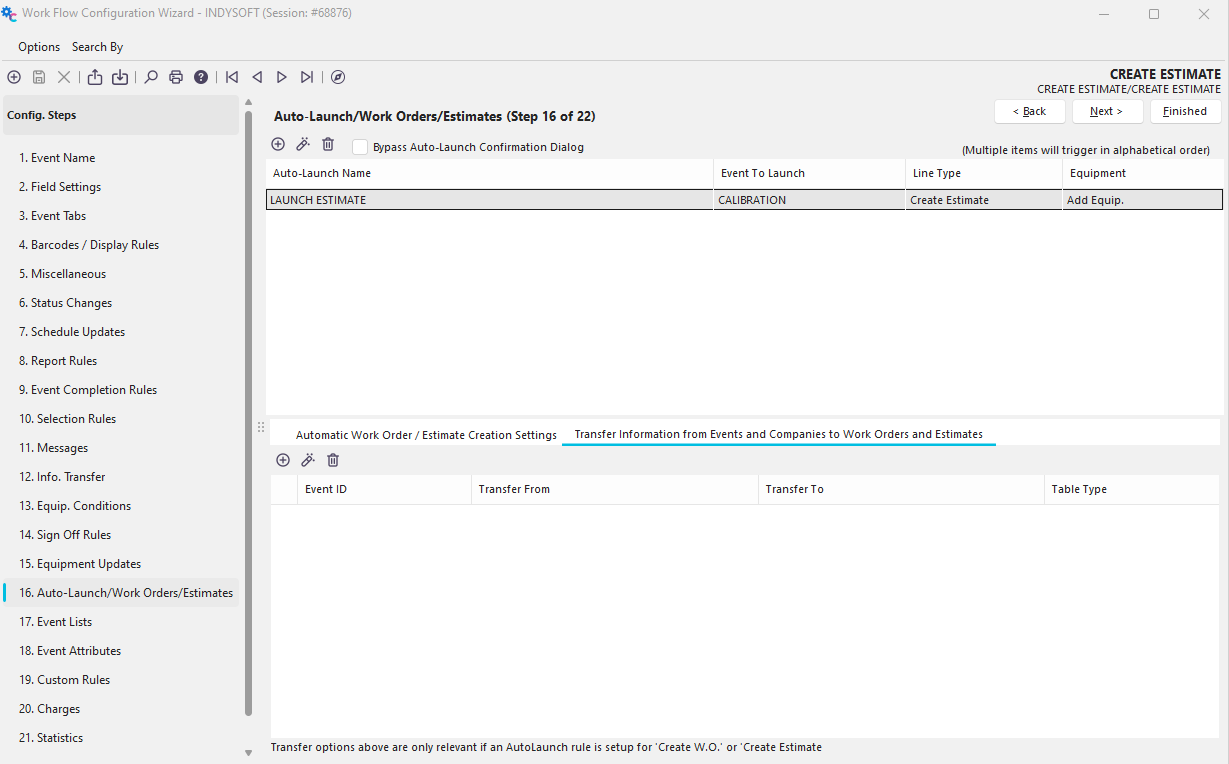
In this tab, there is a grid of auto-launch rules in the top panel and additional options located in the bottom panel. To add a new auto-launch rule, click the plus sign button 
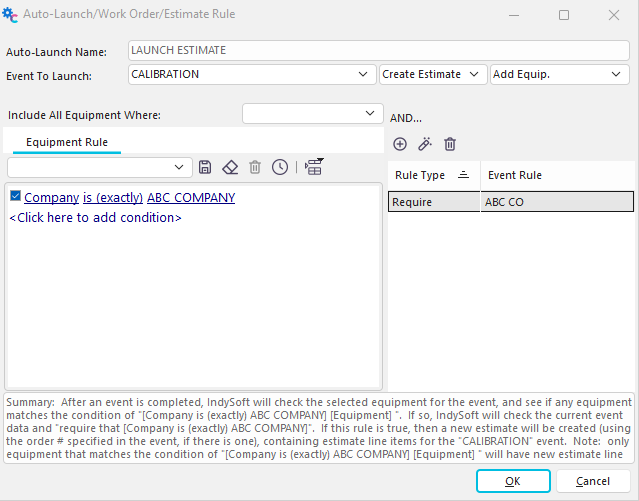
Input the Auto-Launch rule name and select the actions to perform. In this example, I am creating an estimate and automatically adding each piece of equipment in the event that matches my Equipment Rule of 'Company is (exactly) ABC COMPANY'. You could also further add an event filter for this rule.
Note the summary at the bottom of the dialog states what the rule is doing:
Summary: After an event is completed, IndySoft will check the selected equipment for the event, and see if any equipment matches the condition of "[Company is (exactly) ABC COMPANY] [Equipment] ". If so, IndySoft will check the current event data and {no event rules selected}. If this rule is true, then a new estimate will be created (using the order # specified in the event, if there is one), containing estimate line items for the "CALIBRATION" event. Note: only equipment that matches the condition of "[Company is (exactly) ABC COMPANY] [Equipment] " will have new estimate line items created.
Once confirmed, click OK to create the rule.
Note: When auto-launching an estimate, no scheduled work line items will be created on the Estimate. Only Charges will be brought over to the Estimate. The 'Event to Launch' dropdown here corresponds with the related event type associated with the charge.
Next, you will want to set up charge types to automatically add to the event from the Charges tab - See Workflow Config Step. 20: Charges for more details
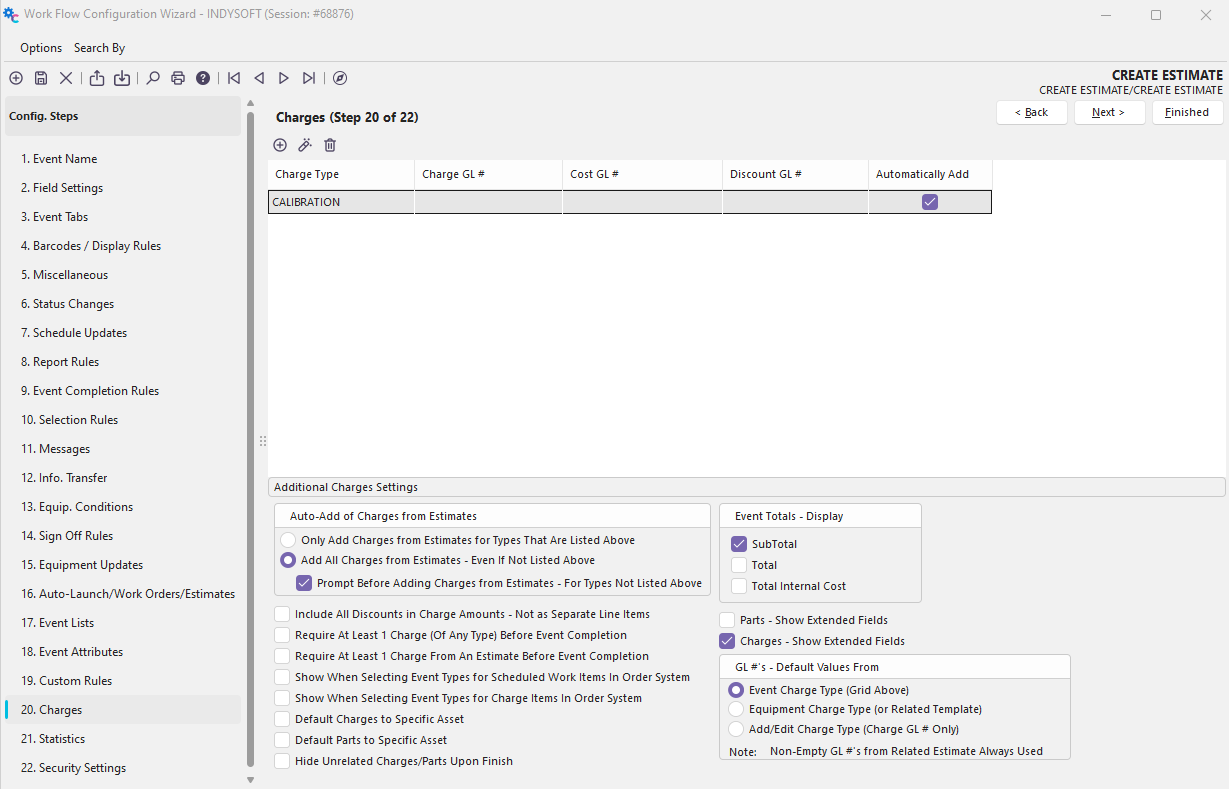
In my example, I have set up the CALIBRATION charge type to automatically add to the event if it exists at the equipment level. At this point, my event contains everything that is needed to create an estimate, and I can save the event in workflow config.
Running the Event
My 'Create Estimate' event is very simple and only contains 2 tabs: Event Information and Charges
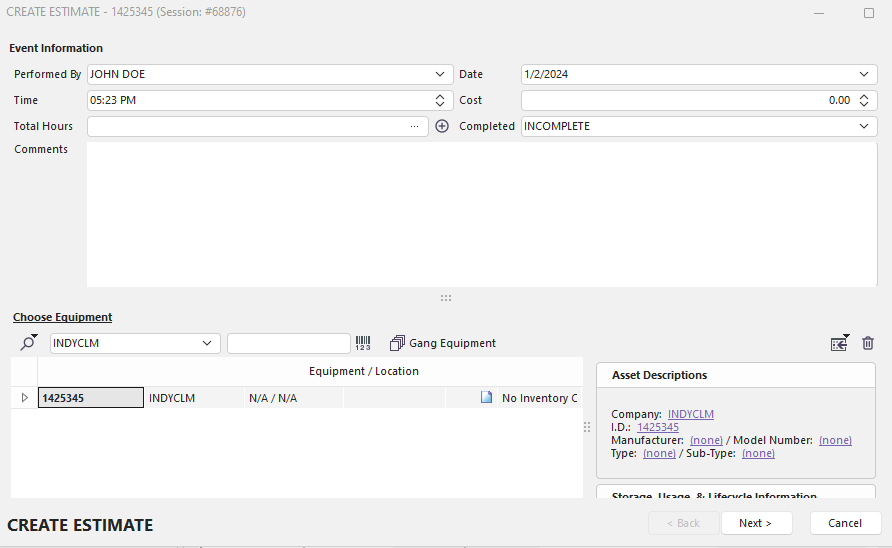
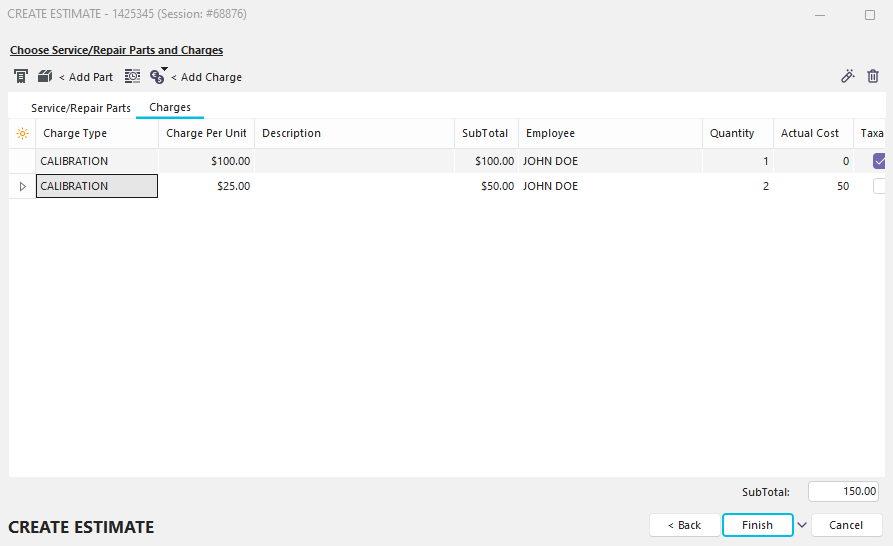
Once confirmed, click 'Finish' to complete the event. Since I did not check the 'Bypass Autolaunch Confirmation Dialog' checkbox in workflow config, I will see the following confirmation prompt upon completion of the event:
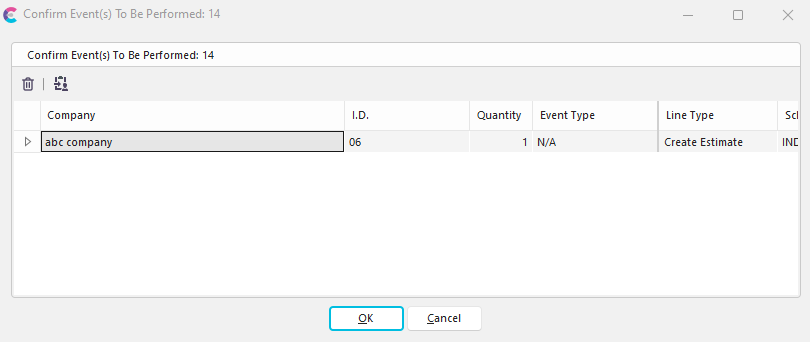
The confirmation prompt tells us that the estimate number will be 14 and provides a brief overview of the estimate details.
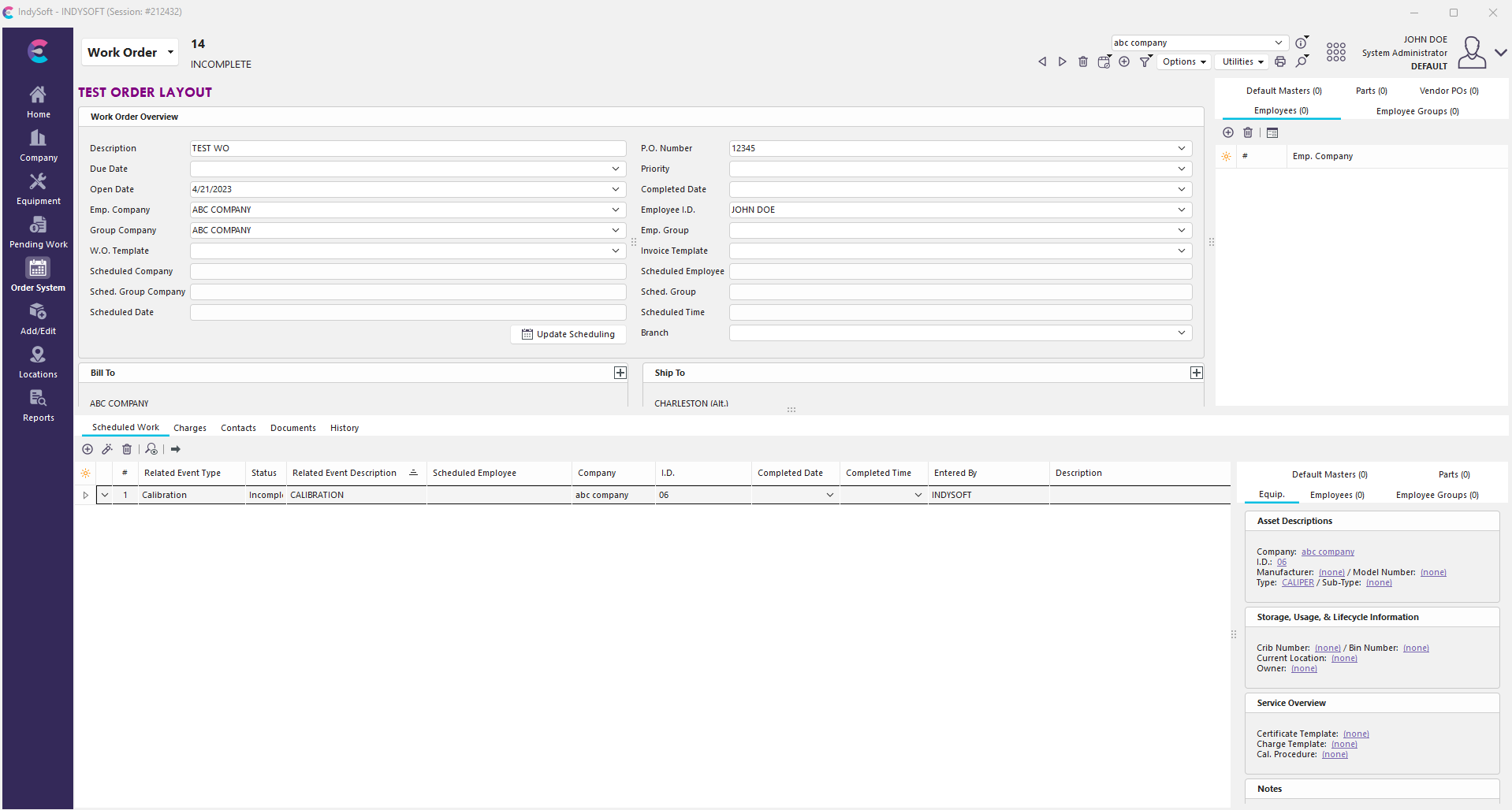
The Order System tab will now display the newly created Estimate - #14 with the associated charges
 |
|