Equipment Field Layouts
Equipment View
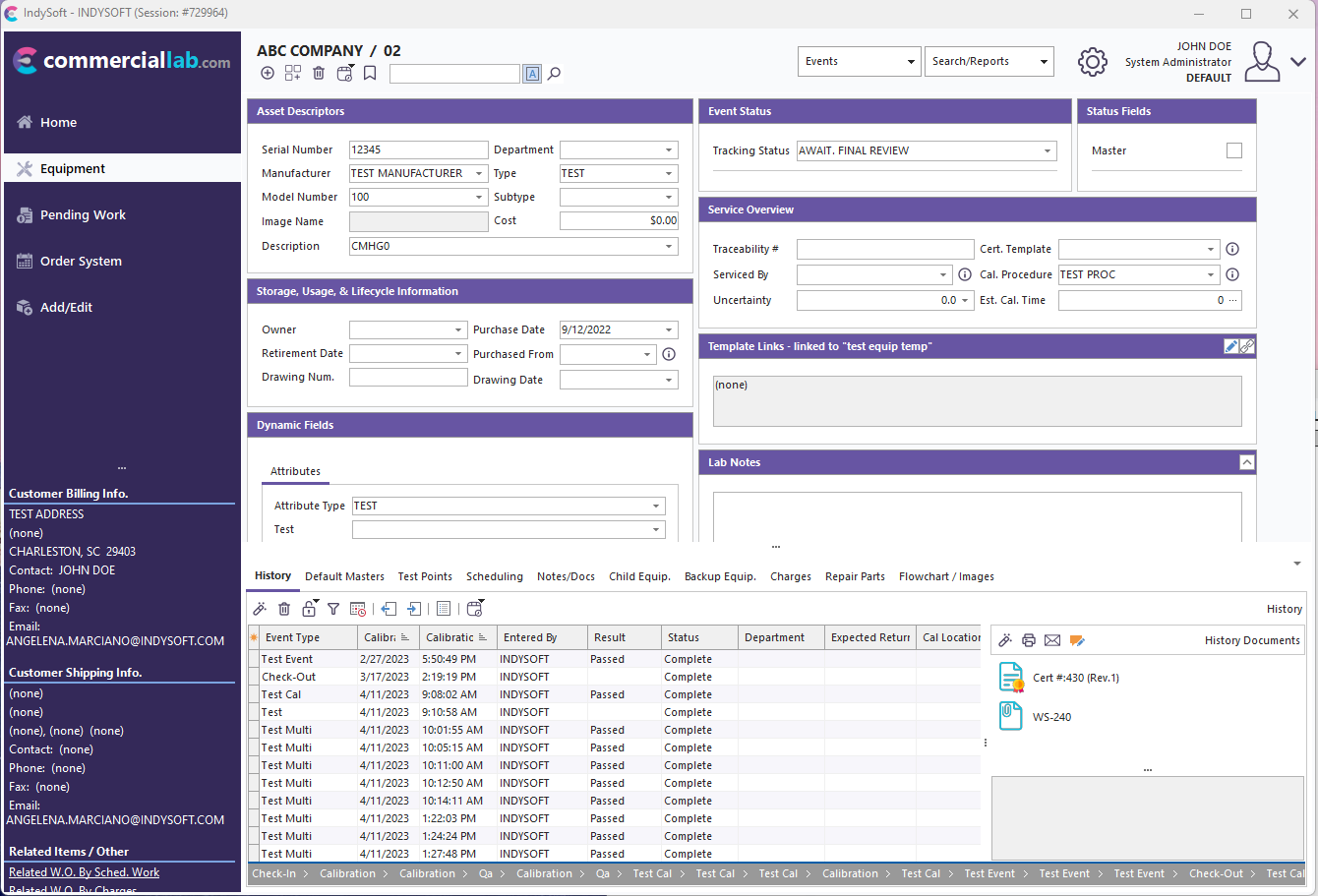
Equipment View Field Layout
Right-Click Options
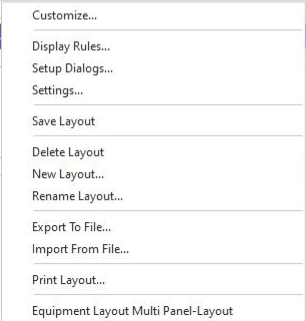
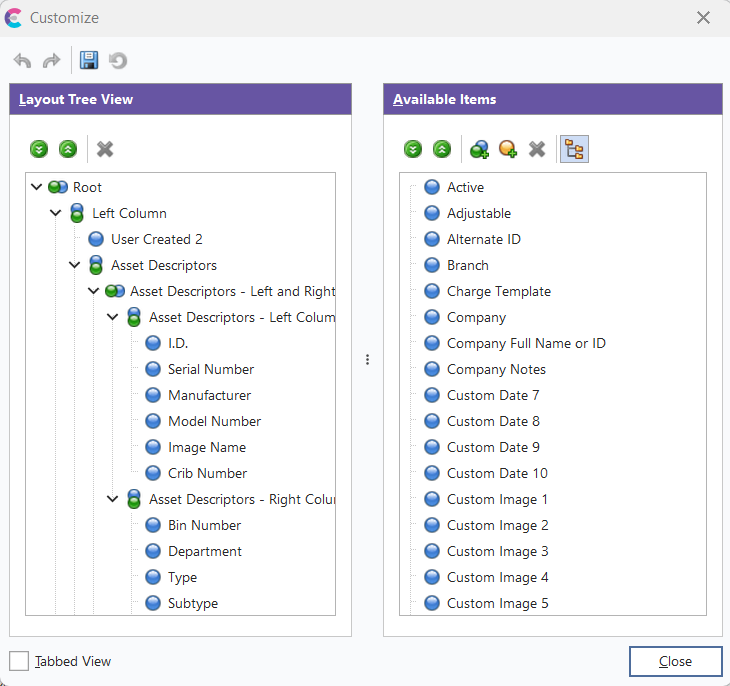
- Customize...
Use the Customize option to launch the dialog with available fields to drag/drop into the layout view.
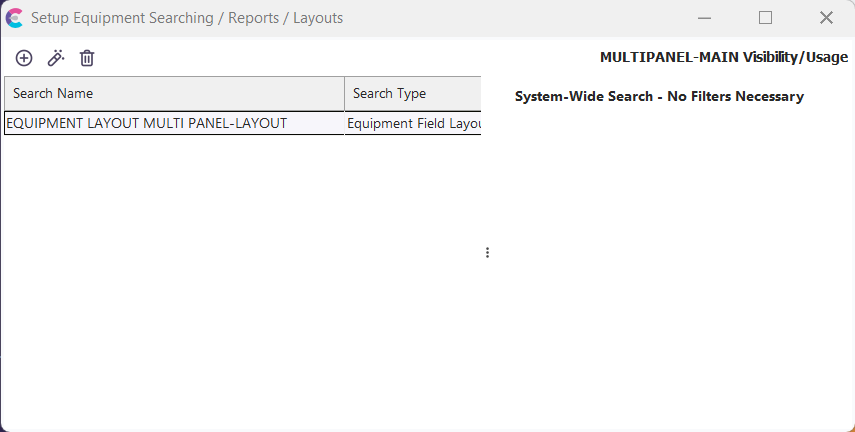
- Display Rules...
The Display Rules option represents the search name and visibility rules associated with the current layout.
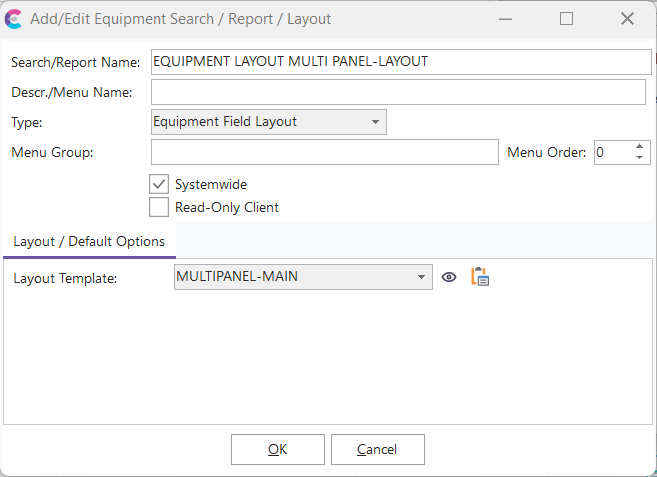
- Setup Dialogs...
The Setup Dialogs section represents the equipment view detail tabs shown within the layout:
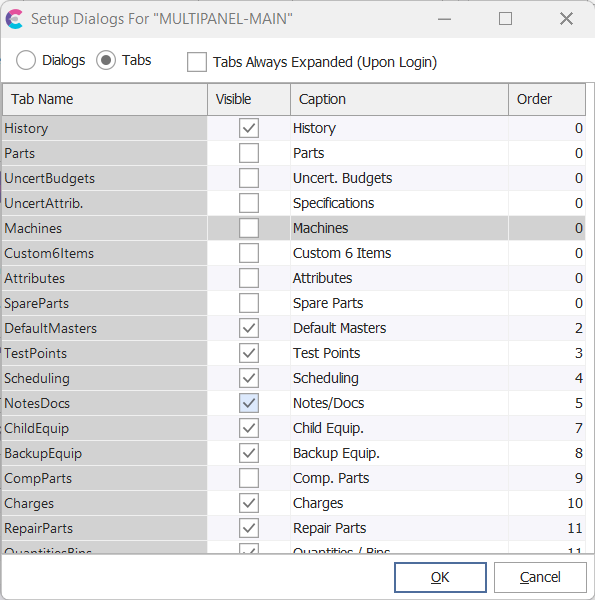
- Settings...
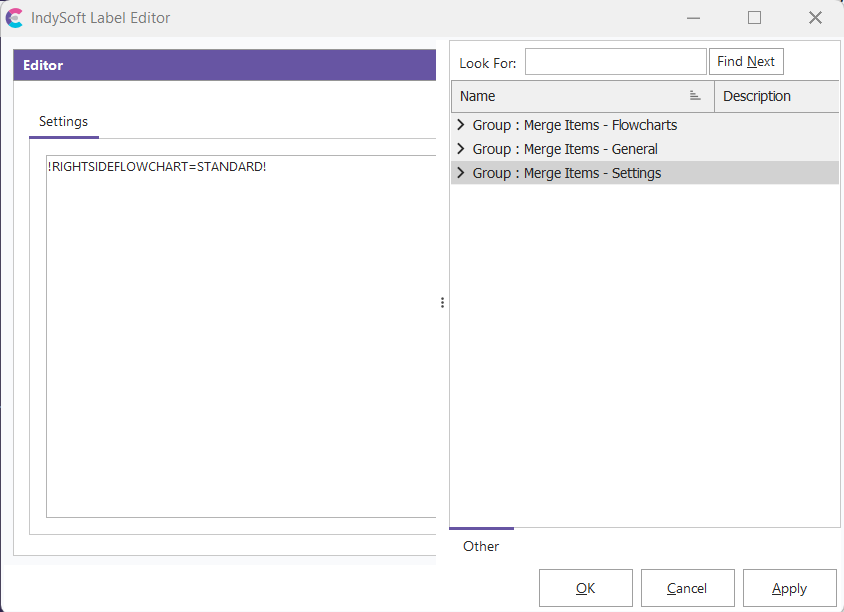
The Settings section represents any additional merge items that are associated with the current field layout:
- Save Layout
This button will save the current layout changes.
- Delete Layout
This button will delete the currently selected layout.
- New Layout...
Use this button to create a new layout (cloned from the current one in view)
- Rename Layout...
Use this button to rename the selected layout.
- Export to File...
Use this option to export the layout to a file (for import, use the Import from File option)
- Import from File...
Use this option to import a layout from a Layout Export File (created when using the Export to File option)
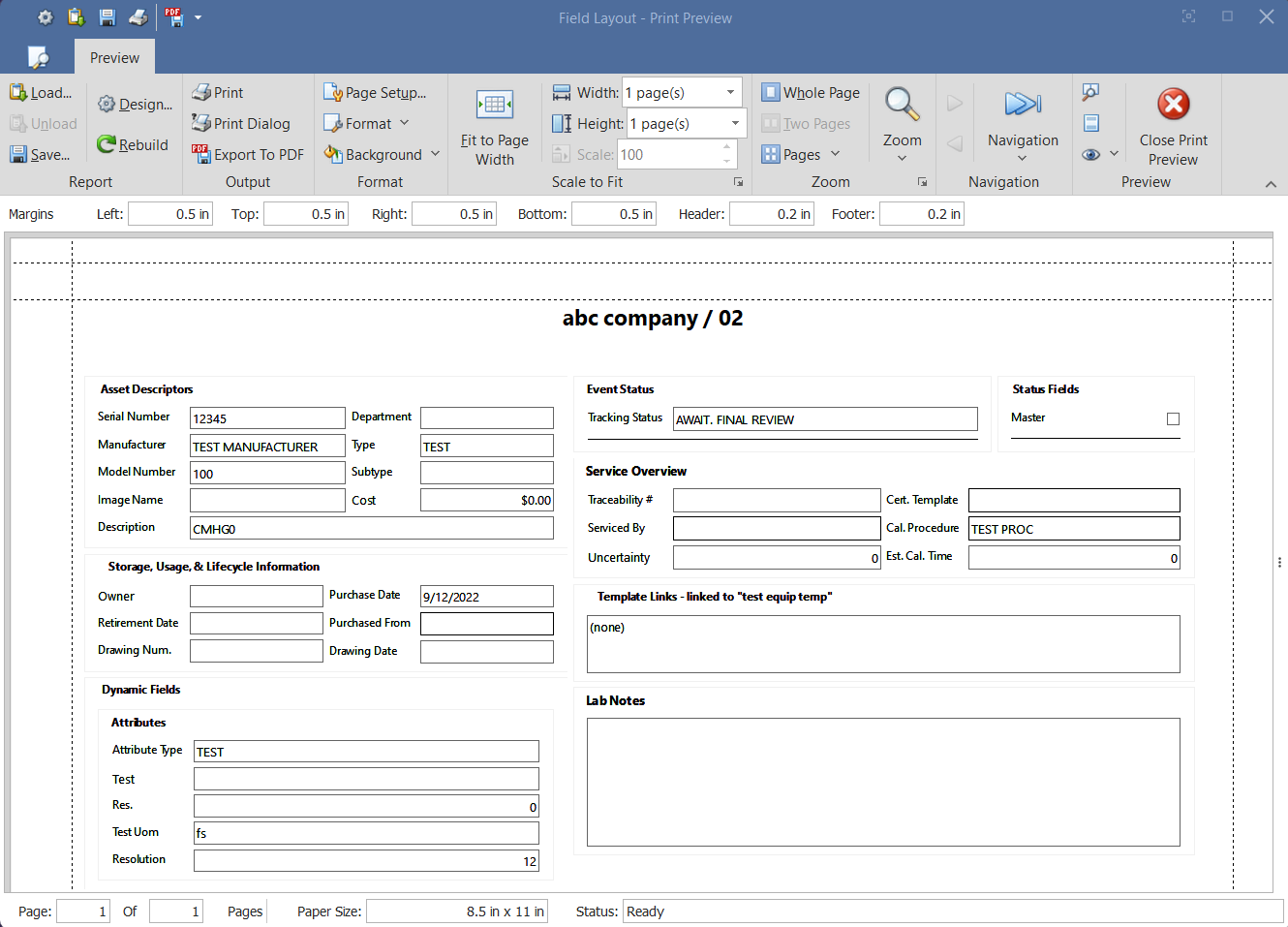
- Print Layout...
Use this option to print the current layout in view.
- Visible Layout List Names
The bottom section of the right-click options will display a list of the visible layouts for that user. The user can then click on a layout in this list to select it and pull it into view.
Available Fields
Note: There are different fields available for each the main section of the equipment view and header section of the view
Equipment Main Fields
| Category | Fields | | Asset Descriptors |
- ID.
- Serial Number
- Manufacturer
- Model Number
- Image Name
- Crib Number
- Bin Number
- Department
- Type
- Subtype
- Cost
- Search
- Description
- Equip. Category
- Active
- Adjustable
- Alternate ID
- Branch
- Company
- Company Full Name or ID
- Company Notes
- Owner
- Retirement Date
- Drawing Num.
- Purchase Date
- Purchased From
- Drawing Date
- Storage ID
- Storage ID Full
- Attributes
- Attribute Type
- Event Status (includes tracking status)
- Traceability #
- Serviced By
- Uncertainty
- Cert Template
- Cal. Procedure
- Est. Cal. Time
- Master
- Status 1-10
- Total On Hand
- Total At Rework
- Total Reserved
- Total Checked Out
- Total On Order
- Total Items
- Lab Custom 1-8
- Lab Status 1-10
- Lab Date 1-2
- Equipment Notes
- Lab Notes
- Custom Date 1-10
- Custom Image 1-10
- Custom Num. 1-10
- Custom Text 1-22
- User Created 1-30
- User Defined 1-5
- Template Links
- Schedules
- Purchase 1-2
- Last Mod. Date/Time
- Locked
- Locked By User
- Last Modified By
- Event Launch
- Image Company
- In-Service Date
- New
- Spec. ID
- Test Point Type
- VisualCal Proc.
Equipment Header Fields
| Category | Fields | | Company |
- Company
- Company Full Name
- Company Full Name or ID
- ID.
- Zoom Controls
- New Equipment
- New From Template
- Delete
- Recent Equip.
- Bookmark
- Change ID.
- Save As Template
- Cloning Wizard
- Navigator
- New Work Order
- Print Worksheet
- Email Asset
- Equipment Company Transfer
- Change Equip. Group
- Equipment - Change Section
- Equipment - Label
- Event Status
- Events
- Search / Reports