Generating and Receiving Vendor POs
Vendor PO Statuses
When creating a new vendor PO, the overall status of the PO will default to "Draft." In the "Draft" status a user can: change PO information, update the shipping and billing information, add/cancel/backorder/delete repair parts, add documents and associate work orders. Pretty much the only thing that you cannot do when the PO is in the status of "Draft" is actually receive repair parts. Why? Because you can't receive something that has not yet been ordered! Besides! If you want to receive repair parts, you can perform one of 2 options to updated the status.
- You can manually update the status from the upper left hand
 button to requested, partially received, or backordered.
 - Or upon clicking the Generate New PO Revision icon from the draft mode
 , IndySoft will create a PDF, store it as a revision in your Vendor PO documents tab, and ask you if you would like to update the PO to the Requested status.
The intention is that you add all of the information and parts that you need to your Vendor PO, and then upon generation of that PO, it is locked in time as a PDF. Only upon changing the main status back to draft will one be able to modify PO fields and delete or add new repair parts. If a PDF is generated and a change needs to be made, then the user will need to make sure that the status is changed back to Draft. Then the user can make the desired changes and create a new revision of the PDF with the aforementioned Generate New PO Revision.
Note: Users will also be allowed to not only generate revised documents, but can also attach external documents to the documents tab for that PO. Packing Slips, invoices.. etc..
Security items were added in Profile Manager to require fields in the vendor PO system. Those requirements will only be checked against upon Generation of the Vendor PO document. This will allow you to leave the PO in draft mode if you are not sure how to proceed. You can also block users from reverting a Vendor PO to the Draft status with a security item in profile manager.
Regardless of vendor PO Status, one can add documents, associate Work Orders, and add/modify the notes tab.
Receiving Parts in a Vendor PO
As previously mentioned, one can only receive parts for a vendor PO in the requested, partially received, or backordered statuses. IndySoft makes this pretty obvious by graying out the Receive Items button in the form. Once you are able to receive the items, click the items that you want to receive (multi-selection can be used with Ctrl and Shift options. When the items you want to receive are all highlighted, simply click on the Receive Items button!
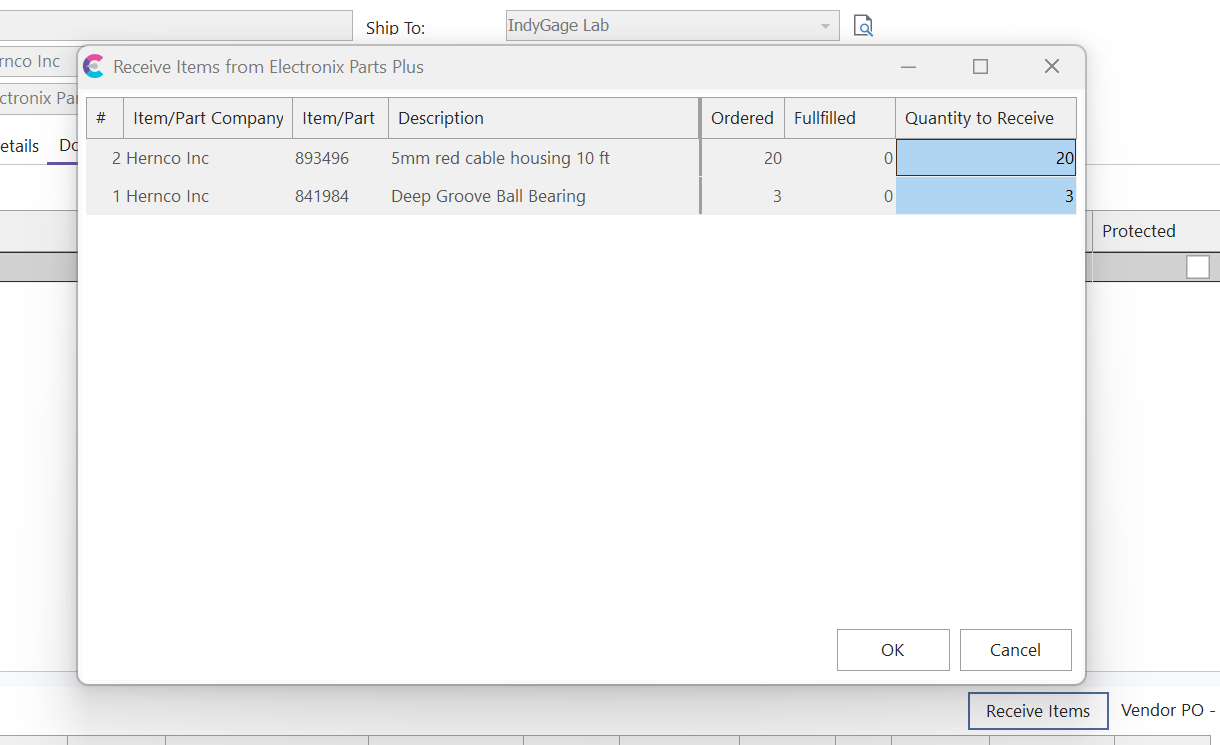
By default, the program will populate the quantities to be received to the maximum number of items ordered which were not canceled or already fulfilled. If this number needs to be altered, then one can adjust in this screen to the correct numbers to add to inventory.
Upon pressing "OK" the user will confirm their transaction and the quantities will be added to the Add/Edit Repair Parts for the specified company. The inventory and change log will also be populated for any transaction which adds or removes quantities from the inventory. This includes removing items from an inventory if the right click option to "Unreceive" repair part is used from the detail view.
If all items on the PO are received, then the line item and the overall status will be changed to Received. If only some of the items were received, then the status will become Partially Received. If the user needs to backorder or cancel beyond what was received, then they can receive the items first and use the right click option to backorder afterwards. If the user backorders first, then IndySoft will still suggest upon receiving the maximum quantity which includes backordered items (will exclude canceled items).