Installation & Setup
The MET/CONNECT import utility is installed in Workflow Configuration for the events that will utilize the module. First, launch Workflow Config and open the event you would like to use; we have chosen the "calibration" event in this example.
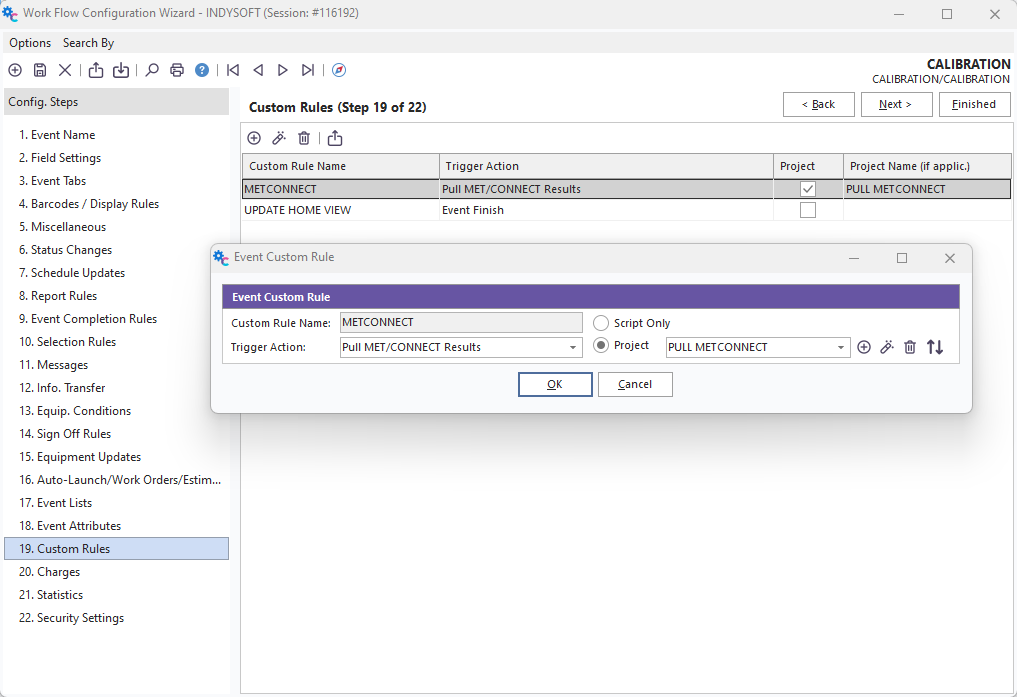
Adding a custom rule to event configuration for "Calibration"
After selecting your desired event, go to step 19: Custom Rules, and click the "Add Custom Rule" Button. Enter the script project name, METCONNECT, and change the Trigger Action to "Pull MET/CONNECT Results." Note: This trigger action, and as a result, the MET/CONNECT Import Utility, is only available in versions 12.1.0 and later.
Now we need to toggle the script type from "Script Only" to "Project." After doing so, click the add button next to the Project select drop-down. Enter a Project Name and Group (Both are METCONNECT in our example), and make sure "From Backup Project" is chosen. Then click "Okay" to bring up the backup project selection dialog. In this window, navigate to your IndySoft Installation Directory ("C:\Program Files\IndySoft" or "C:\Program Files (x86)\IndySoft" by default). In this directory, you should have a file named "PULL METCONNECT RESULTS.zip." Select this file and click Open. If done correctly, the script should open for preview and look like the below image:
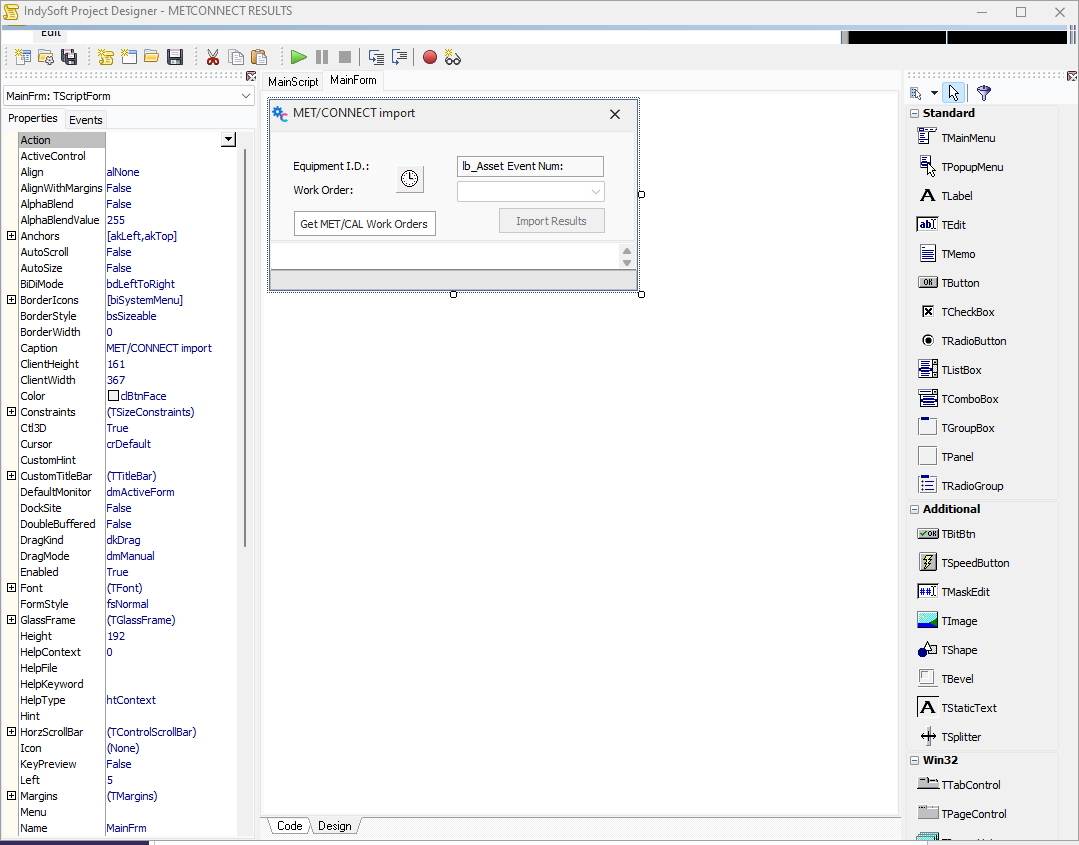
MET/CONNECT Import Script after loading the backup project
You can now save and close this window. Save your event configuration and exit workflow config.
At this point, if using version 13, you will want to contact IndySoft Support to assist in updating the script with the latest code updates.
Next, we must change a few options in User/Location settings to allow the client to authenticate using the MET/CONNECT API. Head to User/Location settings and go to the MET/CONNECT Tab. Enter your MET/CONNECT URL and API Key in the following example:
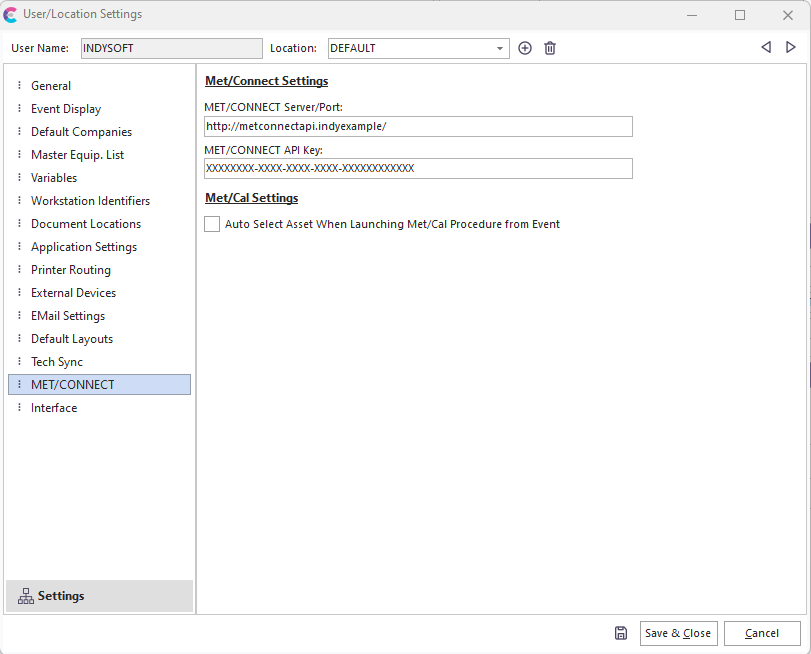
NOTE: Your port should be 6381. Sometimes, the user will be provided with the server, but the port will read 6382 at the end. Double-check before attempting to pull MET/CONNECT results.
With these, the script can access your MET/CONNECT API and pull the data you need. Now, the last thing to set up is the equipment you are calibrating itself. On the test points tab, select Fluke MET/CAL Procedure from the drop-down list. Now everything is ready to begin importing data from MET/CONNECT. |