Layout Editor Ribbon...Home...Common
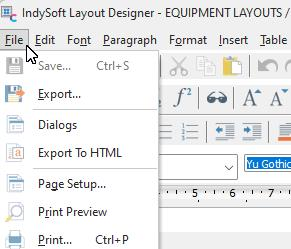
Home...File Menu Dropdown
 Save
Save
This operation will save any changes made to the layout. If you attempt to close a layout without saving changes, you will be prompted:
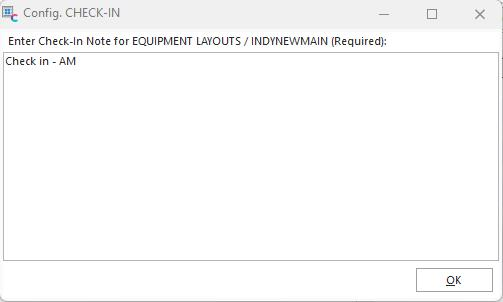
Prompt for Check-in Note
Enter a check-in note for the current layout edit. This step is required to save your layout for future use. This option will only enable once a change has been made to the layout.
 Clone
Clone
This option is only relevant for the Preventive Maintenance Version of IndySoft. Note: If you want to copy one layout to another, go back to the LayoutBuilder main screen...select a layout...press the 'Export To File' button from above the grid...select a different layout...press 'Import From File.' You will then be prompted to confirm if you want to update the selected layout with the imported file.
 Dialogs
This option will only be enabled for EQUIPMENT and TEMPLATE layout types. This option will display a dialog where you can select additional detail dialogs or tabs that can be made visible when this layout is used. Note that the 'Tabs' option is only available for EQUIPMENT layouts, not TEMPLATE layouts:
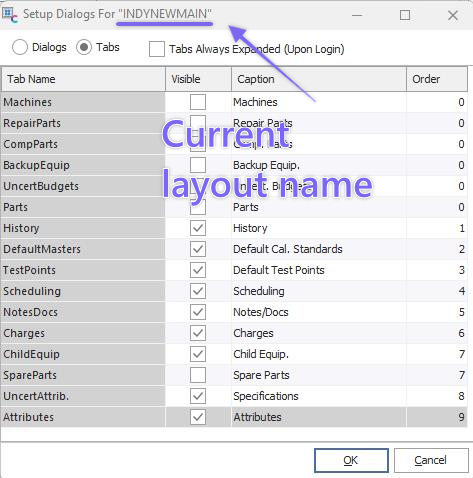
Detail Dialogs
Check each tab/dialog as 'Visible,' then input a custom Caption in the 3rd column. The ordering of the tabs (top/bottom or left/right) is controlled by the 4th column. Note that some tabs/dialogs will only be visible depending on installing a custom module (UncertAttrib. and UncertBudgets). Some tabs/dialogs might be hidden in the Tool Management version depending on the Equipment Group of the current asset (for instance: the TestPoints tab is hidden for assets not in a GAGE equipment group - regardless of detail dialog settings here).
 Export To HTML
This option allows for an output of the selected layout to HTML. |