PrintBuilder - Overview
PrintBuilder provides a central place for IndySoft report templates to be created and modified. These templates are used throughout IndySoft for running reports, printing certificates, summarizing steps in the Order System, and many more. This is where you customize your work so customers immediately associate your documents with your company.
A report is a particular alert, certificate, or other document that has been created. A template is a format for a report. For example, a certificate template might have two columns. The left column contains the date, who performed the work, what the gage was, and any notes. The right column contains the certificate number, the customer, and the rest of the gages information. The template indicates where information will be put and how it will be labeled but has no specific information.
PrintBuilder Templates control what information will show in reports, how information will be organized, etc.
There are multiple ways to access the PrintBuilder utility. You can use the left-hand panel options -- otherwise, you can use the new Admin Panel functionality (v13) to launch PrintBuilder.exe from there:
Option 1: PrintBuilder can be accessed through the 'Options' panel on the left-hand side of the home screen. You will find the module under 'Reporting/Deliverables.'
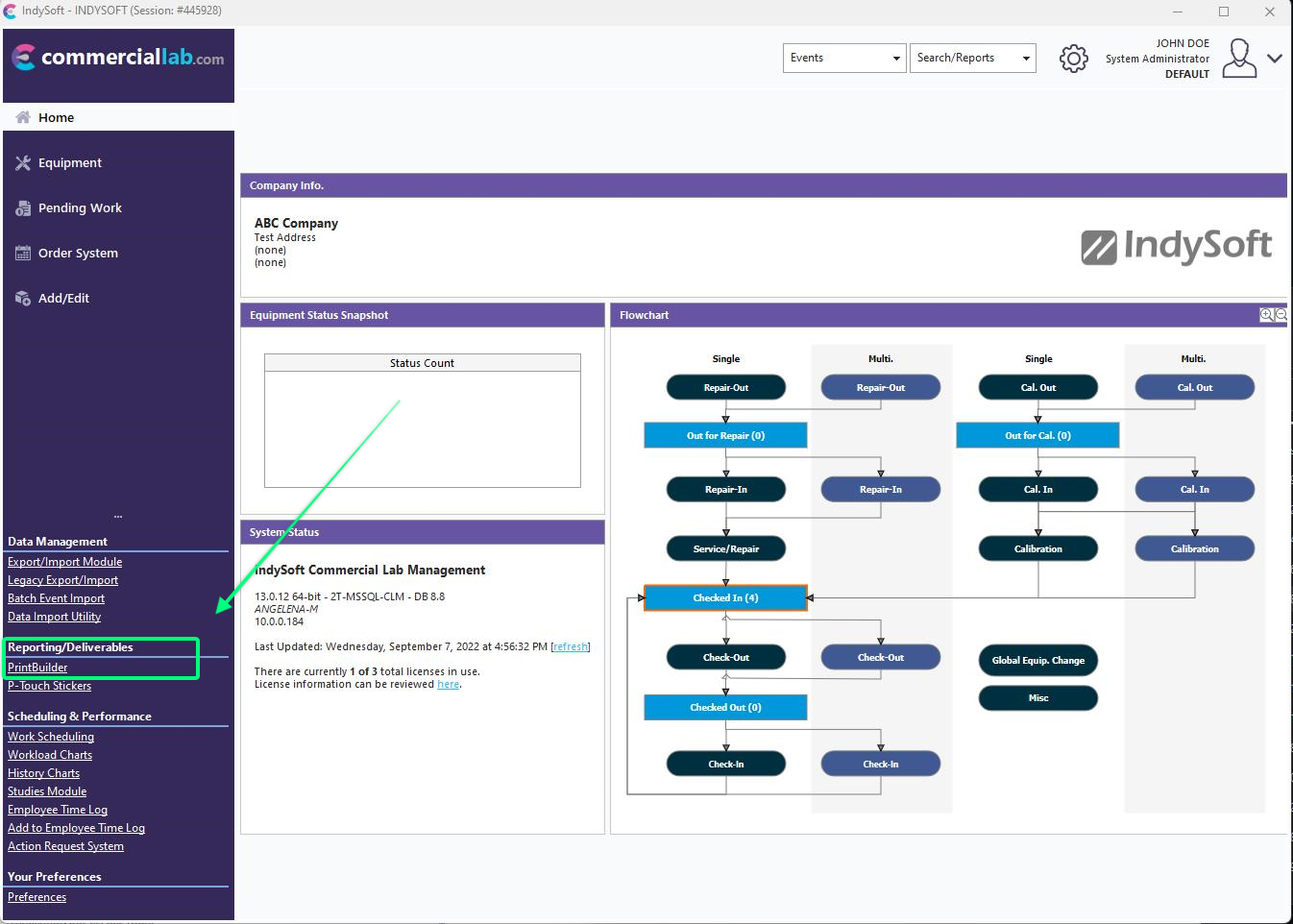
Option 2: Version 13 -- PrintBuilder can be accessed through the Admin Panel (cogwheel icon on home screen).
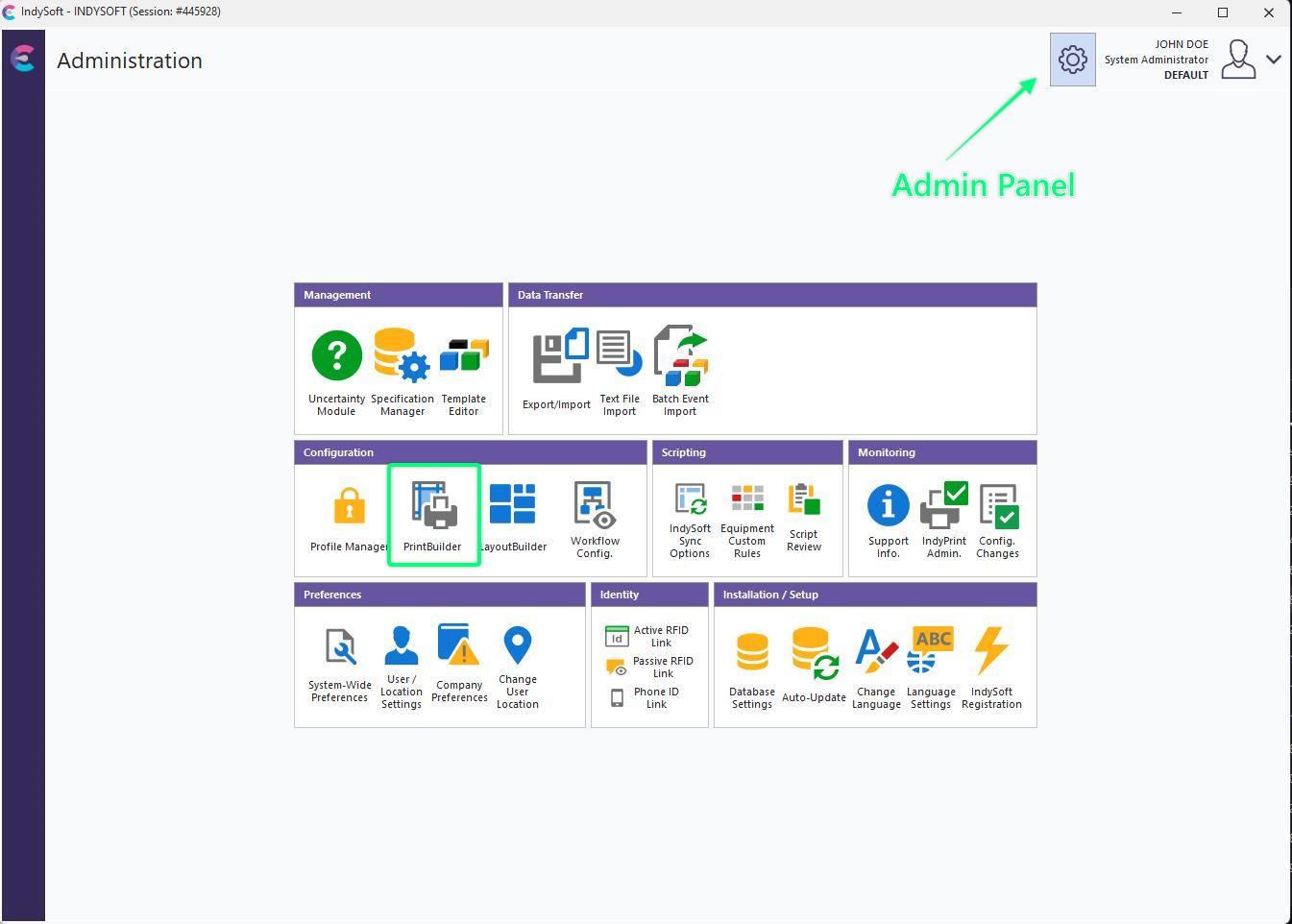
Locate PrintBuilder from the Home screen
Once opened, the PrintBuilder dialog will show the options as seen below:
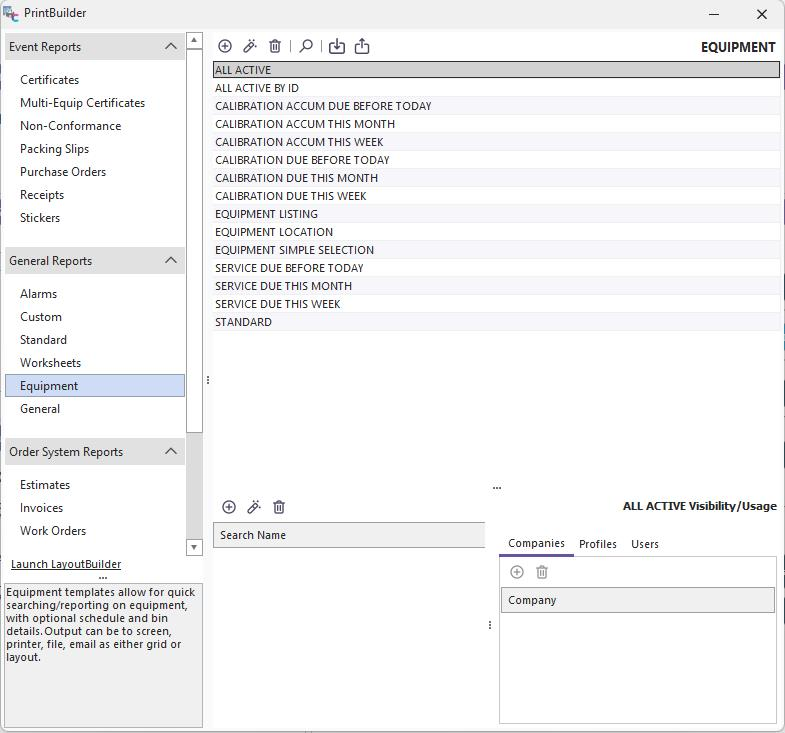
PrintBuilder Main Screen
PrintBuilder Main Screen
The PrintBuilder main screen is divided into three main sections. The 17 Template Types are listed and divided into four groups on the left. As each template type is selected, a brief reminder of that template's usage is provided in the lower-right-hand portion of the screen. To the right is a listing of all available report templates having the selected template type. Double-Click on a report template to edit it. The button bar on the top of the screen provides these options:
 New Report - Create a new report of the selected template type. For the types of templates other than STANDARD, the following dialog will appear:
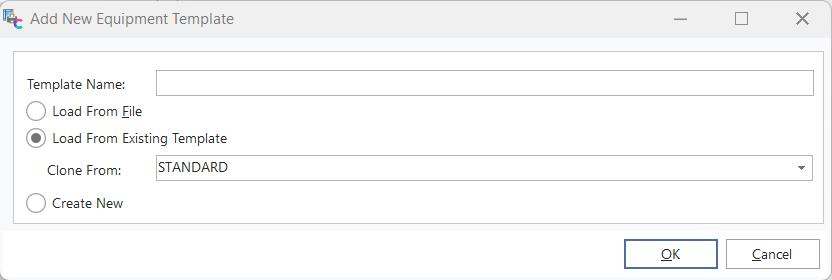
Add New Template
Select a template name and source to copy it from. If loading from a file, it will be a Report Builder File (*.rtm). IndySoft includes a Template called STANDARD for each CUSTOM Template. Clicking 'OK' will open the IndySoft Report Designer.
 View Report - to modify the settings for the selected template. If the template type is 'Standard,' then the template will be launched in the IndySoft Standard Reports Wizard.
 Delete Report - to completely remove a template from the IndySoft database. Note: you cannot remove the base template for each template type.
 Setup Custom Search By's / Reports - to change the IndySoft main screen menu visibility of STANDARD and CUSTOM templates. See the Setup Custom Searches / Reports / Layouts topic for more details.
 Import From File - to update the currently selected template type with the settings contained in an external file. Generally, this external file should be a Report Builder File (*.rtm) created previously by pressing the button.
 Export To File - save the template to an external file. Generally, this external file will be a Report Builder File (*.rtm). This external file could be given via email or disk to another IndySoft user for import into their IndySoft system.
Visibility/Usage
As each report is selected, any relevant visibility/usage rules will be displayed in the grid below. Use this section to add/edit these rules quickly. See the Setup Custom Searches / Reports / Layouts topic for more details. |