Add/Edit..Documentation...Procedures
 *Version 13.1 ||*Revamped interface for Add/Edit Document Dialog - now displays in new tabbed structure
- Review the tabs below for more information
Overview | This section allows every individual company to have its own procedures. The procedures can be in pictures, scanned images, or other existing procedures on your computer. Procedures can be added to a company using the Add/Edit Procedure Dialog.
Add/Edit Procedures
To add to or manage Procedures, in the IndySoft header, click the Add/Edit dashboard option and select Documentation...Procedures from the drop-down menu.
This grid will show any procedures already in the system for each selected company.
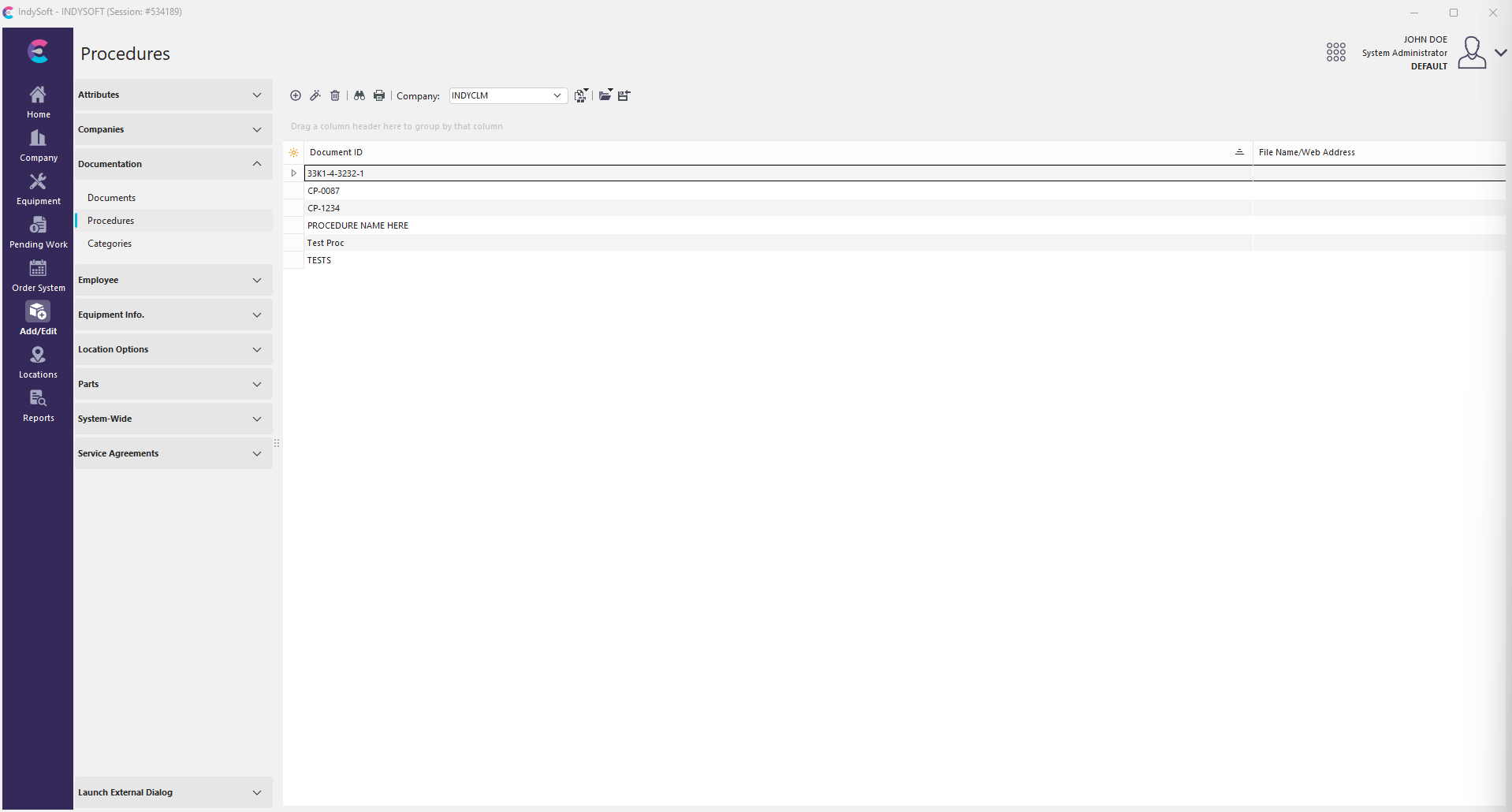
Add/Edit Procedures
 'New Item' to add a new procedure
 'View Edit Item' to edit the procedure
 'Delete Item' to delete the selected procedure
Note: Ensure you have selected the correct company before adding new procedures.
| Main Information | Main Information:
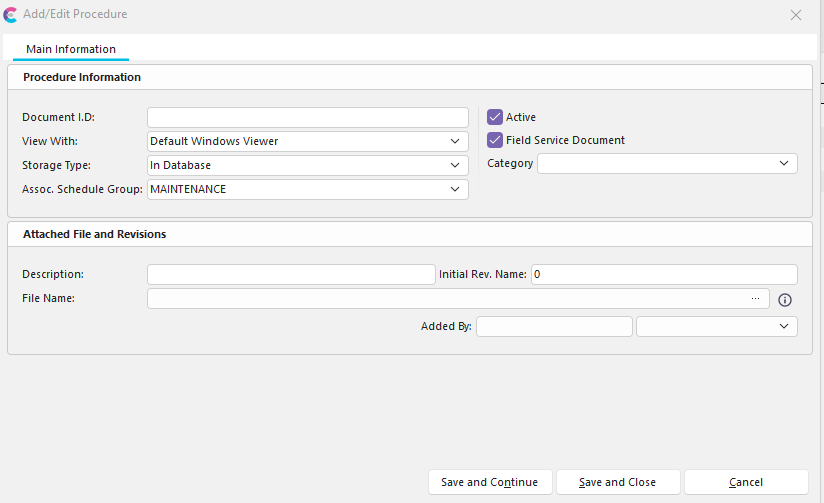
Add/Edit Procedure Dialog - Main Information Tab
This tab provides an overview of all information related to the selected procedure.
Add/Edit Procedures and Documents has received a new look and feel in 13.1. Instead of the wizard step process, there is a new tabbed navigation structure. New fields for Category and Field Service can also be utilized.
If the user presses "Save," the revision will be created, and the form will close. If pressing "Save and Continue," the user can see more custom fields to edit and a second tab called "Revisions" to batch associate employees with Procedure Revisions.
Document Information
Document I.D.
Here, you will give the procedure a name in the 'Document I.D.' field.
View With
- Default Windows Viewer - A pop-up window of the selected procedure will appear on the screen
- Web Browser - Choosing this view will affect the following step; asking you to give the web address in which this document can be found
- No Viewer- Reference Only
Storage Type
- In Database - The procedure will be stored along with the IndySoft client files in the central database. This gives you more options when sharing the document and security.
- In Central Location - This option allows users to save to a single-user hard drive or network-accessed hard drive.
Assoc. Schedule Group
Schedule group associated with the procedure - based on Add/Edit...Systemwide...Scheduling...Schedule Groups
Active
Specifies if the procedure is active or inactive
Field Service Document
Specifies whether the procedure is considered for Field Service - controls if the procedure is synced over to Field Service machines
Category
New in 13.1, specify the category associated with the procedure - based on Add/Edit...Documentation...Categories
Attached File and Revisions
Description
A more detailed description of the procedure that the 'document I.D.' does not specify
File Name OR Web Address
(depending on how you choose to view this procedure)
Document Type
- Standard
- Embedded Calibration Doc
- Visual Cal Program
- Custom Program
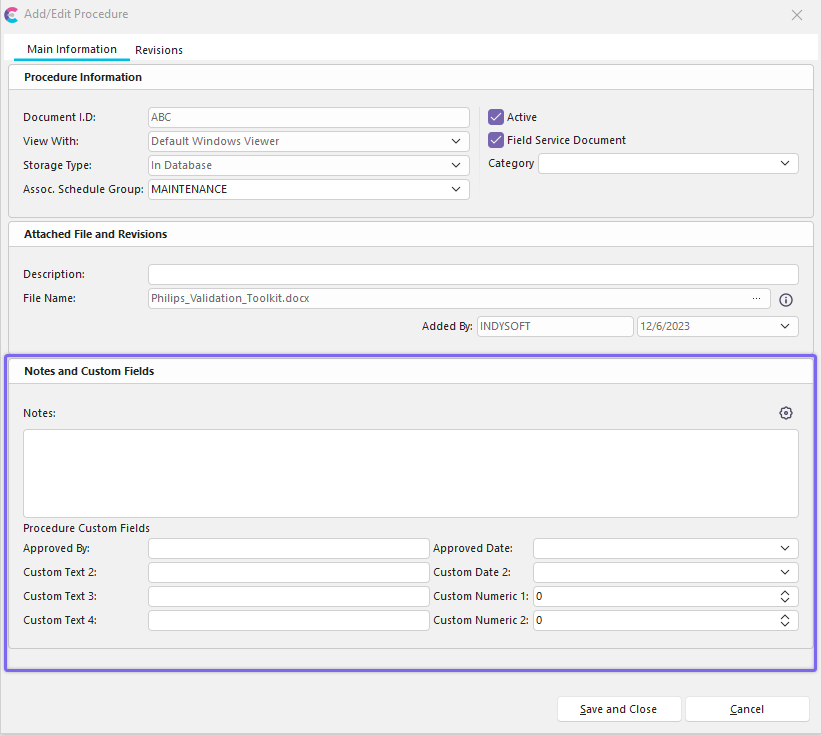
Notes and Custom Fields
Notes
This area allows you to write additional notes related to the procedure.
Procedure Custom Fields
This area allows you to add values to the custom fields you have created. These values will appear under the field heading in the Add/Edit Procedures display window.
The custom field labels can be setup through the cogwheel icon

Setup Custom Labels for Add/Edit ProcsRevisions | Revisions:
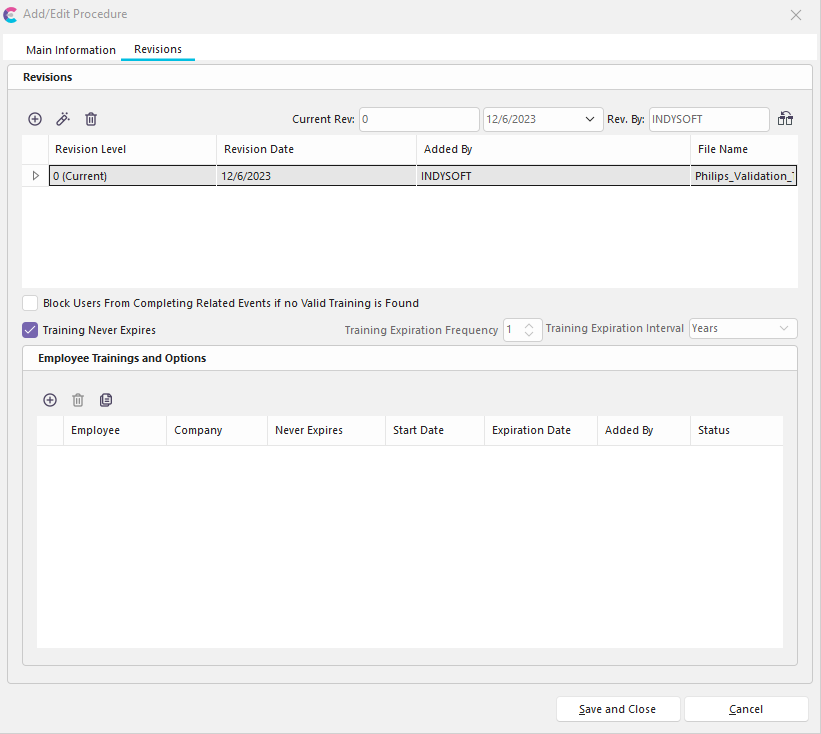
Add/Edit Procedures Dialog - Revisions Tab
This tab addresses the possibility of having multiple procedures that might be updated or revised every so often.
Adding Procedures and Documents received several updates in version 13.1. One major update to be aware of is that adding procedures through the standard Add/Edit Interface now automatically creates revisions. Upon saving the procedure, a revision will automatically be created and marked as current with a revision level of 0. The upgrade process from version 13 to 13.1 also automatically creates revisions (revision level 0) where none were created before. If procedures or documents already had existing revisions, they will remain untouched.
When going to the Revisions screen, the current revision should always automatically be highlighted. Depending on which revision is selected, the corresponding trainings should appear below in the Employee Trainings and Options grid. An administrator has the ability to add or delete these trainings.
When creating a new Procedure after converting to version 13.1, the option to block users from completing related events will be unchecked by default. Therefore, functionality must be enabled and implemented and should not have any adverse effects when upgrading from an older version to 13.1. IndySoft will also default any training expiration to never expire.
By clicking 'New Item' (plus sign icon), you can add a new revision (or version) of the procedure you're entering/editing.

Insert New Revision
Revision Level
For example: if this procedure is updated every 12 months, you might put the level as the year it was created/updated.
Revision Date
Specify the date the revision occurred.
Mark as Current Revision
Checking this checkbox will make the procedure you're adding the default revision.
Suppose an admin needs to create a new revision, and Employee Procedure training associations exist for the 'Current' revision. In this case, upon creation of the new revision, IndySoft will offer to auto-create the trainings from the existing 'Current' revision and apply them to the newly created revision.

Auto-Create New Trainings for Revision Prompt
If the Admin selects "Yes," then all 'Active' trainings will be created for the new revision.
Note: If you've created a list of procedures and afterward decided which procedure is the current one, you can click this icon 
and it will designate the highlighted procedure as the current default revision.
Employee Trainings and Options
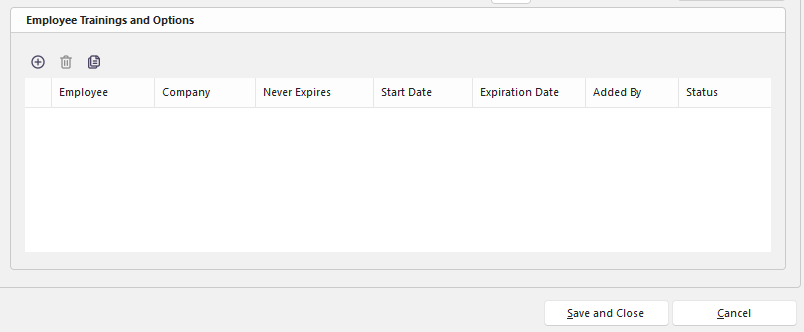
Employee Trainings and Options
Block User from Completing Related Events if no Valid Training is Found
If this option is enabled AND an Event has the workflow config. option Enabled to 'Check for Emp. Procedure Trainings', then the Employee record associated with the user logged in will be checked and potentially blocked in 3 separate places where they might be attempting to add/use a procedure:
- Upon Adding Equipment associated with that Procedure (Equipment will be blocked from being added)
- Upon attempting to add to the Procedure section in the Documents tab of the event directly
- Upon completion of the event. If the user gets to this state, they will be able to exit the event and leave it as incomplete.
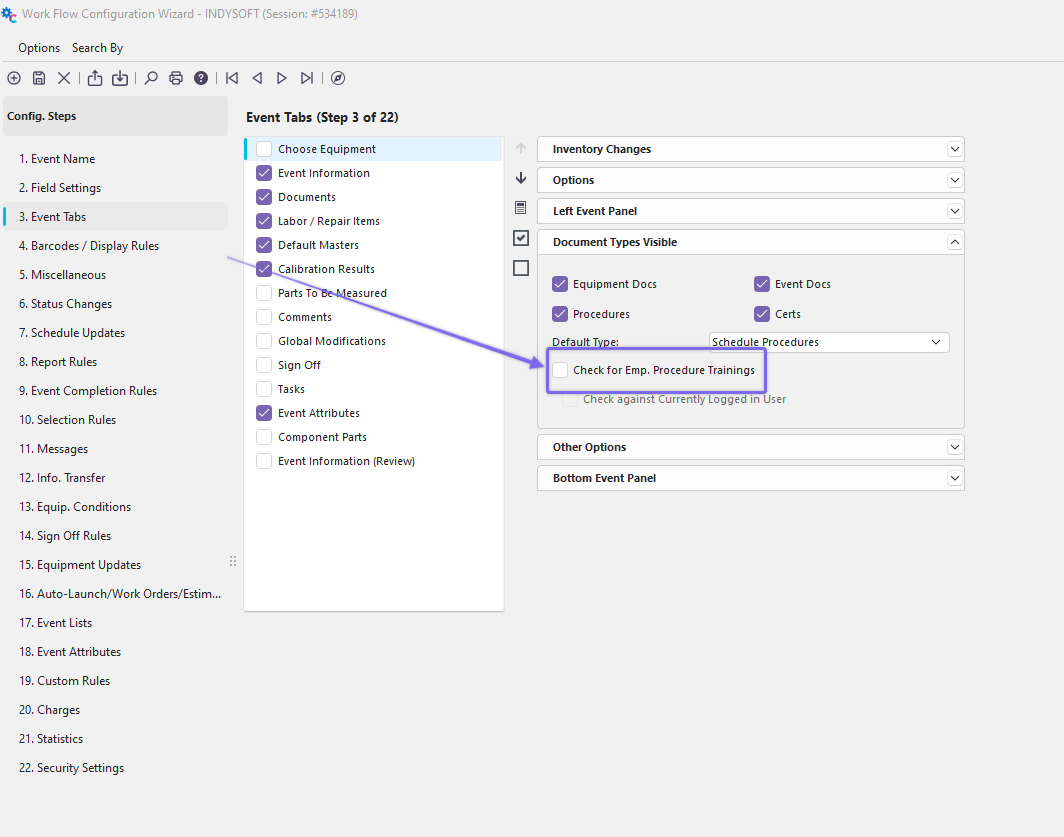
Workflow Config. - Event Tabs - Check for Emp. Procedure Trainings
Training Never Expires
Specifies if new employee trainings will default never to expire. If checked, the training expiration frequency/interval fields will be grayed out. If unchecked, the user can specify the training expiration freq/interval in the following fields.
Training Expiration Frequency
Specifies the default training expiration frequency
Training Expiration Interval
Specifies the default training expiration interval
Creating an employee/procedure training can only be done when a valid revision exists. Therefore, Employee procedure trainings are revision-dependent, and new associations must be made when a new revision is created. IndySoft provides several options to allow batch associating Procedure Revisions with Employees easily.
 Add Employee Training
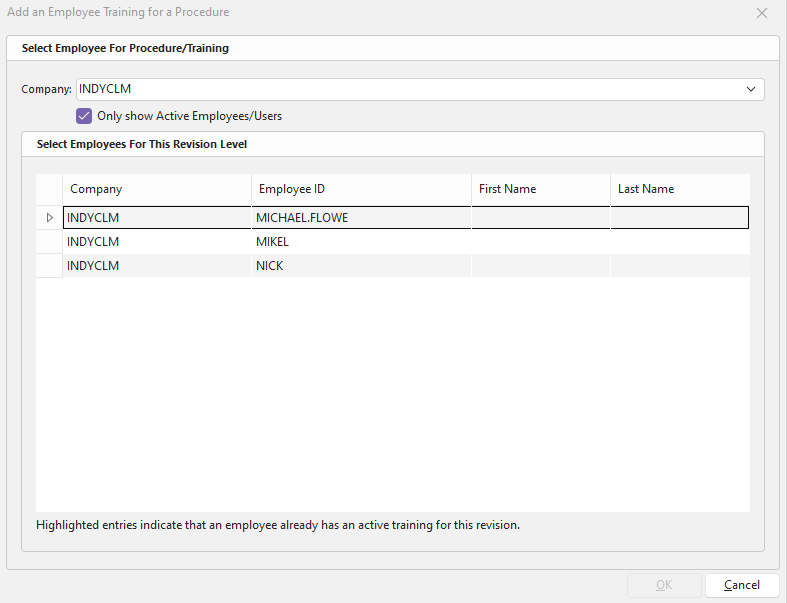
Add an Employee Training for a Procedure
By default, this screen will only show active employee records who are also users. This filters the employee list down to employees who can log in and use the software. If 'Only Show Active Employees/Users' is checked, the screen will open up and show the Default Employee Company list whose Employee records are "Active" and associated with an "Active" User record. If this option is unchecked, all employee records will show regardless of status. Records that are highlighted in blue represent employees who already have "Active" training associations with the corresponding revision. The Admin can search for employees using Ctrl + F and multi-select for a batch association.
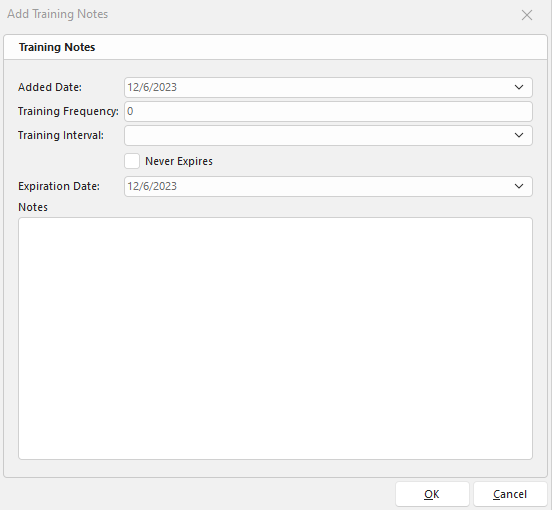
Add Training Notes Dialog
The review screen will show the expiration date (if any), Frequency, and Interval. The Admin can now update the "Added Date" and add any specific notes related to the trainings, then press ok to batch create associations.
Suppose the Admin attempts to create associations for employees who already have associations. In that case, they will be asked if they would like to Archive existing associations for those particular users and create new ones - If "No," then all non-existing associations will be created. If "Yes," the older ones will be set to ARCHIVED, and the new ones will be created.

Archive Trainings Prompt
 Remove Employee Training

Delete Employee Training Confirmation
The Admin will be prompted to confirm 'Yes' or 'No' whether or not they would like to delete the selected employee training record.
 Populate Trainings from Another Procedure
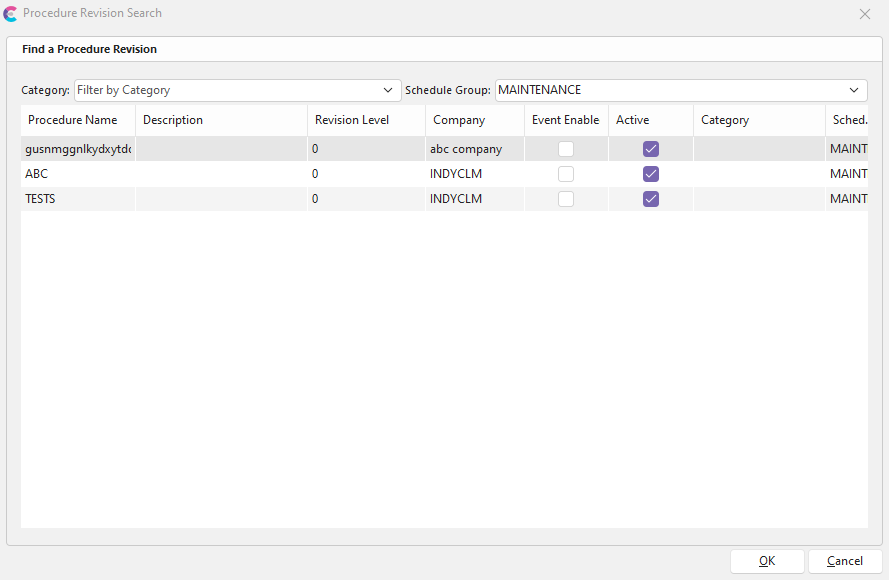
Procedure Revision Search
Use this option to populate trainings from an existing procedure automatically. This function will copy all existing employee procedure training records to the open procedure in the add/edit dialog. |
 Productivity Tip
The Add/Edit Procedures dialog box can be filtered and customized differently. See General Interface for more information.
Buttons and Icons are detailed here.