Server Key
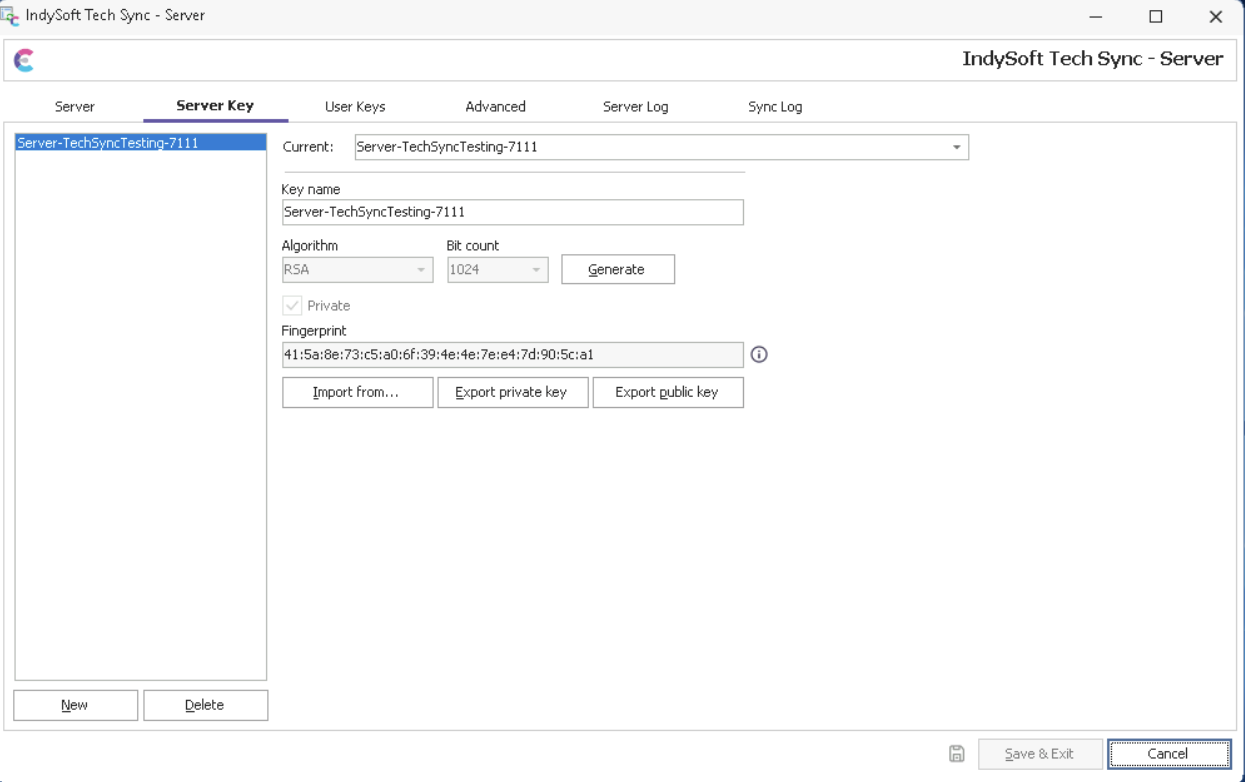
IndySoft Secure Server - Server Key Tab
The IndySoft Secure Server must have a server key created before any external workstations can connect. Only one server key needs to be setup. The interface allows for multiple server keys - but only one of the server keys is selected as 'current' from the drop down on the top of the tab. To create a new server key press 'New'. The name of the server key will be automatically populated with the name of the workstation and a random #. This name can be modified, as long as it is unique:
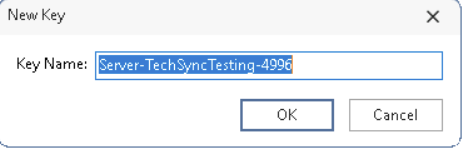
New Key
Next, you will first be asked to randomize the server, to insure a completely unique key is created. The following dialog will display:

Random dialog
The green progress bar will only proceed when the mouse is moved over the dialog. Move the mouse to any fashion across the dialog. These mouse movements are used to insure the uniqueness of the key that is created. After the key is created you will be prompted to export the public key to a location on the server:

Save Public Key
The public key is only a component of the actual key used for authentication. The public key is the only key that is ever shared with another workstation. Saving the public key allows for easy recall of the key, when needed to send back to users making access requests. The default location given for the server key is in the 'IndySecureServer' folder under Public Documents (so one level above the \Files subdirectory that will hold all the SFTP files). To later recall the directory where the server public key is saved, press the 'Goto Server Key' button 
Once the first/only server key has been created, you will see it auto-select in the 'Current' drop down. Typically, this is all the steps that must be performed. The 'Import From' button would only be used to import a private server key saved on another workstation (uncommon). The 'Export Private Key' button can export the private server key (which is different than the public server key). This should only be performed for backup purposes, or if you are moving the server location. Be careful to not share the private key file.
If multiple server keys are created, be sure to select the current server key from the drop down. |