Template Approvals
The Template Approval system is designed to prevent the usage of a template before it is completely (or at least sufficiently) input. The Template Editor has the same layout functionality as the Equipment View main screen. This means that each field and sub-table is immediately posted to the database when modifications are made. So without this approval system it would be possible (although not likely) that as soon as a template is initially created users could potentially see the template within search operations and deem the template to be good match for their current usage and attempt a link. Making a link to a template typically assumes permanent links to equipment fields and detail tables, however. So it is important that the template is fully input before this link is made and the resulting changes to linked equipment are trusted in the workflow. Or a more general example: sometimes a manager or technician simply wants to input a template into the database to begin tracking certain specifications or details about the template - because they are working towards an upcoming service commitment. Once the template is ready for active usage, the approval(s) can be completed.
There are two important parts of the approval system. First, the overall template status, which is stored on the level of the template. Second, the listing of user-specific approvals that accomplished this approval. The overall template status can be easily viewed from the top of the right-hand panel of the Template Editor:
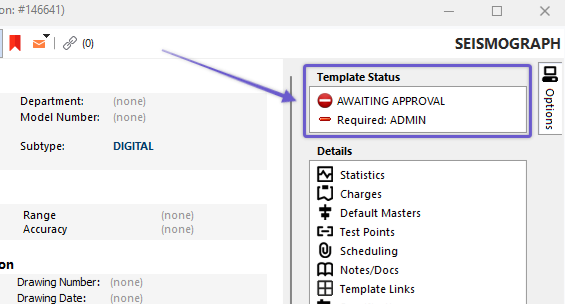
Template Approval Status - Template Editor
In the above example, the CLAMP METER template is 'AWAITING APPROVAL'. There are only 2 possible statuses for a template, either 'AWAITING APPROVAL' or 'APPROVED'. Below the status is a summary of the approval requirements. If the requirement is still pending then the requirement will display with a red dash. If the requirement has been completed then the requirement will display with a green dash. The word 'Requirement:' is used as a prefix for all required rules, otherwise 'Non-Required:' is shown. In the example below the 'G12 ONLY' rule is optional ('Non-Required:'). Neither rule has yet been completed (we don't see any green dash- only red).

Template Approval Status - Awaiting Approval Example
The requirements for template approvals are setup from within System Preferences - Template Approvals. Here one or multiple rules can be setup - each rule configured as either required or non-required. The template approval rules are setup through an employee filterbox that has access to all employee fields (as setup in Add/Edit...Employee...Employees) and the Login Name. Once all approvals have been completed for a template then the template will have a status of 'APPROVED', and the same panel in the upper-right of the Template Editor will display the username (login name) that fulfilled each requirement. See example below:

Template Approval Status - Approved Example
To review the sign-offs already completed for a template or to add new sign-offs simply click on the template status text hyperlink or any of the rule names. The following dialog will be displayed. This dialog summarizes all past sign offs (top of dialog) and all sign-off requirements (bottom of dialog):
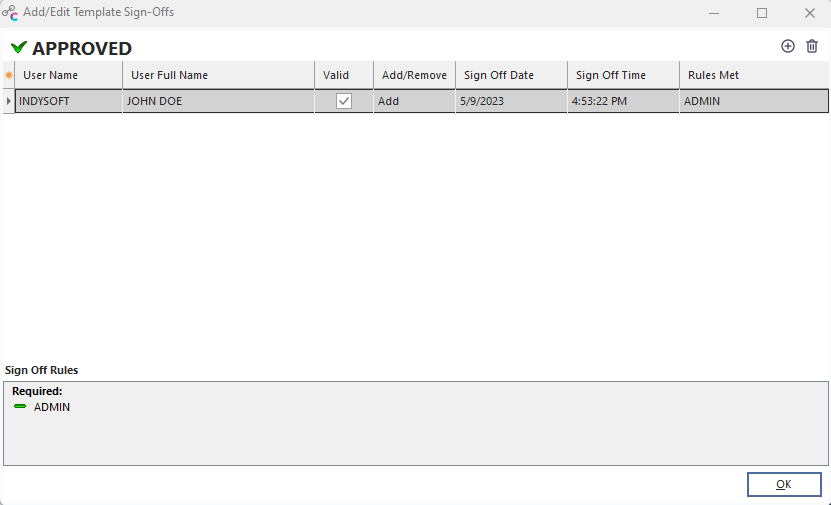
Add/Edit Template Sign-Offs
Press the 'Add Sign Off' button to add a new sign off for the current template (or press Insert on keyboard). To delete a previously completed sign off first select the sign off in the grid then press the 'Delete Sign Off' button. Note that the grid gives a full history of all sign-offs and deletions - much like an event system sign-off. To confirm if a record in the grid was a sign-off or a deletion of a past sign-off check the 'Add/Remove' columns. Once a sign-off has been deleted by a 'Remove' operation the actual sign-off (the 'Add' record) will have a new prefix of '[DELETED]' and the 'Valid' checkbox will be unchecked for the sign-off. Note that the 'Rules Met' column summarizes all sign-off rules that were met by the sign off. Typically this is only one requirement - but it is possible for one sign-off to complete several requirements. Rules that have been met will be shown with a 'green dash' icon in the bottom 'Sign Off Rules' summary. Rules that have not yet been met will be shown with a 'red dash' icon in the bottom 'Sign Off Rules' summary.
Legacy Sign-Offs
When a database is first upgraded to at least database version 6.2 (the database version that matches client version 9.1.8 and above) then all existing templates are placed in an 'APPROVED' status, and an automatic 'LEGACY' approval is noted in the sign-off history. This batch sign-off process is required so existing users (who used clients earlier than client version 9.1.8) will not have to immediately approve each template before use in their upgraded client. But any new templates added to the system will start in 'AWAITING APPROVAL' status and require approval. So this visible 'LEGACY' approval is important - it quickly tells users that the template is approved, but only because it was in usage before IndySoft had template approval functionality. Many users will want to remove this legacy sign-off and move their template(s) through an approval process. There are two methods of removing a legacy template approval:
1. Goto the Add/Edit Template Sign-Offs dialog for a template, highlight the legacy approval and press Delete. This will delete the legacy sign off and note the deletion in the log.
2. To quickly delete several (or all) legacy template sign-offs, goto System Preferences - Template Approvals and press the 'Move Legacy APPROVED templates to AWAITING APPROVAL' button ( . This will give you a confirmation dialog where you can select one or multiple templates. When the OK button is pressed all the selected templates will have their legacy sign-offs deleted and the overall template status will be changed to AWAITING APPROVAL
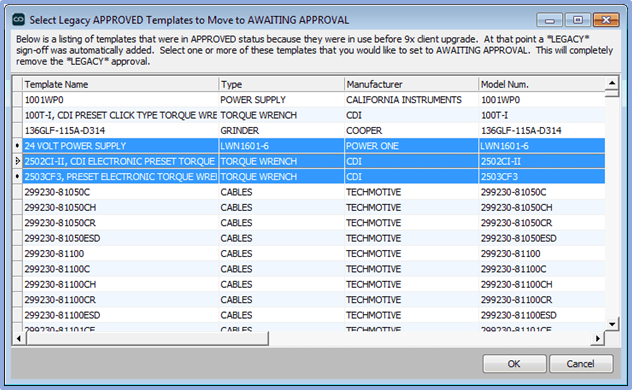
Select Legacy APPROVED Templates to Move to AWAITING APPROVAL
Search Options - Template Approvals
When searching for a template in various IndySoft functionality you will note that the template approval status can be easily filtered from the top of the search dialog. The template status is also noted in the search grid. Select 'Approved' to search for only approved templates. Select 'Awaiting Approval' to search only for template awaiting approval. Select 'All' to search all templates regardless of status:
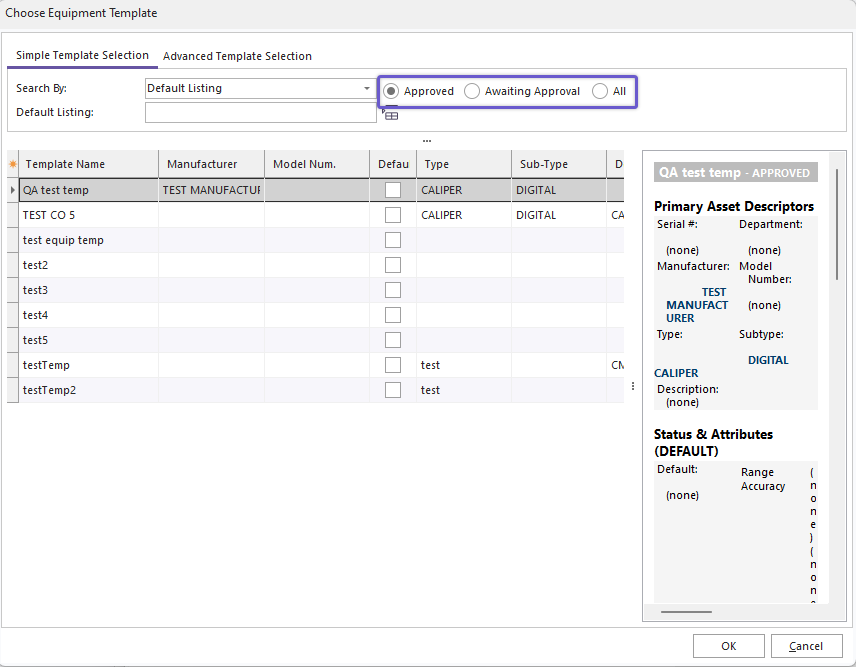 ../Storage/indysoft-help-publication/hm_clip2795.png
Template Searching - Filter by Approval Status
Note that when the above template search dialog is called from Equipment View during the 'New Equipment Based On Template' hyperlink (NEWEQUIP-TEMPLATE) then the selection of any template 'Awaiting Approval' will be blocked. A new asset can only be created from an APPROVED template:

Select an APPROVED Template Only
Blocking Equipment Selection In Events Based On Template Status
It is also possible to block the selection of an asset into an event if the asset is currently associated with a template that has not been approved. This functionality can be enabled from within Workflow Configuration - Selection Rules by selecting 'Block If Related Template Awaiting Approval':
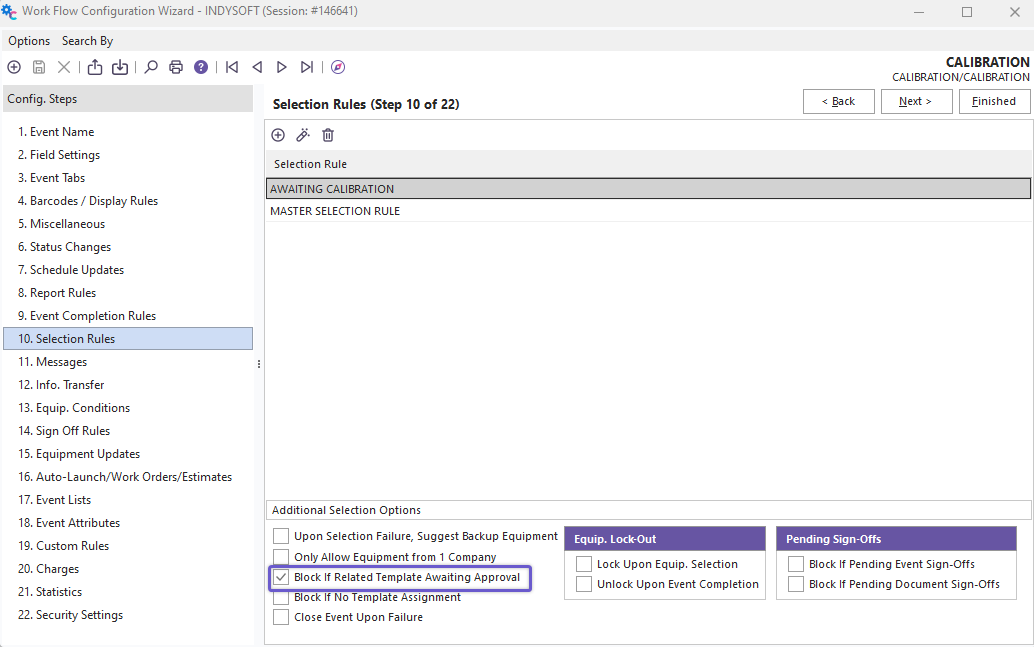
Block If Related Template Awaiting Approval
If this is option then the equipment will be blocked upon selection into the event, much like a custom Selection Rule. The following dialog will be displayed to the user attempting to perform the event:

Block In Event If Asset is Linked to Template Awaiting Approval |