Dashboard Main Screen
Home View Tab
The Read Only Default Configuration will add the Home View Tab and Equipment View Tab. The Pending Work Tab and Order System tabs are unavailable in Read Only. The Home View has three tracking statuses and two events by default. You can change the main flowchart to fit the needs of your Read Only system. Remember that the tracking status counts will be specific to the customer viewing this Read Only page. They can access the side panel for technical support or customize the panel. Current Read-Only users will add reports and hyperlinks to specific areas on the side panel for ease of use.

Equipment View Tab
The Read Only Equipment View Tab is a little different from the main Equipment View Tab. Read Only users are unable to edit equipment information. You will notice many gray areas and features from the IndySoft Client missing. The events in the History can only be viewed if their Admins want them to be able to see them (See Configuration for details). Viewing, deleting, and unlocking are grayed out if you notice on the History section. This is the same for Scheduling and Notes/Docs.

Editing Equipment Information
Company Extended Attributes
There is a way to give access to your Read Only users to be able to edit certain fields. You will notice the Attributes tab in the Equipment Dialogs at the bottom of the Equipment View Tab. You have the option of giving individual customers access to certain fields and giving access to fields System-Wide. Individual access to customers is done in the Add/Edit Companies section.
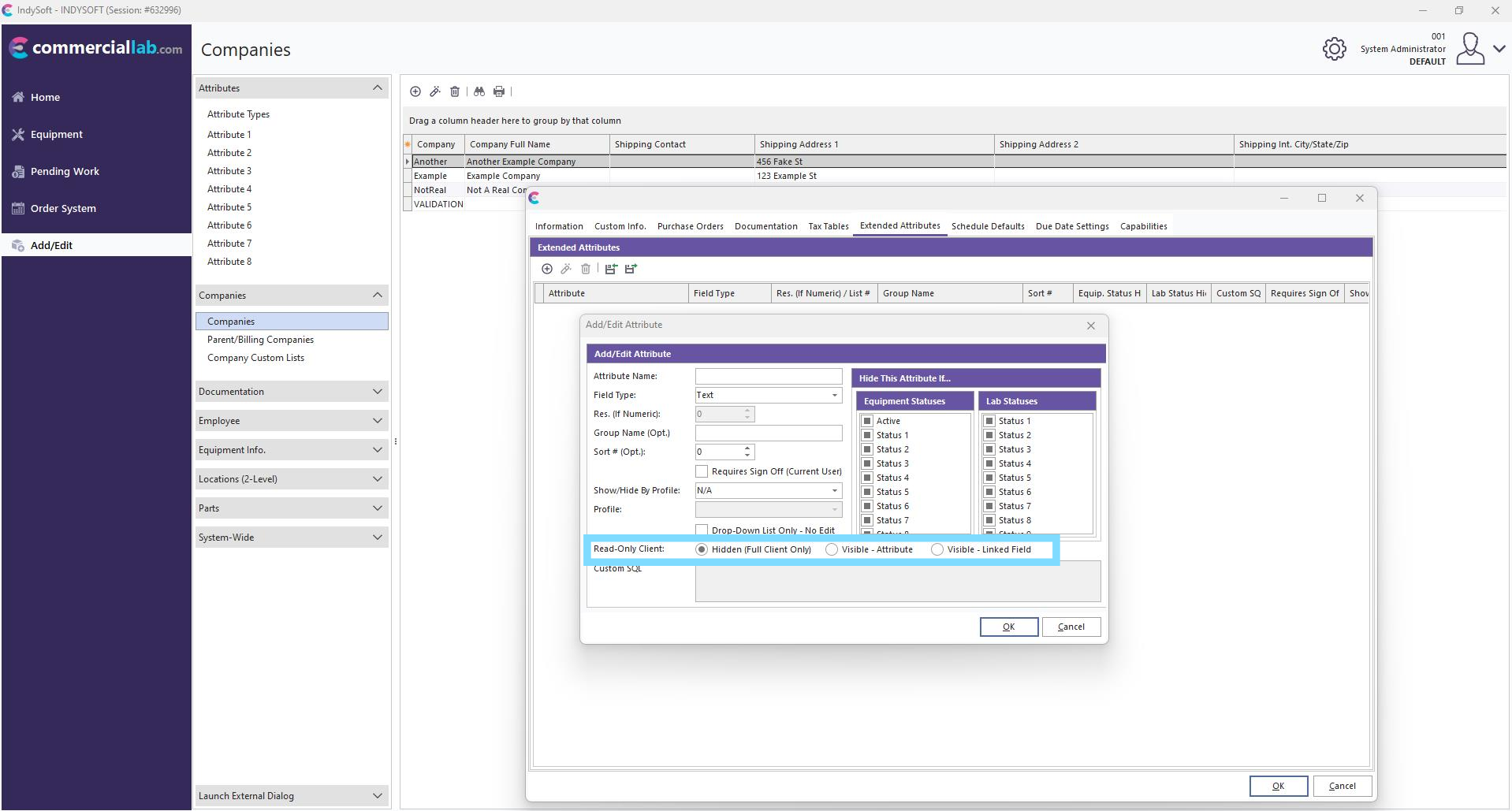
**Note:**You can create a new Extended Attribute and link your attribute to an Asset Descriptor or gage table name.
Below is an example of setting up how to create an Extended Attribute for the department field.
Step 1: Create the Attribute Name
Step 2: Pick the Field Type
Step 3: Select the Visible - Linked Field in Read-Only Client and then select the Linked Field: name.

System-Wide Attributes
The steps for System-Wide Attributes are the same as the Company Specific; however, the location differs.
Step 1: Create the Attribute Name
Step 2: Pick the Field Type
Step 3: Select the Visible - Linked Field in Read-Only Client and then select the Linked Field: name.
 |
|