Main Screen
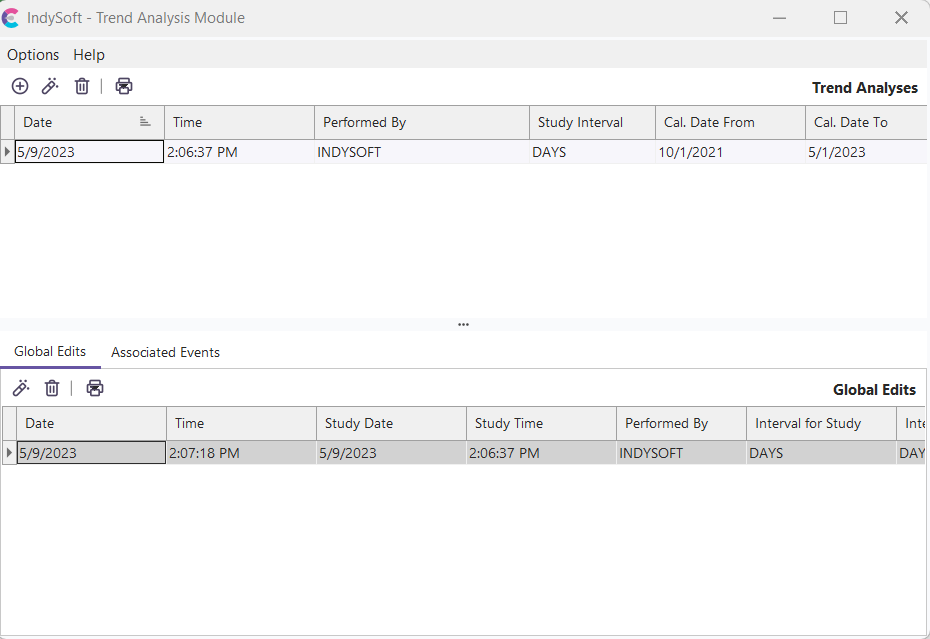
Trend Analysis Module - Main Screen
When used along with IndySoft, the Trend Analysis Module analyzes past calibration history and calculates an appropriate calibration interval for the related gages. This calibration interval can be applied to related gages, resetting their original calibration interval to the modified interval. All calibration interval calculations are taken from the Reliability Analysis Methods for Calibration Intervals: Analysis of Type III Censored Data" paper by Dennis H. Jackson, Ph.D., and Howard C. Castrup, Ph.D. A 'simple estimate' and 'maximum likelihood estimate' calculation is performed on the related events.
The main screen is divided into four main sections: Menu Items, Trend Analyses, Global Edits, and Associated Events.
Menu Items
Options...Study Event Types: See Study Event Types for more details.
Options...Exit: Closes the Trend Analysis Module.
Help...About: Displays the About screen. Use this screen to find the current version (needed for any correspondence with IndySoft Support).
Trend Analyses
This grid lists all trend analysis studies performed on IndySoft data. These records can be sorted by any field or multiple fields by clicking in the field header section on the appropriate field (to select multiple field headers, press the Ctrl key). The records can also be filtered by pressing any of the  buttons available to the right of each field name. This button will display several quick filtering options. Press the button at the bottom of the grid to remove a filter. Four buttons are available above the 'Studies Performed' grid:
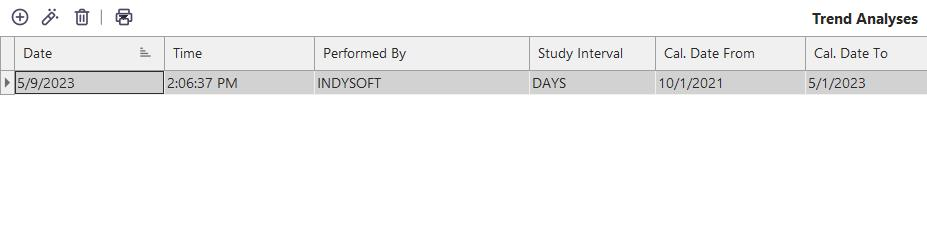
 New Trend Analysis: Will commence a new trend analysis. See Perform New Study for more details.
 View Trend Analysis: A dialog showing the results from a previous trend analysis will pop up. See Results For Study for more details.
 Remove Trend Analysis: Will remove all selected records from the grid upon confirmation.
 Print Trend Analyses: Will print the contents of the 'Trend Analyses' grid exactly as shown onscreen. The print preview dialog also allows for customizing various print options such as colors, fonts, margins, print setup, etc.
Global Edits
This grid list lists all global edit operations performed from the selected trend analysis above (so, in many cases, only one record will be listed). Global Edit operations occur after a trend analysis is performed, and the user presses the 'Apply Results' button from the 'Result for Study' screen. After the 'Edit Filter To Be Used For Global Edit' options are confirmed and 'Confirm and Apply' is pressed, the relevant schedules are updated in the IndySoft database, and a global edit historical record is created. These records can be sorted by any field or multiple fields by clicking in the field header section on the appropriate field (to select multiple field headers, press the Ctrl key). The records can also be filtered by pressing any of the buttons available to the right of each field name. This button will display several quick filtering options. Press the button at the bottom of the grid to remove a filter. Four buttons are available above the 'Global Edits' grid:
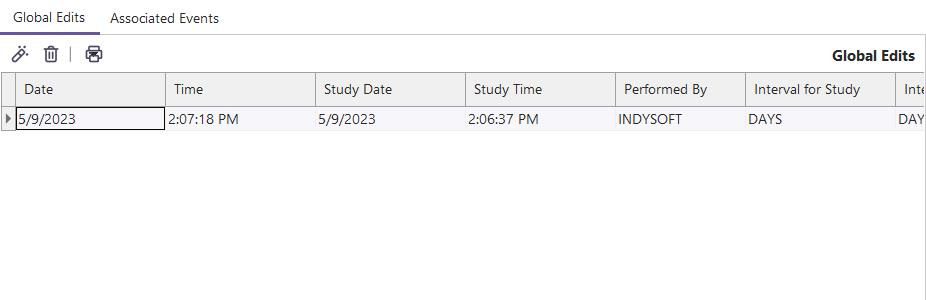
View Global Edit: Will pop up a dialog showing the options selected for the global edit. See View Global Edit Info for more details.
Remove Global Edit: Will remove all selected records from the grid upon confirmation.
 Print Global Edits: Will print the contents of the 'Global Edits' grid exactly as shown onscreen. The print preview dialog also allows for customizing various print options such as colors, fonts, margins, print setup, etc.
Associated Events
This grid list lists all associated events used in the calculations of the selected trend analysis above. These records are useful in debugging which events were included in the study to help make future studies more targeted. These records can be sorted by any field or multiple fields by clicking in the field header section on the appropriate field (to select multiple field headers, press the Ctrl key). The records can also be filtered by pressing any of the buttons available to the right of each field name. This button will display several quick filtering options. Press the remove button on the bottom of the grid to remove a filter. Four buttons are available above the 'Global Edits' grid:
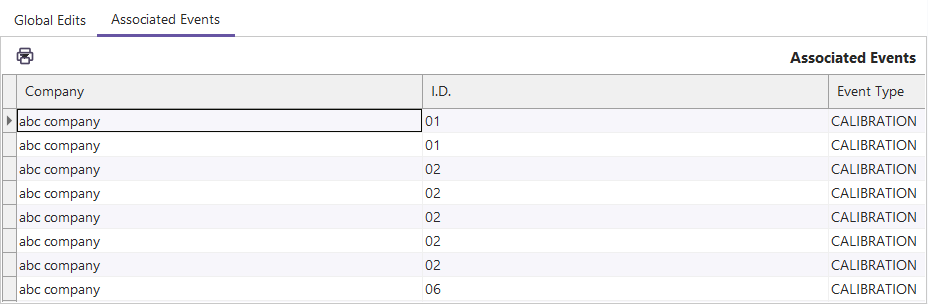
Print Associated Events: Will print the contents of the 'Associated Events' grid exactly as shown onscreen. The print preview dialog also allows for customizing various print options such as colors, fonts, margins, print setup, etc. |