Login Screen
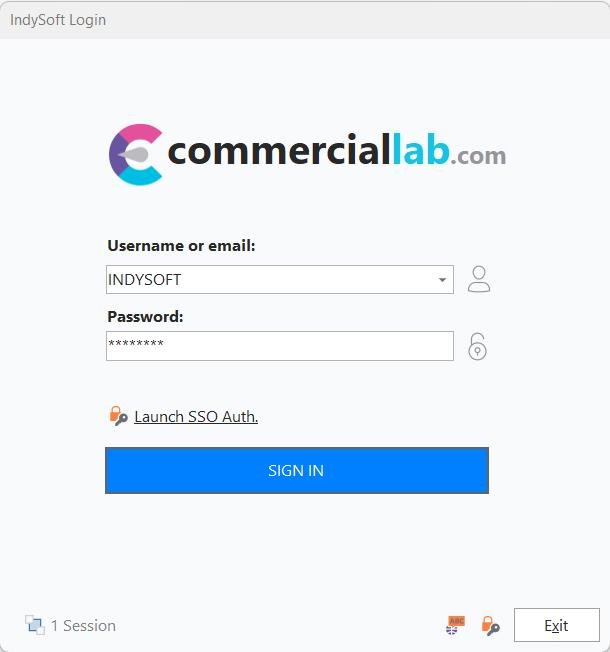
IndySoft Login Screen
When IndySoft is launched, you are required to log in using a username and password setup in the IndySoft database—system Administrators set up user names/passwords through the Profile Manager utility. Enter the username and password, then press 'Next' to proceed. All usernames and passwords in IndySoft are case-sensitive. If you are logging in for the very first time, your default username will be 'INDYSOFT', and the password will be 'password'.
IMPORTANT: Please change these default credentials immediately to ensure database security.
Your System Administrator may have set up your username so that upon initial login, you will be prompted to modify/set your password. Typically, administrators will default new user names to a default password communicated to the user and then require them to change it to a password only the user knows. If this is the case, you will see the prompt below:
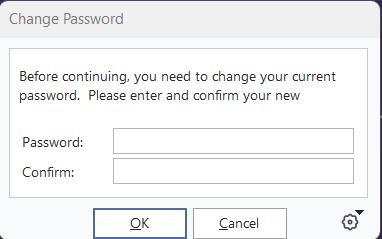
Change Password
Enter your new password with a confirmation, then press OK to proceed. You can get to the same dialog from the login screen by pressing the 'Change Password Upon Logging In' button in the lower-left of the login screen:
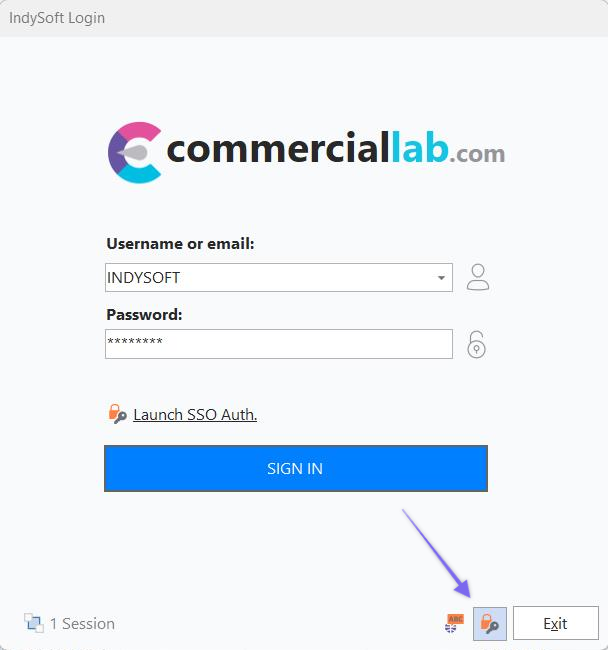
Change Password Upon login |