Scanning In
Administrators can allow end users to scan the application with just a few basic steps. IndySoft does not give a management interface for distributing these codes and guaranteeing their uniqueness. Still, the codes can be manually entered and associated with an employee record, or if another system manages these for you, the codes could be pushed into the IndySoft system with a script or through the API. The IndyGo mobile application requires that this access code be at least 8 characters when using it to log in.
Each user record has a corresponding employee record. The easiest and most reliable way to update the correct employee record is to go into Profile Manager, double-click on the desired user, and then use that screen to navigate to the employee's record. 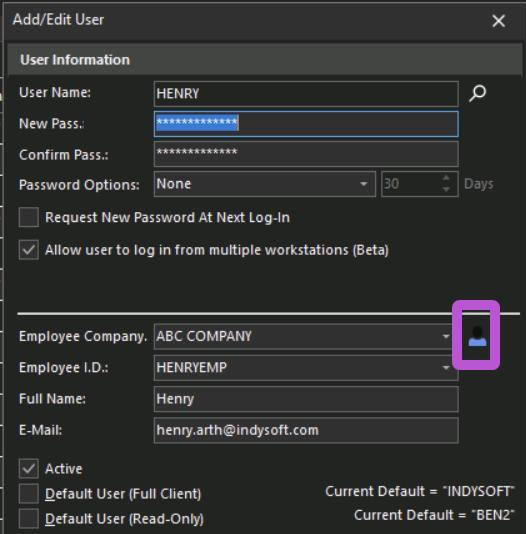
You can navigate to the "Passive RFID Tag" field from the employee record and enter the code corresponding to the user's scan-in badge or barcode.
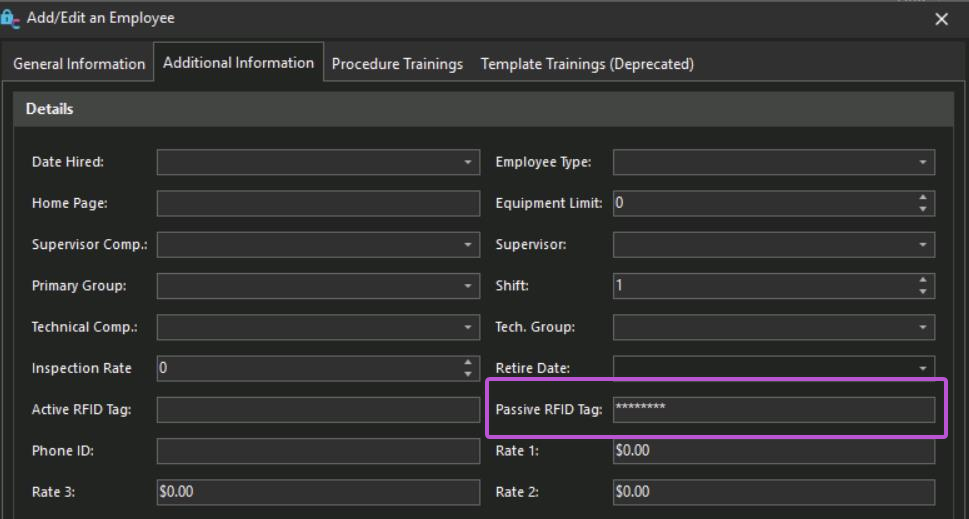
Once correctly associated, the user can log in with that code using the following:
-
A QR code of that value with the mobile device camera.
-
Any device that functions as a keyboard wedge from an IndyGo Windows workstation.
Note: This value cannot be typed in at the interface level instead of the user's password.