Notes for Admins.
When distributing the Web-Tier Tools installation file, you can either distribute it manually or set up an automatic link on the main IndySoft Client Dashboard screen.
Naming the Executable for Distribution
Suppose your users will be connecting to a 3-tier IndySoft Application Server. In that case, you can embed the server's name and port # into the installation name to provide seamless installation without the user having to manually specify connection settings. You can also specify the type of database that your end users will be connecting to. The IndySoft Web-Tier Tools installation can be found in the same directory where you installed your IndySoft WebTier application.
When naming the executable, specify the type of database that the user will be accessing.
DB Types and 3 letter codes:
The assumed default database type is Firebird. Without any 3-letter codes in the .exe name - this will be assumed.
If Microsoft SQL Server is being used, use SQL in the filename (before the word SERVER as explained below).
If Oracle is being used, use ORA in the filename (before the word SERVER as explained below).
If HTTPS is to be used for 3-tier, then include HTTPS in the filename (before the word SERVER as explained below).
If Unicode is to be used for 3-tier, then include UNI in the filename (before the word SERVER as explained below).
To specify a 3-tier server/port #, simply include the word SERVER in the filename preceded by the server name and a comma separating the port number to use.
ie. If you are using an SQL server-based IndySoft Client and you are connecting to a server called indysoft.ninja and using port 9501, then you would name the file this:
IndySoftWebTierToolsSQLSERVERindysoft.ninja,9501.exe
If you also wanted to support *HTTPS and Unicode, then you would name the file this:
IndySoftWebTierToolsSQLHTTPSUNISERVERindysoft.ninja,9501.exe
*Please note to use HTTPS, you must have already set up your 3-tier IndySoft Application Server to support HTTPS with an appropriate digital certificate.
Setting up an automatic Web-Tier Tools Download Link from the IndySoft Client Dashboard
The most efficient way to distribute the Web-Tier Tools installation file is to setup a download link from the IndySoft Web-Tier Client Dashboard screen. To do this, simply open the LayoutBuilder application and choose to edit a Home view. Next, specify some text indicating that clicking a link will download the Web-Tier Tools installation file. Use the Web-TierTOOLS hyperlink to accomplish this. See below for an example.

LayoutBuilder - Custom Hyperlink for Web-Tier Tools
When the file is downloaded, by default it will be called IndySoftWebTierTools.exe - however you can use the same naming system to automatically have the file saved from the browser with this prefix. To do this simply open System Wide Preferences and create a a variable called WEBTIERINSTALLNAME. Specify the prefix and this will be appended to the installation file name upon download.
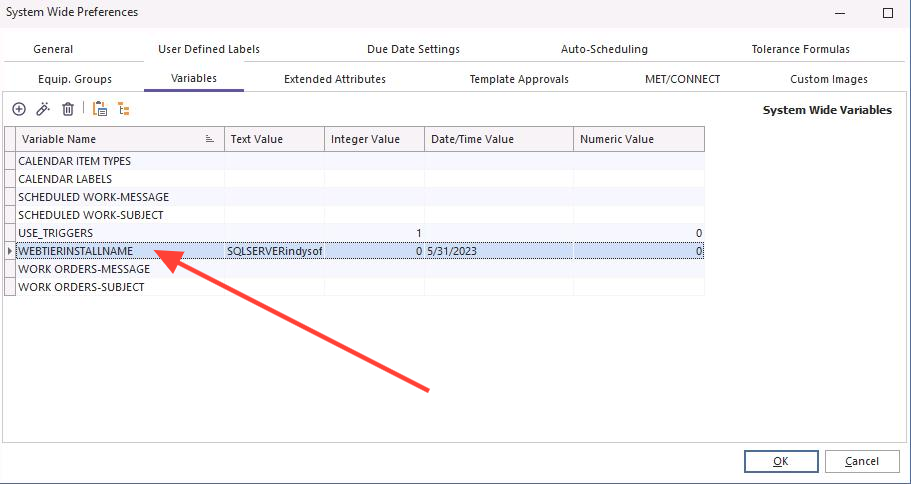
System Wide Preferences - System Variable for custom Server/Port IndySoft Web-Tier File Name
See the dialog below for an example. Set the Text Value option.

WEBTIERINSTALLNAME Global Variable |