Using Web-Tier Tools
To access specific areas of the Web-Tier Tools utility, you can right-mouse-click on the Web-Tier Tools icon in your Windows system tray. After right-mouse clicking, you will have a dialog similar to the one below.
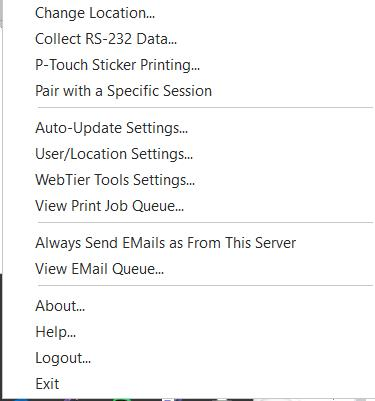
Web-Tier Tools System Tray Icon - Right Mouse Click options
Change Location: This option lets you quickly specify a location corresponding to where you are currently using the software. This is optional but useful when using the software in multiple locations.
Collect RS-232 Data:
This option will pop up the RS-232 setup dialog. This allows you to set up and configure RS-232 devices just like a user would currently from the IndySoft client.
User/Location Settings: Users can modify their own user/location settings with this dialog. It is the same dialog found in the IndySoft Client.
Web-Tier Tools Settings: This option lets you specify how often the Web-Tier Tools will check the database for print jobs. The default is every 5 seconds. We do not recommend setting this lower as this could cause the # of database checks to inundate an extensive system.
View Print Job Queue: Users can see existing or new print jobs and choose to cancel them when necessary.
Help: This option will open the Web-Tier Tools help file.
Logout: This option will allow a user to log out and re-login as another user.
Exit: Choosing this option will close the application. |