Attributes
With the addition of IndySoft Calibration Management's expanded Attribute Types, users can now add as many text and numeric fields as they like. The Attributes can be viewed on the main screen as a Tab, like Test Points, History, Schedules, etc. This makes selecting the Attribute much easier with many more options.
To add a new Attribute Type, select "Add/Edit" from the main screen menu, then "Attribute Types."
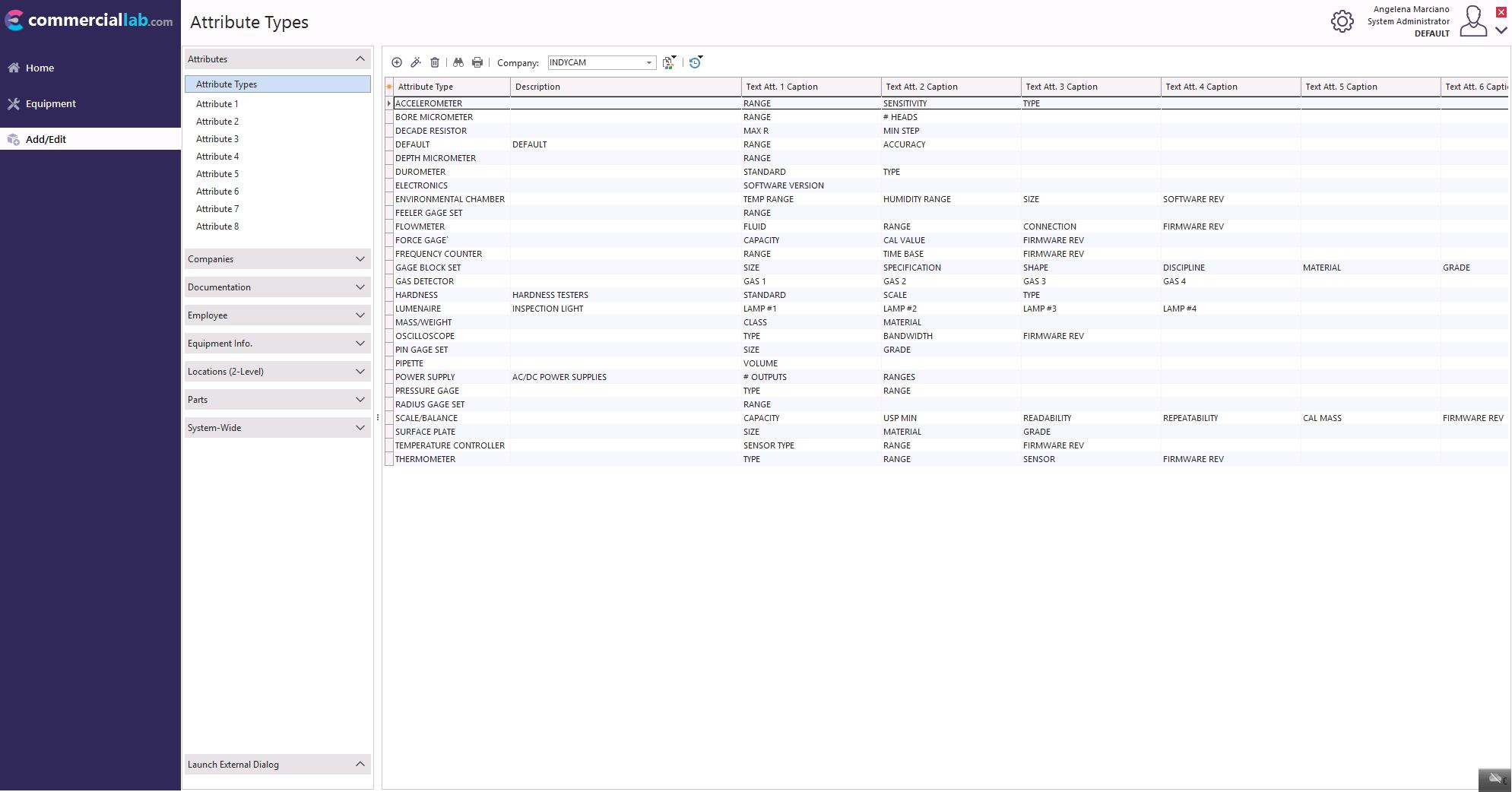
Click the "Add New" icon  .
.
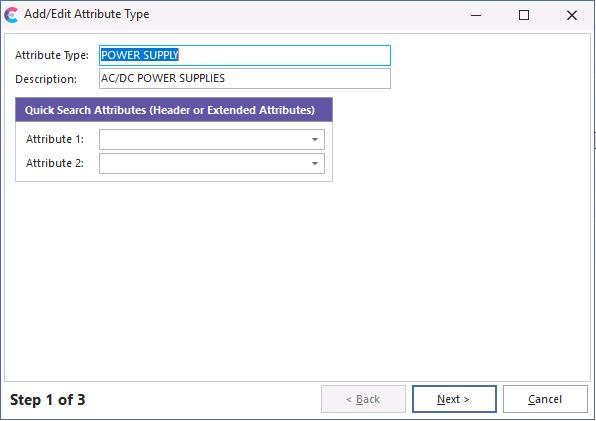
When the Attribute Type has been added, click "Next."
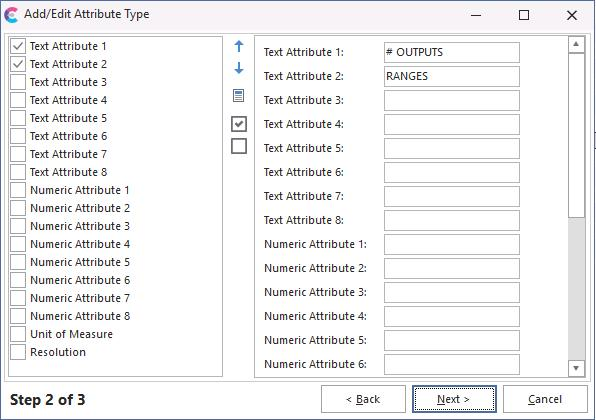
For each item you wish to use, check the Text or Numeric box to the left of the screen, then add the information as you want it shown on the main screen in the fields to the right. Click "Next."
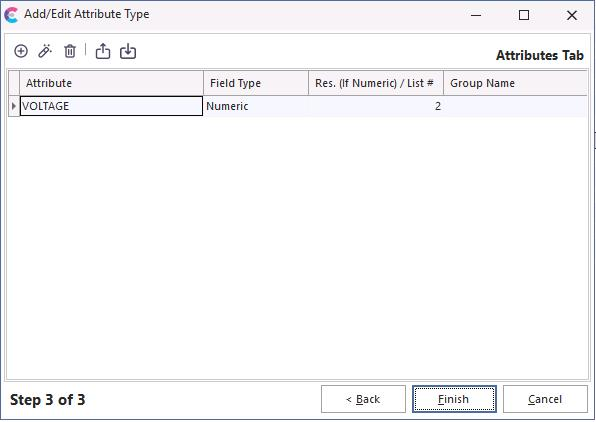
For each Attribute Type in Step 3, click the "Add New" icon and enter the desired information.
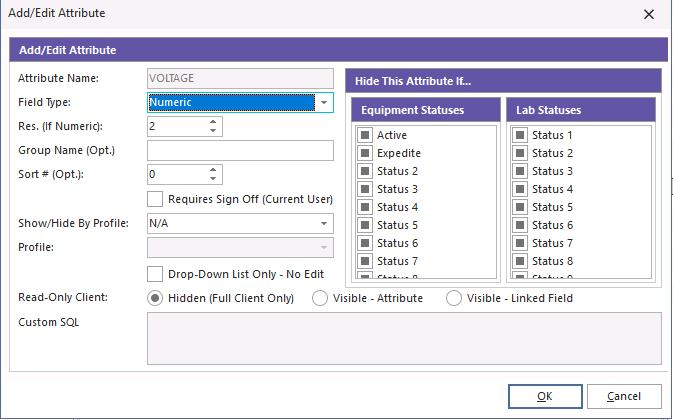
When all the Attribute Types have been added, click "Finish" and return to the main screen.
Select Add / Edit -> Attributes to add values to each attribute.
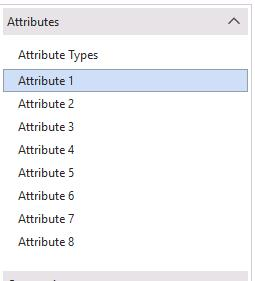
Select the Attribute number. This will open the following screen:
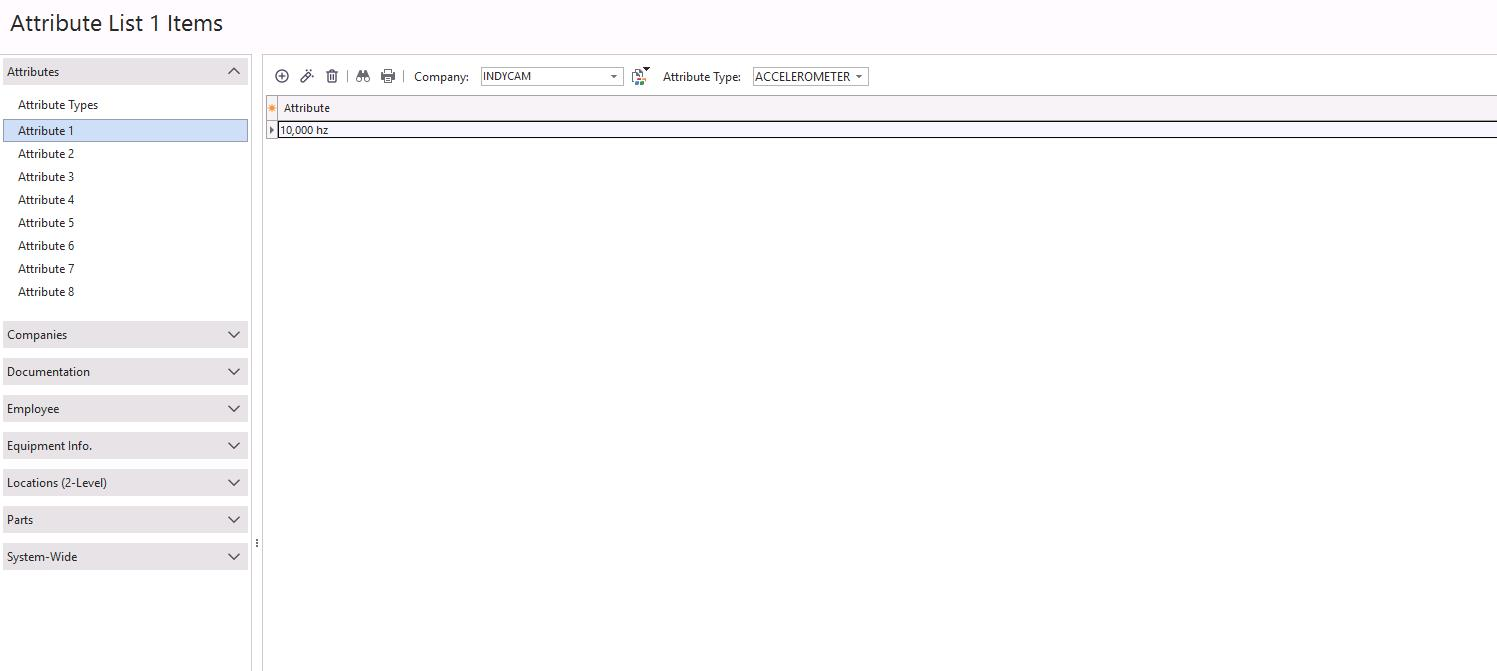
Company and Attribute Type control attribute values. |