Database Connectivity - Multi-User MSSQL 2-Tier
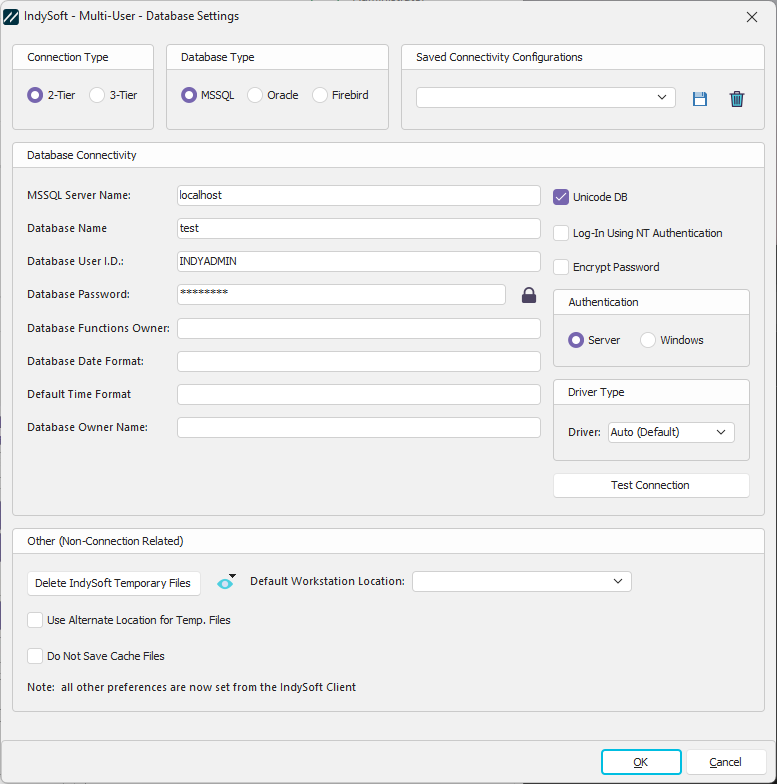
Database Settings - Database Connectivity - 2-Tier MSSQL
Database Connectivity
MSSQL Server Name - Enter the name of the database server where the IndySoft MSSQL database is installed
MSSQL Database Name - Enter the name of the IndySoft MSSQL Database
Authentication (Server or Windows) - To use a SQL Server Windows Authentication-based login - choose "Server." To log in with a database User ID and Password, select "Server."
Database User I.D. - Enter the MSSQL username that should be used for logging in to the MSSQL database. Note: this login is different from the user name input from the IndySoft login screen (when logging into the main screen). IndySoft has its own user list maintained in the Profile Manager. This is the actual MSSQL user name that IndySoft will use 'behind the scenes' for connecting to the database. It is suggested that this username be set to the owner of the IndySoft database objects in MSSQL.
Database Password - Enter the password used along with the 'Database User ID' above to connect to the IndySoft MSSQL database. Note that this password is encrypted when saved locally.
 Show Encrypted Version of Password
Use this button to display a dialog that lists an encrypted version of the currently input password (setting above). This encrypted password is a unique text value that can be used to pass along the password to other IndySoft users - so they can set up their Workstation Setup database connectivity without knowing the actual MSSQL database password. When this button is pressed, the following dialog (example) will display.
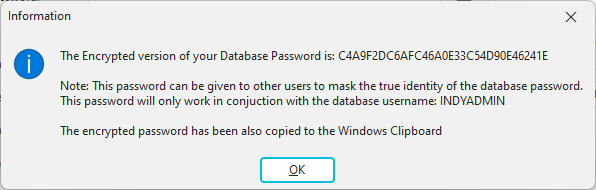
Note that the encrypted password is copied to the Windows clipboard. Pass along this encrypted password text to other IndySoft users - be sure to remind them to check the 'Encrypt Password' checkbox (described below) when using this password text.
Encrypt Password - Turn on this checkbox if you have pasted in an encrypted password that was created from the 'Show Encrypted Version of Password' button (likely created from a different workstation)
Hour Difference From DB Server - if your client installation runs in a different time zone than the database server, you should enter the hour difference here. This setting is essential for client caching to function correctly. This value should be left at zero if you are in the same time zone as the database server. If you are on the West Coast and the database is on the East Coast, you would be 3 hours behind and should enter -3 into this field. The hour difference should be a positive number if you are ahead of the database server location.

If you want to test the connectivity based on the previously entered options, press the 'Test Connection' button. If your connection is successful, you will see a confirmation. If an error occurs, you will also be alerted.
Optional Database Options
Modifying these settings is typically unnecessary - please do not modify them unless instructed by your System Administrator.
Database Date Format - this field stores the default date format used by your database.
Database Time Format - this field stores the default time format used by your database. (This should almost always be the same as the default database date format)
Database Owner Name - this field stores a database owner name that will be prefixed onto any table name reference from within IndySoft. This field defaults to the standard default owner name.
Database Functions Owner - this field stores a database owner name that will be prefixed onto any function reference from within IndySoft. This field defaults to the standard default owner name. |