Layout Editor Ribbon...Editing...Spell-Check
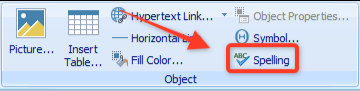
Editing...Spell-Check Operations
While editing the layout, IndySoft provides spell-check functionality, much like a typical word processor. Spell-check is inactive when the layout is used in IndySoft functionality (Equipment View, Home View, Template View, etc.). Live spell-checking is provided through a dotted red line underneath any word that fails automatic spell-check. Example:

Live spell-check example
Once a spell-check item has been noted in the layout, the word can be highlighted (or caret placed within the misspelled word), then the two buttons in the Editing...Spell-Check section of the Ribbon can be used:
 Spelling
Launches a dialog for suggested fixes for the current word. The word can be ignored or fixed. Certain common misspellings will be automatically fixed, like 'seperate' for 'separate'.

Spelling Dialog
Dictionary
Your custom dictionary can hold words not in the general dictionary you consider accurately spelled. There are a few different ways to add your word to the dictionary.
- Right-Click Options
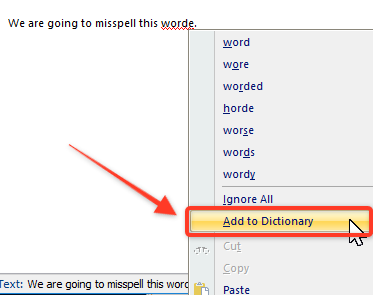
Spelling - Right-Click Options
The quickest and simplest way to access this feature is to right-click on your misspelled word. From here, you can easily change your word to a correct word or add the word to your custom dictionary. Once you add the word to your dictionary will no longer be perceived as a misspelled word, and the dotted red line will disappear.
- Spelling Dialog
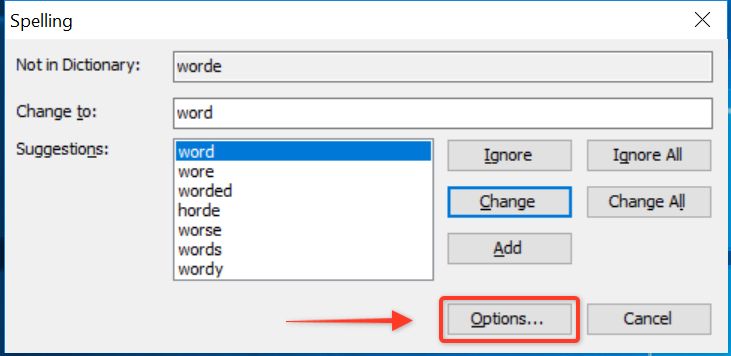
Spelling Dialog - Options Button
If you come across a misspelled word and click the 'Options...' button in the previous spelling dialog, the following screen will appear:
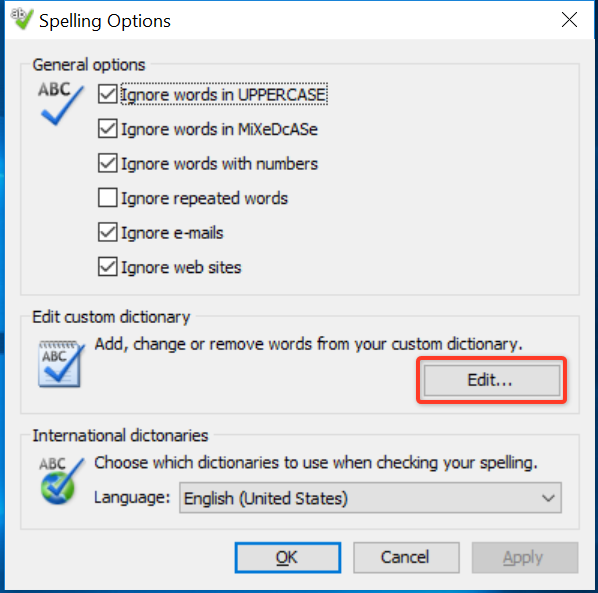
Spelling Options Dialog
You can add, change, and/or remove words from your custom dictionary here. To see what words you currently have saved in your custom dictionary, click the 'Edit...' button:
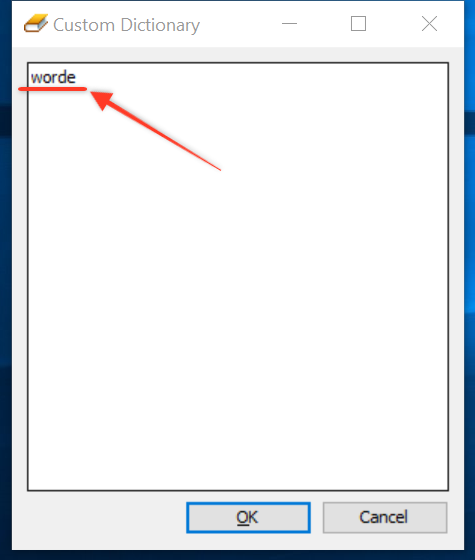
Custom Dictionary Dialog |