Service Requests
Service Requests
Service Requests provide end users with a way to be able to log phone calls, emails from customers and future customers. Requests require that a company exists in the database, but does not require the end user to create equipment, work orders, or estimates. Requests can only be created from Add/Edit Company and accessed once created from the Add/Edit Company dialog or from the Pending Work Tab.
The Add/Edit Company interface allows the user to filter and quickly see any work orders related to a request or agreement. Users can right click on a work order to quickly view it in the order system. Requests are one time calls/transactions whereas Agreements are repeating contracts.
The Service request workflow begins upon creation in the status of "Draft." The user then has the ability to:
- Create an Estimate from that Request (Upon creation of the estimate, the status will update to "To Estimate."
- Create a Work Order (Upon creation of the work order, the status will update to "To Work Order"
- Cancel the request.
- Mark the request as "Service Requested." If the status is "Draft" and the user presses OK, then the user will see the following prompt. Upon answering "Yes" the status will be updated to "Service Requested" and will show up in the Pending Work Section of the software. If the user answers "No" the request will remain in the "Draft" status.

Adding a New Service Request
Every new request will begin in the "Draft" status. IndySoft will automatically populate the user who is creating the request, the Creation Date, and the default Branch (if any). The Requested date can be used to specify when the job may need to be done. The contacts section can be used to identify who is requesting the work from the customer and the custom fields can be used for any other pertinent information.
Note: the custom field values and aliases are shared with Service Agreements. The aliases are set in the Service Agreement executable in the admin cog, and the values for the drop down are in Add/Edit Service Agreements > Custom Fields section.
If creating a work order or estimate from a request, all fields will push down directly to corresponding order fields.
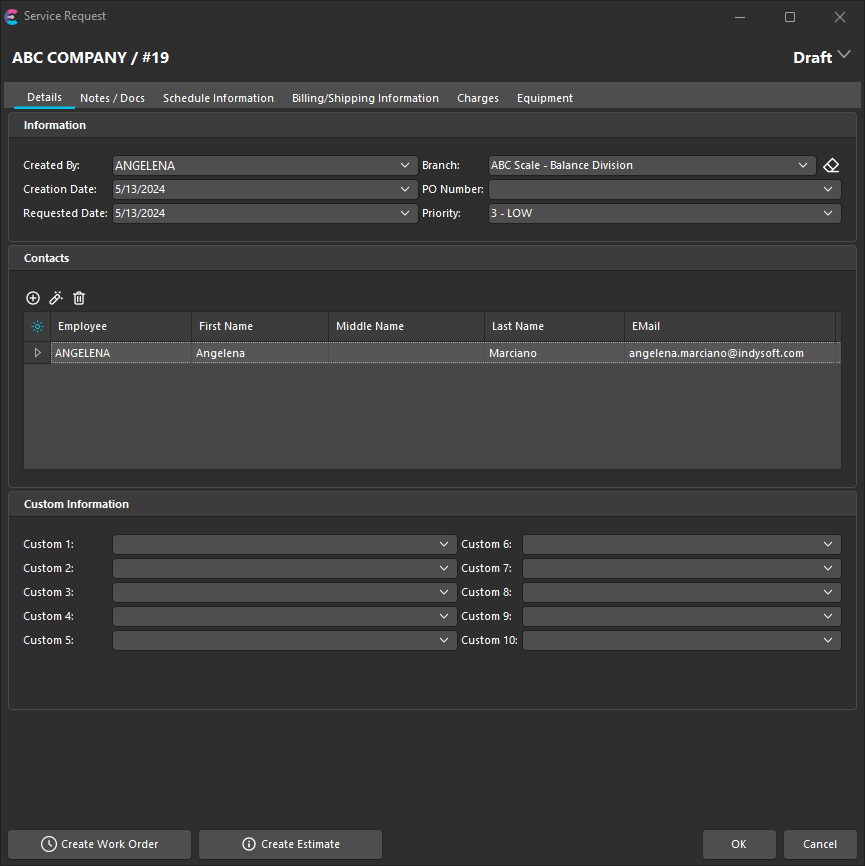
Service Request Interface
Details | Details
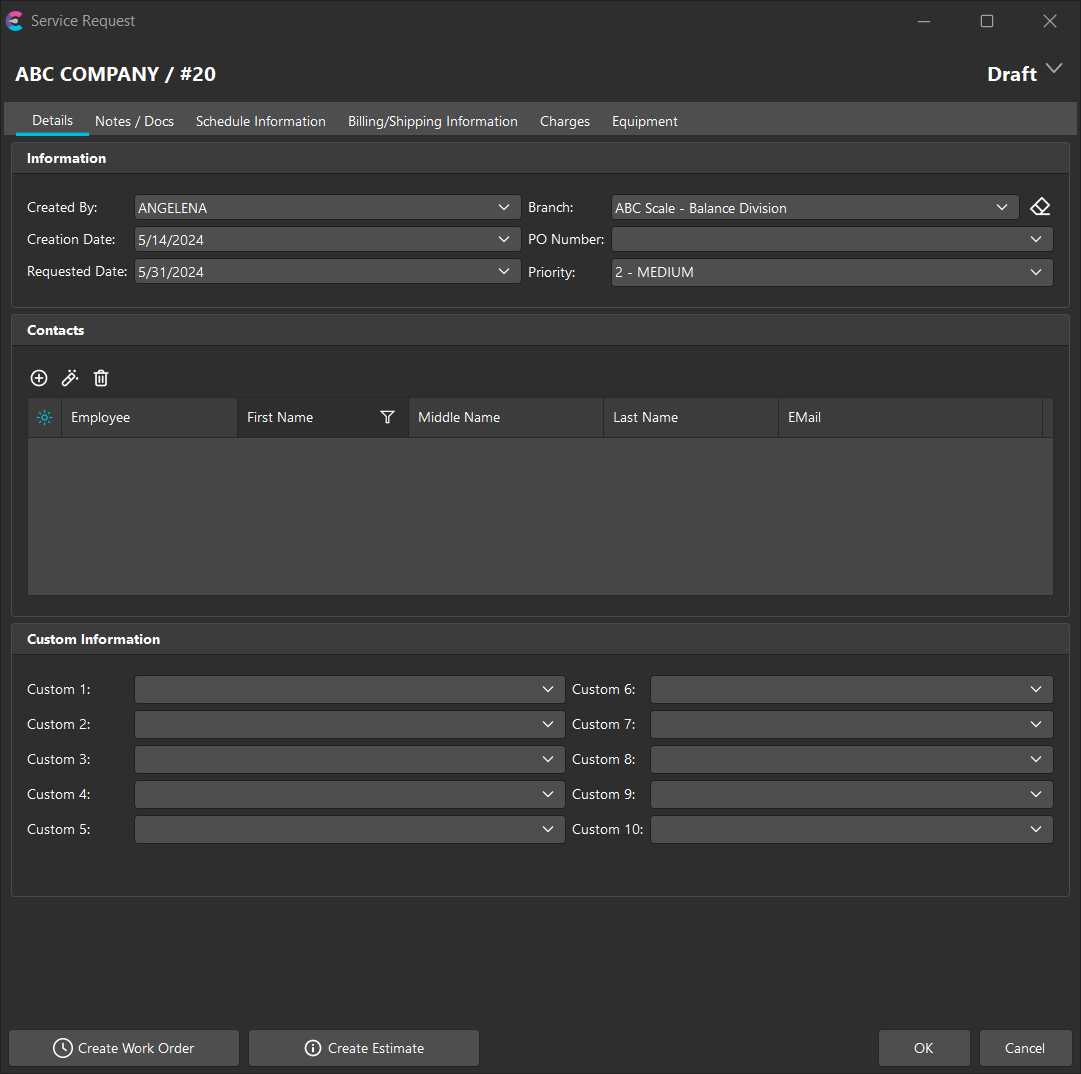
| Created By | Upon creation of the service request, this field is populated by the user who created the Request.
| Creation Date | The date on which the Request was created.Branch | If using branches, this will default to the Request Company’s assigned branch in the add/edit company. This will help dictate charge pricebook options for the agreement (if applicable). Upon creation of a work order, this value will populate the Work Order branch.P.O. Number | This will populate the related work order PO number field when the work order is created.Requested Date | Can be used to specify when the job may need to be done.Priority | Allows users to specify the priority of a particular service request (Low, Medium, High)Contacts | Can be used to identify who is requesting the work from the customer. Can be added from the Reqeust Company’s list of employees or added new to the list in the interface. Contacts can be assigned a Contact Type, which is a system-wide add/edit list. Contact Types can be freely entered when adding a contact as well.Custom Fields 1-10 | These custom text fields allow for aliasing (which can be set in the cog option under the details tab by system admins) and have corresponding system-wide drop-down lists. These drop-down lists can be found under Add/Edit Service Agreements. The fields will reference the drop-down lists and also allow free-form entry. By default, they will populate Work Order Custom 1-10. | |
Notes/Docs | Notes/Docs
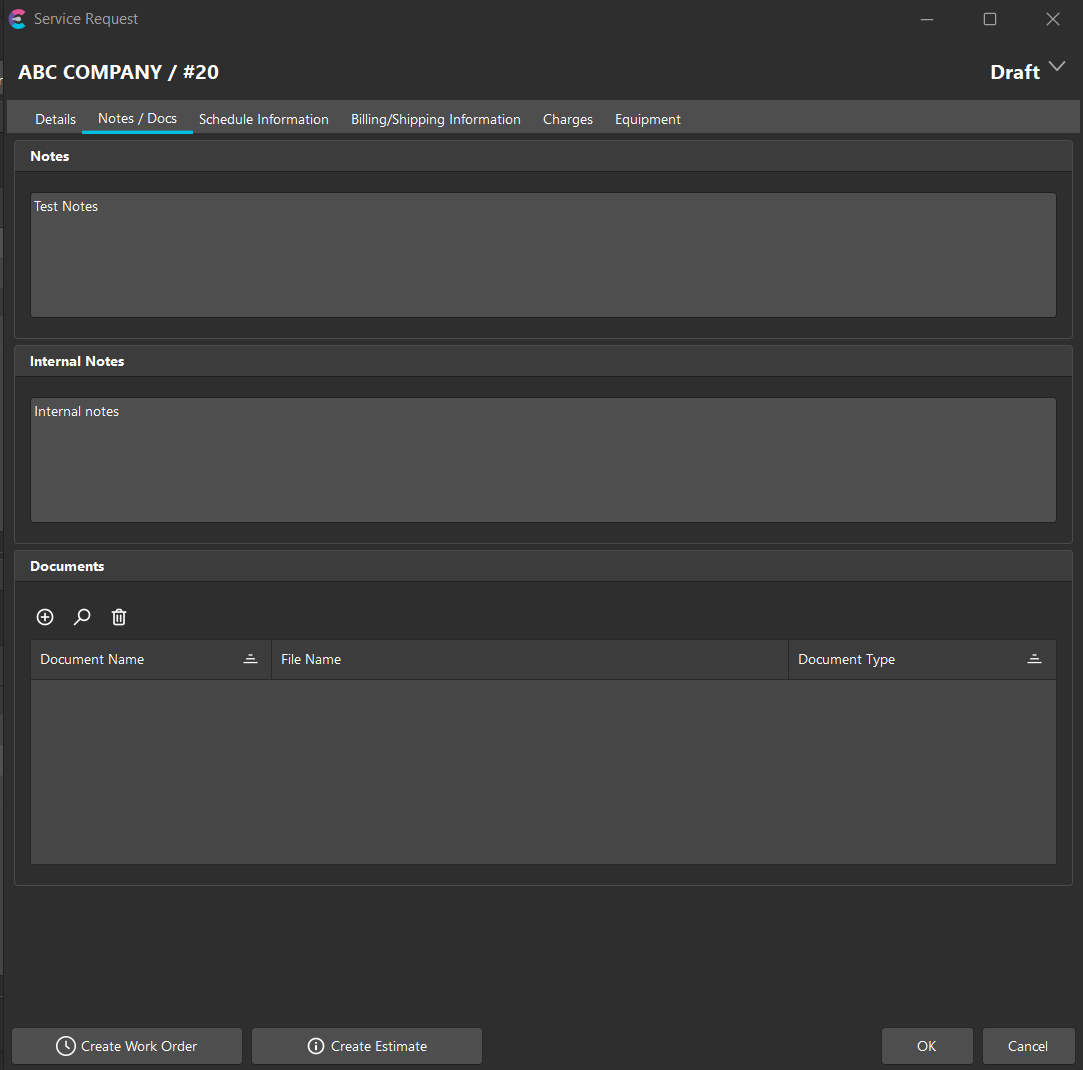
| Notes | Will populate in the related work orders upon creation. Right-click option will allow the user to pull in company notes as well as pull in note types.
| Internal Notes | Will not populate in the related work orders upon creation. Right-click option will allow the user to pull in company notes as well as pull in note types.Documents | This section represents where attached documents can be added to the service request. | |
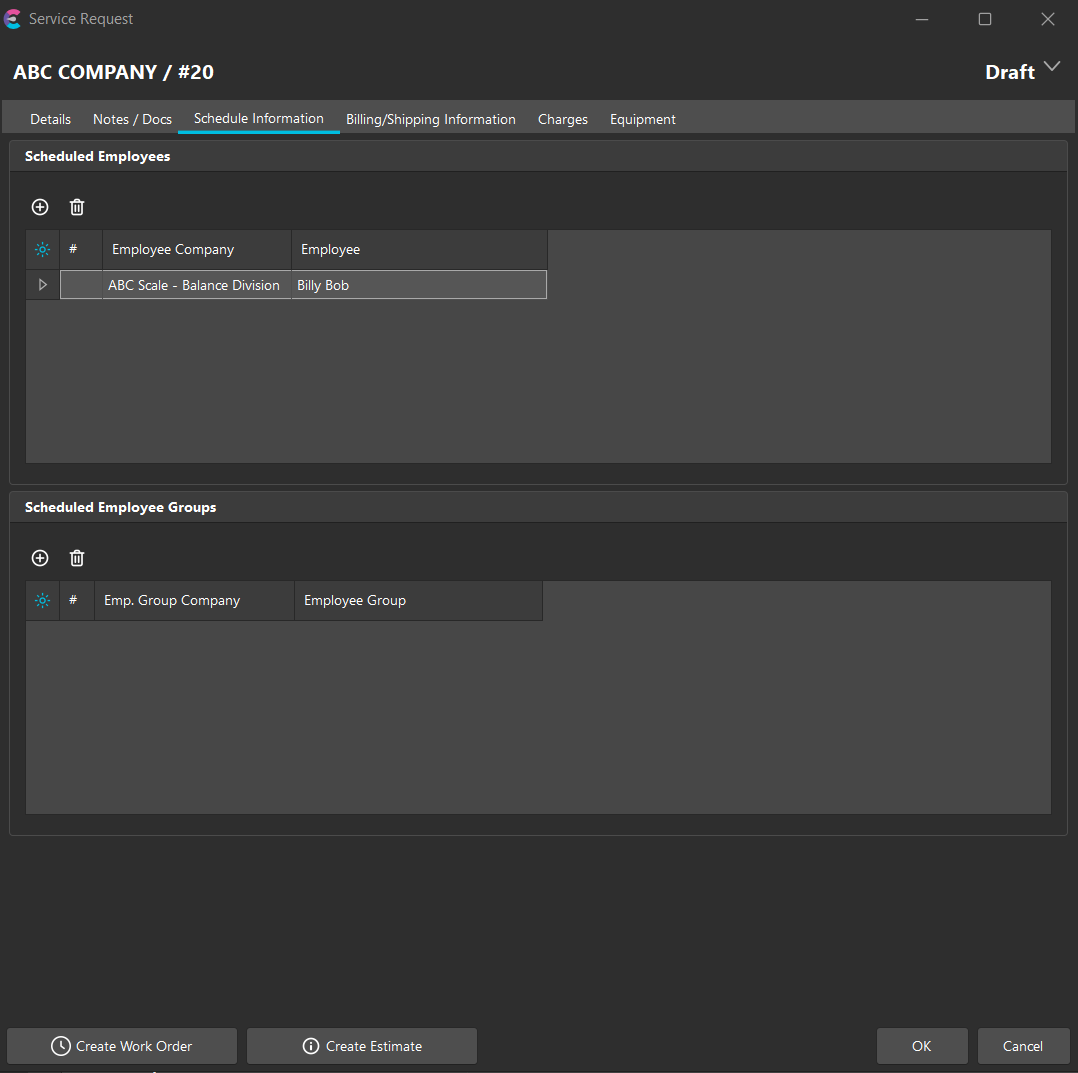
Schedule Information | Schedule Information
Here, the requestor can specify any requested technicians to work the job. These employees and employee groups will make their way down to the created order.
 |
Billing/Shipping Information | Billing/Shipping Info
|
Billing/Shipping Information | Billing/Shipping Info
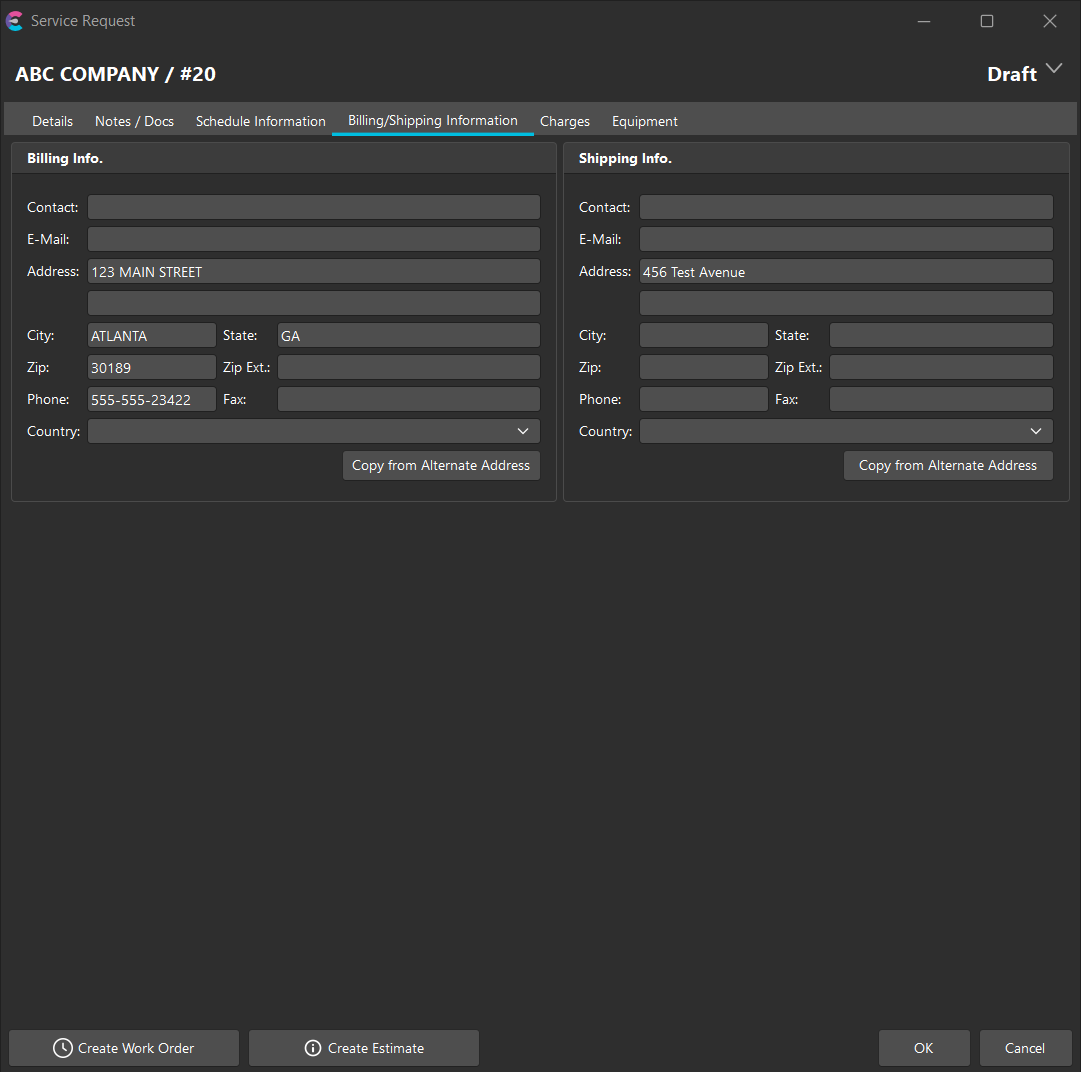
Upon creating a service agreement or request, the default Billing and Shipping Information from the Company will be inherited into this screen. The user can then add or edit beyond that point or look up any saved alternate addresses for that company. These addresses will make their way to any created work orders.
 |
Charges | Charges
|
Charges | Charges
Charges can be inherited from system-wide or branch-specific defaults.
If the box is checked to auto-add a charge to a WO, then that charge will automatically be added upon creating a work order or estimate from the request. If you need to look up the appropriate amount from service charges, then click on the little piece of paper to see appropriate prices that may have been pre-specified in the add/edit list.
In the case of the Flat Fee Charge, if any value is entered, then it will be added upon the creation of the work order. There is no pricing lookup for Flat Fee Charges.
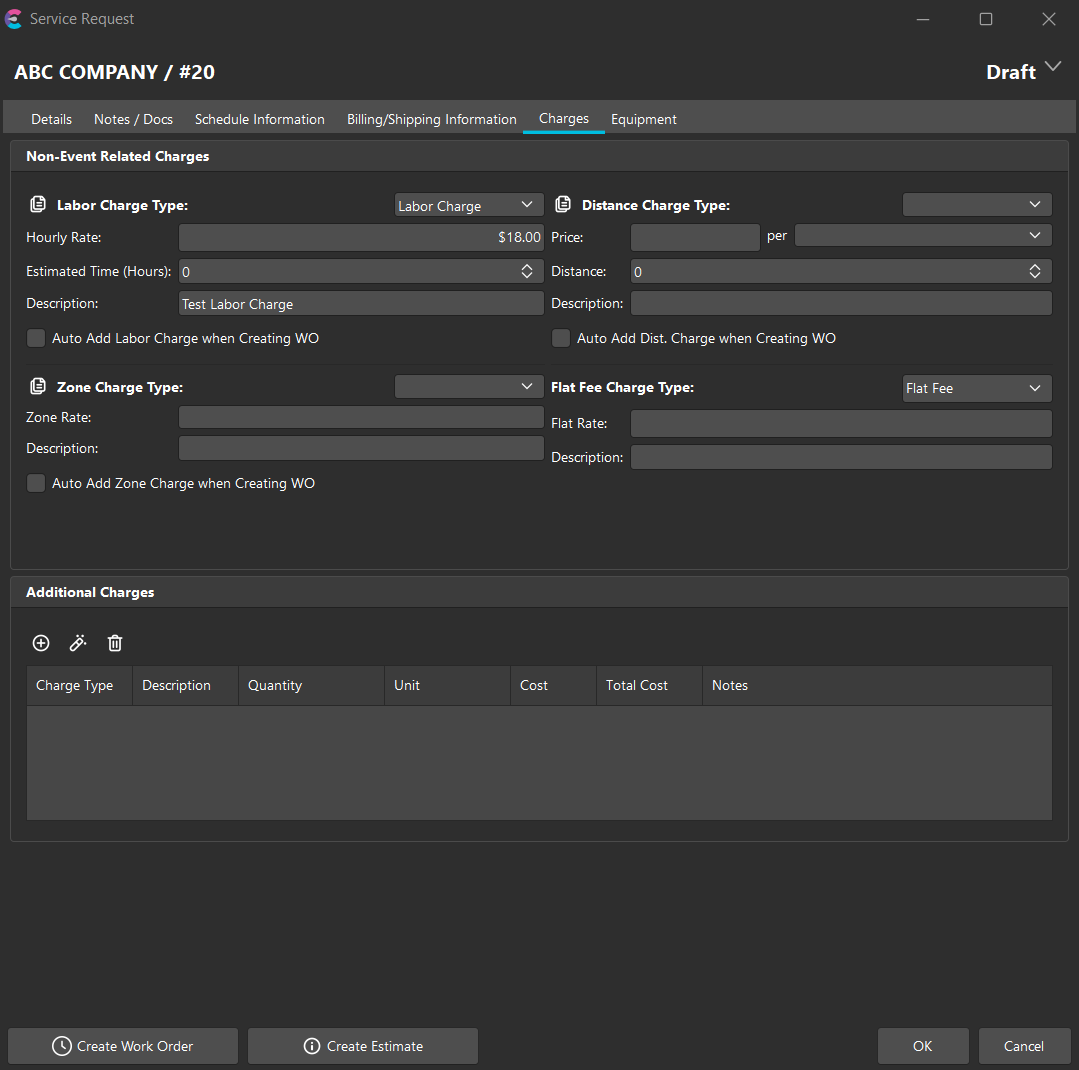
| Zone Charge | Zones are used as a distance range to indicate a travel price. The Zone rate is the price for that zone, the zone is the label for the zone and the description describes what that zone is. Zone charges do not have a default as they are specific to a customer/agreement. Only the price and the description will flow down to the work order line item.
| Labor Charge | Labor charges can be defaulted or pulled in from the Service Charge per branch or system-wide. The description (not shown) and charge amount will flow down to the work order level.Distance Charge | Can be defaulted or pulled in from the Service Charge per branch or system-wide. Description, unit of measure, quantity (# of miles), and charge amount will flow down to the work order level.Flat Fee Charge | Cost and description flow down to the corresponding work order charge upon creation. |
Charge Types can be specified in the service agreements executable under the options cog. See the Service Agreements section for more details. |
Equipment | Equipment
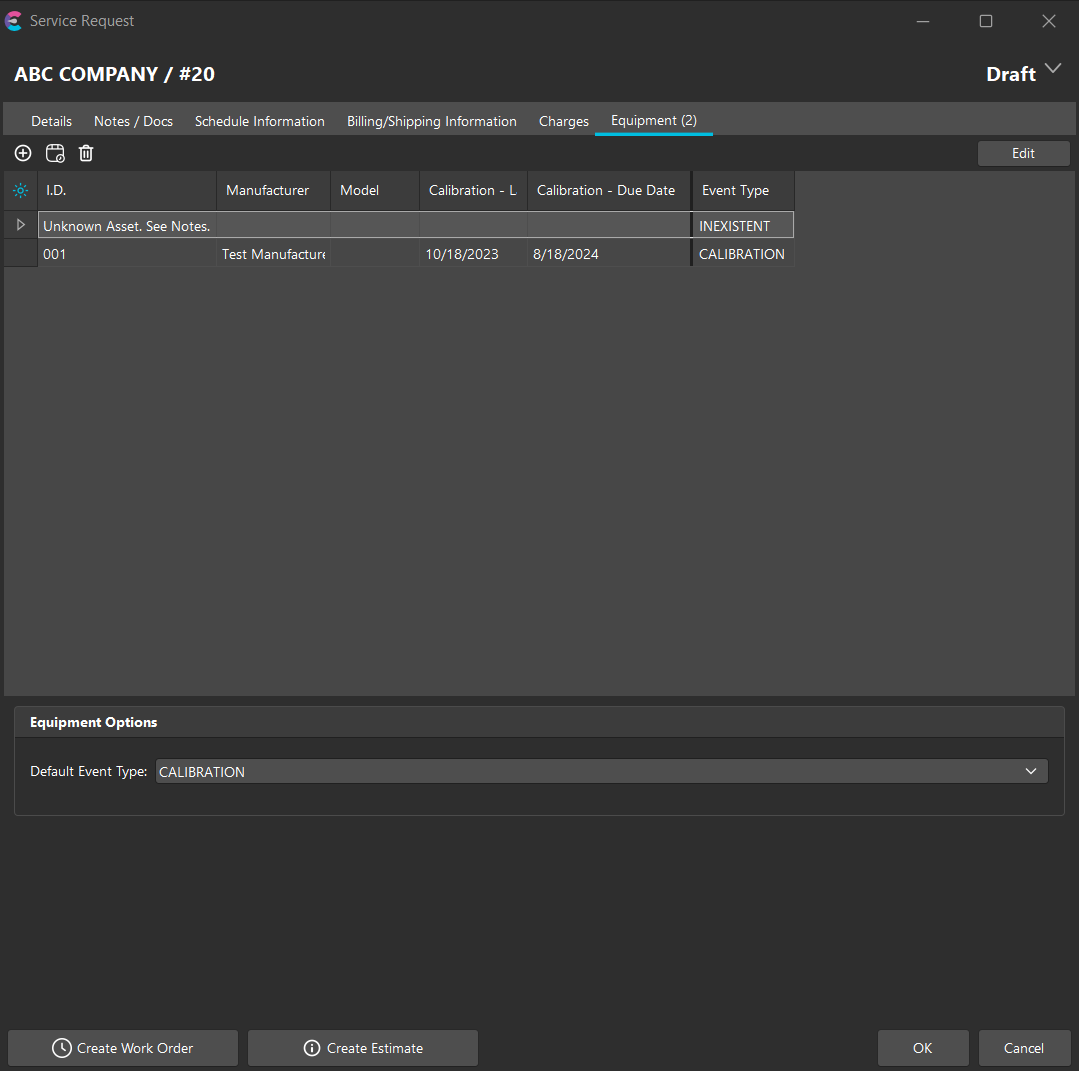
In the Equipment tab, the user can specify equipment that already exists in the database or unknown equipment. When adding unknown equipment, the user can enter notes about the asset which will then make their way down to the scheduled work notes for that estimate or work order. For example, if the user is logging the phone call and the requestor is unsure of the ID, Make, or Model… then the user logging the call can take a note indicating where in the building the asset resides, what it is, and who to ask about it. The tech will have the capability to see this information at the order level. The default event type is there for ease of use when adding new items for work. The user can also manually update the event type from the edit button in the upper right-hand corner and change manually.
 |
|