Batch Printing
Batch printing is possible from several different equipment selection screens - and typically, the functionality is the same, regardless of the screen from which it is called. Batch printing is possible from:
- EquipmentFinder
- Navigator
- Equipment search/reports
- Order System - Scheduled Work & Charges
- OrderFinder
The interface for batch printing is typically just a small print button with submenu options for various batch printing types:
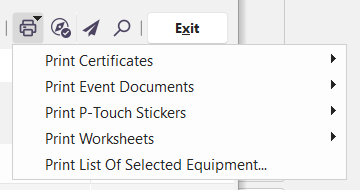
For the various options, select the type of print document (certificates, event documents, stickers, worksheets, etc.), then choose if you want to print for all the items in the grid or only the currently selected/highlighted items.
Batch Printing Certificates
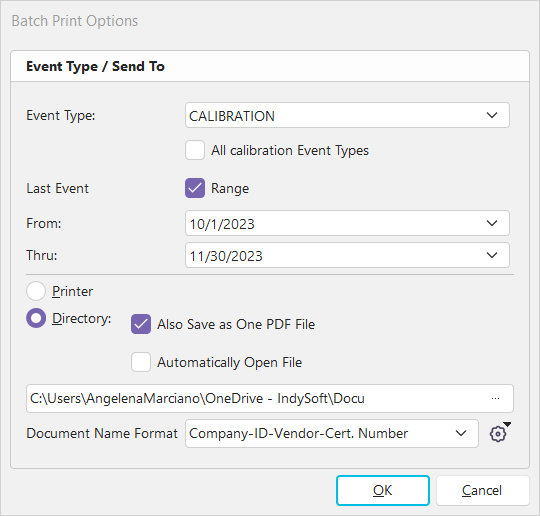
This option will find the most recent certificate from the optional date range provided that matches the selected event (or all calibration event types). These certificates can then be automatically sent in batch to a printer or exported into a chosen directory. When exported to a directory, the certificates can be exported as separate files or merged into a single file. If exporting to a directory as single files, the file names for the certificates can be controlled from the 'Document Name Format' field. This format allows for many mail-merge type options for designing the file name output. This can now be edited from Add/Edit...Systemwide...Document Formats:
Batch Printing Event Documents
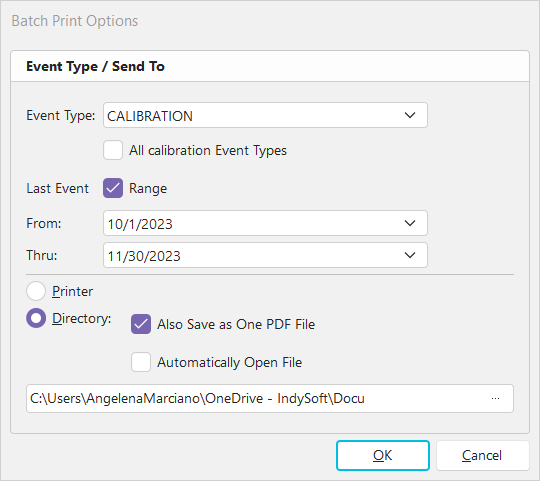
As described above, batch printing of event documents is just like batch printing of certificates. The only difference is that the file names (if the output is set to a directory, not directly to a printer) will follow the file names of the event documents as previously saved/attached/scanned to the event, not generated from a Name format. However, the same filtering options apply, just like batch printing of certificates.
Batch Printing P-Touch Stickers
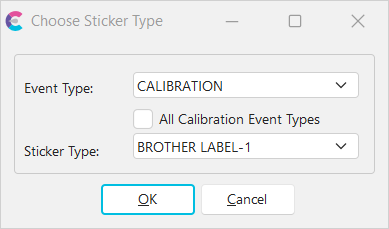
P-Touch stickers can be quickly created for all or highlighted equipment. Select the event type and sticker type (as previously created in the P-Touch sticker wizard) and click OK to proceed.
Batch Printing Worksheets
Worksheets can also be batch printed. The print options here are the same as if you were printing a worksheet from the Equipment View or Order System:
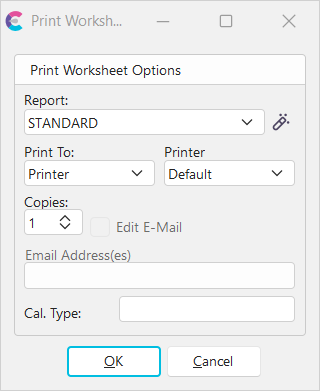
Note that the 'Cal. Type' edit allows for inputting a test point tab - to isolate a particular set of test points.