EventFinder
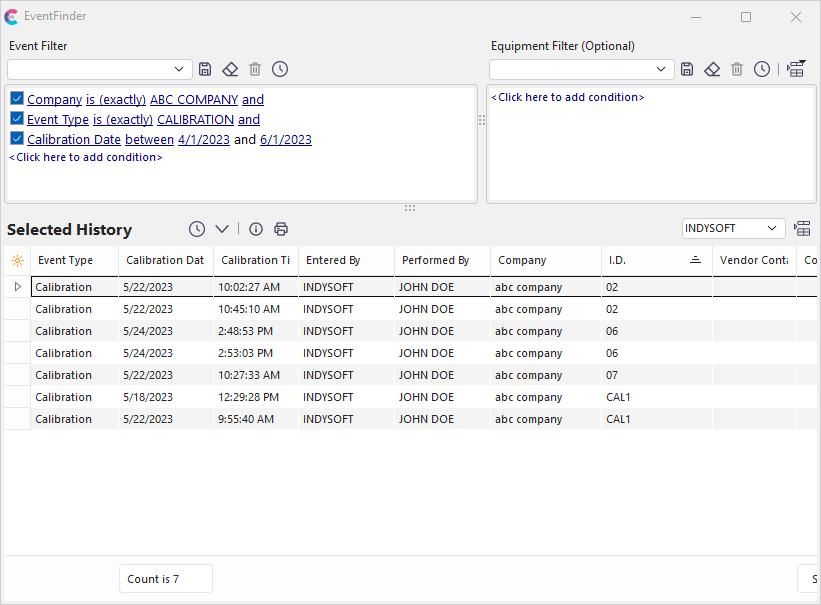
EventFinder Dialog
Finding Equipment With EventFinder
The EventFinder screen works the same way the Advanced Equipment Selection does. It allows you to search on existing Event History easily. To search for an event, use the EventFinder filter to narrow your search of Event History. Note that there are two filterboxes - the event filterbox on the left allows you to search between event-related fields. You can further constrain your search by adding an equipment-related filter (like the equipment filterbox used in EquipmentFinder) by utilizing the filterbox on the right. Note: you may need to resize the vertical panel separating the two sections before viewing the 'Equipment Filter' section.
 Test Event Selection
Press this button to preview how many event records were found.
 Start Processing of Event Selection
This button will select all matching event records (based on the filter above) and add the records to the grid below.
 Goto Currently Selected Event
To go to a particular event, double-click on it or highlight the event and press this button.
 Print Event List
Use this option to launch a print preview of the current events grid. See Print Grid (Preview) for more details.
Open Sign-Offs
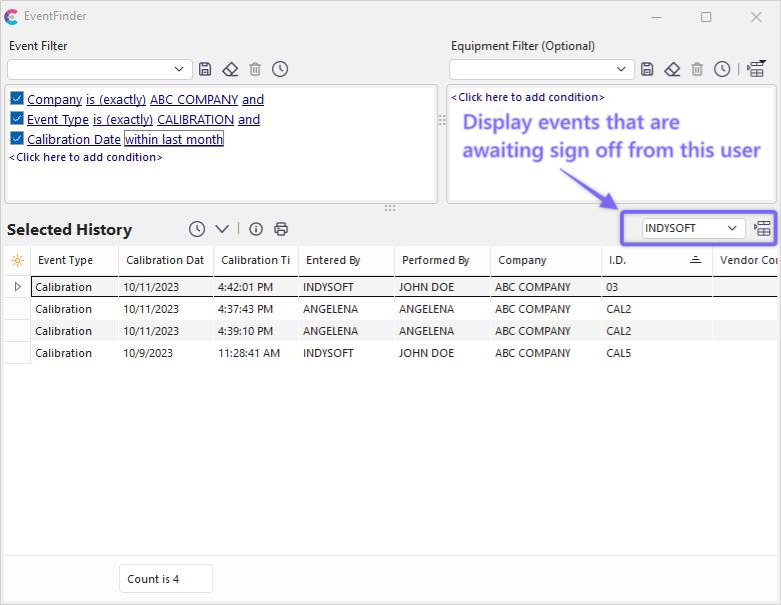
Display All Events That Need to be Signed Off by This User
Above the event history results grid on the right, there is an option for quickly showing all events that require sign-off from a particular user. The user name of the user currently logged in will be the default. Select/confirm the user name, then press the button to the right - all events that require this user's electronic sign-off will be displayed. You will receive a notification if no events for that user are available.
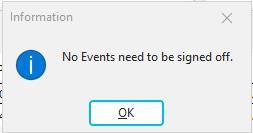
No Events need Sign Off Prompt |