Customizing Labels
 Note: In Old Layouts, the Layout Editor functionality of the Dashboard interface allows you to modify ANY field caption on ANY Home View, Equipment View, Company View, or Template View. But there are still many detail screens in IndySoft that depend upon the captions discussed in this topic.
One of the major keys to making IndySoft easier to use is using Custom Labels effectively. There can be a strong temptation to look at a screen and say 'It's not right' because it doesn't use the same terminology you do for the same concept. As an example: IndySoft uniquely identifies equipment by its I.D. In addition, there is room for a Serial Number.
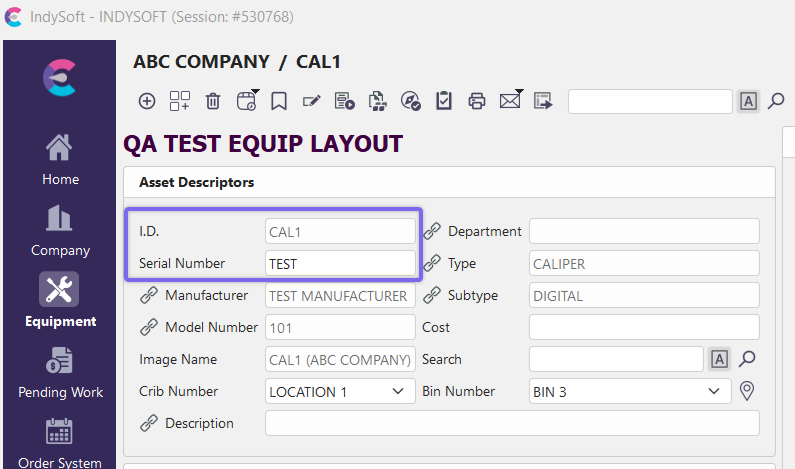
Default Equipment Labels
If your customer has already given each piece of equipment a unique Serial Number, you may want to name the 'I.D.' label as 'Serial Number' and name the 'Serial Number' label as 'Barcode'. Just change the Labels in Company Preferences and you will have your familiar terminology.
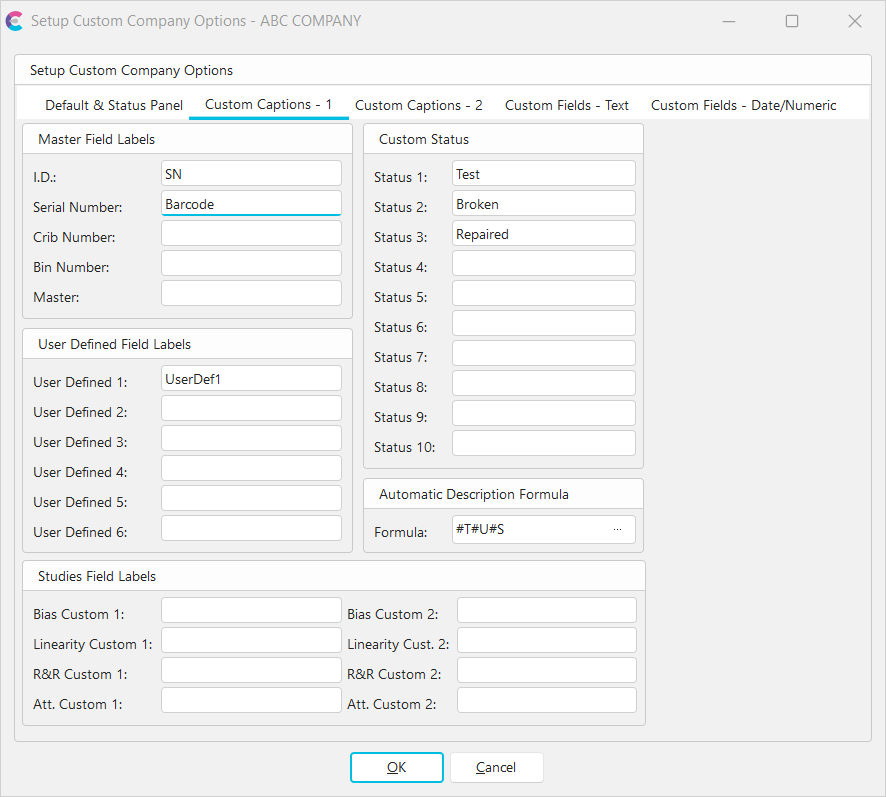
Company Preferences - Custom Captions
This can be particularly important if a customer calls you to work on a gage. Suppose you are looking at 'I.D.' and 'Serial Number' on your screen, and your customer is using a different inventory system that displays 'SN' and 'Barcode'. If your customer starts talking about needing you to re-calibrate a gage with Serial Number CD0001, then you will probably start searching by Serial Number (SN), instead of by I.D. Having consistent terminology with your customers will help avoid mistakes and miscommunications.
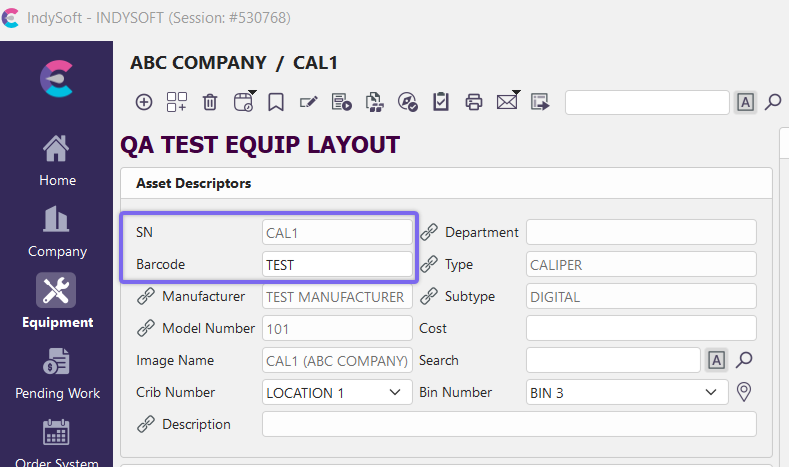
Display Real Field Names (Admin Only)
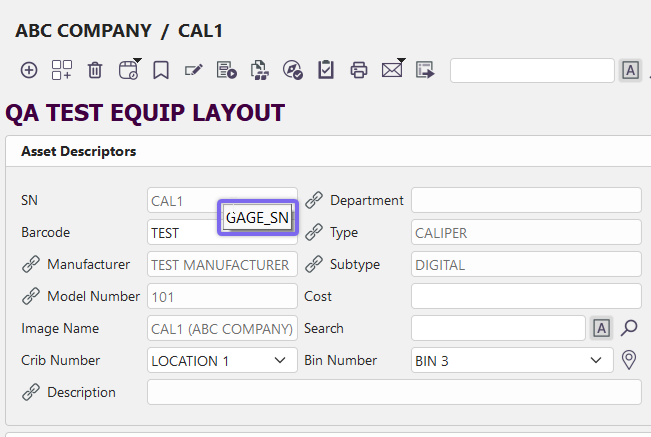
System Administrators also have the ability to display the real field names (from the database) as tooltips. Right-click in the header and select the option below then hover over any field to see the real field name:
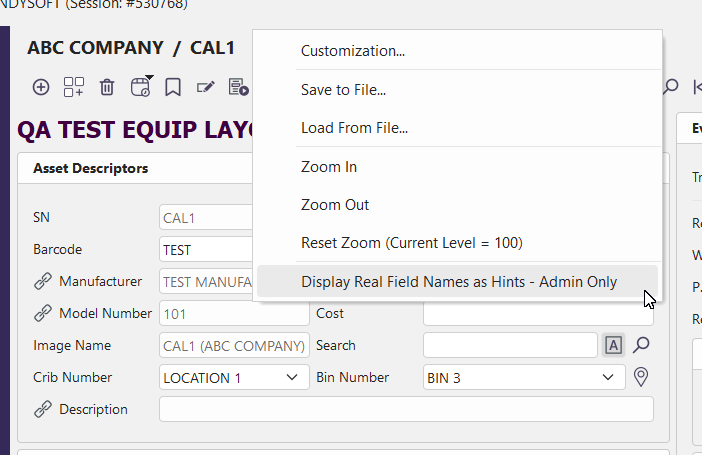
 |
|