Layout Editor Ribbon...Table...Operations

Table...Operations
 Split Cells
This option allows you to split one cell (or multiple cells) into additional cells. The cell space will be evenly divided horizontally and vertically to allow additional rows and/or columns. The following dialog will be displayed:

Example - Split Cells Dialog
Specify the # of columns and rows and press OK to create the split. Here's a quick example - say you select two cells in a grid, as below:

Then you select the menu option for 'Split Cells'. You select the same options in the dialog above; you want to split both cells into two columns and two rows. After you press OK, the table will look like this:

Note that the default height of table cells is unchanged, so the overall row height is expanded to support the rows with two embedded rows.
Align
4 Align options are available:
·Align Cell to the Top - vertically aligns all the cell contents to the top of the cell
·Align Cell to the Middle - vertically aligns all the cell contents to the middle of the cell.
·Align Cell to the Bottom - vertically aligns all the cell contents to the bottom of the cell.
·Default Cell Vertical Alignment - vertically aligns all the cell contents to the default alignment for the row, as specified in the Table Properties dialog...Rows tab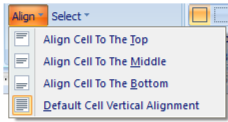
Table - Align Options
Select
4 Select options are available. As noted in several of the above options, selecting multiple cells in a table is often helpful/required. You can select cells in a table by left-mouse clicking on a starting cell and then dragging the cursor to the final cell (while the left-mouse button stays down). Or, you can use the menu options below to select table cells quickly. Selecting multiple table cells is also handy for setting paragraph and font settings in batch.
·Select Table - selects the entire table at the caret's position.
·Select Columns - if multiple rows are already selected in the table, all columns for the selected rows will be selected. If no cells are selected, only the current column will be selected (at the caret's position).
·Select Rows - if multiple columns are already selected in the table, then all rows for the selected columns will be selected. If no cells are selected, only the current row will be selected (at the caret's position).
·Select Cell - selects the current cell (at the caret's position).
Table - Select Options
 Table Properties
Launches the Table Properties dialog for viewing/editing current table properties. See Table Properties Dialog for more details.
 Merge Cells
If you have created sub-tables (tables inside tables) through the previous 'Split Cells' operation (or otherwise), you can use this operation to merge them back into one cell. Select the cells that you want to merge and click this option. Here is a quick example:

Then press 'Merge Cells'... and the result i:

 Please see the sections below for more details on this group.
Layout Editor - Table Operations
ØTable Properties Dialog