Show Group Panel
Occasionally grids in IndySoft will have a right-mouse click option for 'Show Group Panel.' When this option is selected, you will see a gray section appear on the top of the grid, as in the example below:
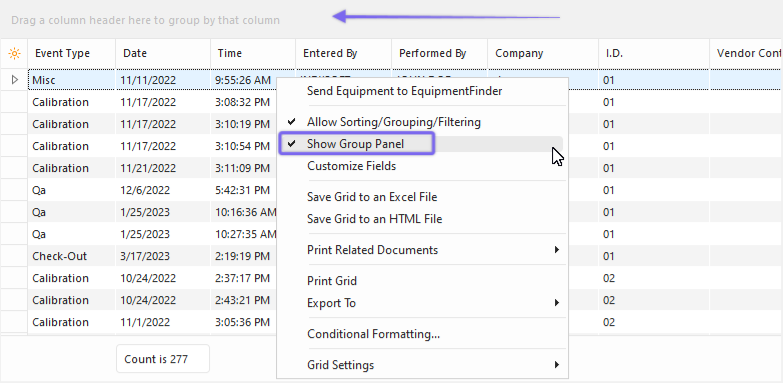
Group Panel in IndySoft Grids
When this group section is visible, you can drag/drop column headers into or out of this section. When a column header is carried into this section, a group will be created in the grid, and all data will be divided among the distinct values represented in this column. The groupings are shown as new nodes in an outline tree in the grid:
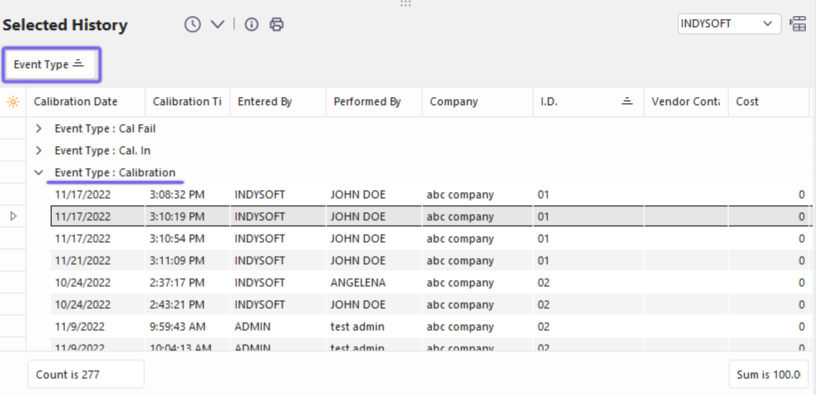
Example - Group Panel with 'Event Type' grouping
To remove the group, drag the 'Event Type' group (in this example) back into the field headers. Some grids are set up to remove the column from the grid when grouped automatically, and other grids allow the column to remain in the grid while grouped. Multiple groupings can be achieved by dragging various fields to the group panel. Take note of the position of the new field in the group panel relative to the other fields. If you drag/drop the second group 'above' the first, then it will become the new first grouping, and the old group will become a sub-group:
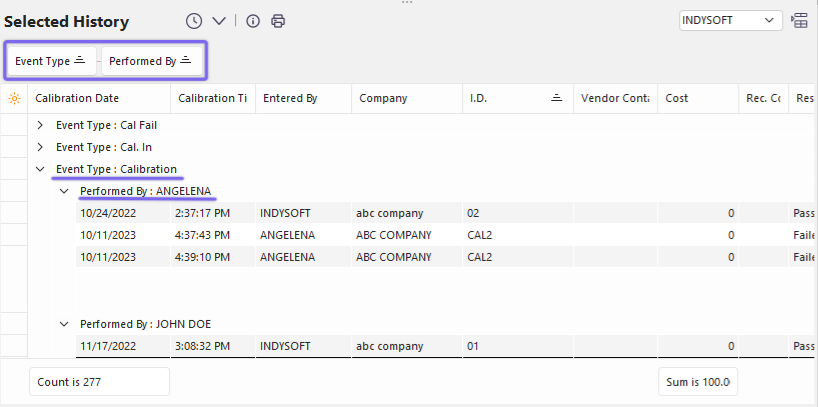
Example - Multiple Groupings in Group Panel
Often this 'show group panel' setting and the selected groups will be saved on the workstation when IndySoft closes - so the same grid setup will default when you return to IndySoft. In these situations, the settings are always explicitly saved to the current form, the current IndySoft User, and the current Windows login. |