Taxonomy Capability Setup
Introduced in Version 14.1.0, Taxonomy Capabilities provide a methodology to not only report relative capabilities per Vendor/Branch, Service Level, and Service Site; but also a way to provide a workflow when capability is downgraded or lost. Capabilities are exclusively used in conjunction with the Taxonomy Tree and require the System-Wide Vendor/Branch workflow. Specifically, in order for a Branch to be allowed to store capabilities in this manner, they must be directly linked with a Vendor record in the System-Wide Vendor List.
Defining Capability Types in Relationship to Capability Groups
From the Taxonomy Tree > Options > Taxonomy Setup, System Administrators can define which capability types they would like their organization to use. By default, IndySoft provides five options.
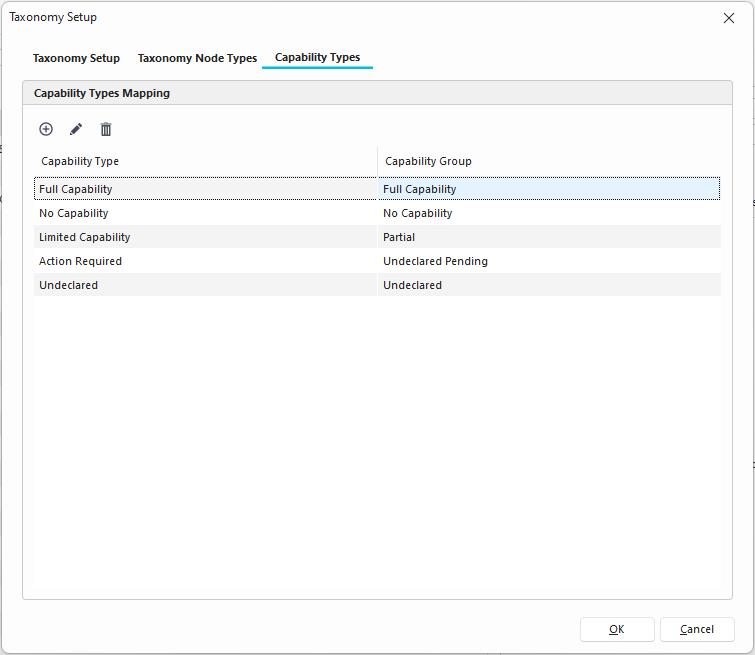
The capability type is what any end user will see in any interface describing capability. The related capability group is limited to 5 options and dictates any functionality of the change of the related capability type.
1. Full Capability describes that for a given Taxonomy Tree entry, the performing entity has reported that the service to be performed is fully supported. If capability loss is reported previously, changing the capability to the full capability will clear those previous loss records.
2. No Capability means that for a give Taxonomy Tree entry, that the service cannot be performed. If a user changes a capability from the Full Capability Group to the No Capability Group and Capability Loss is enabled, then the user will be prompted to report with a reason and approximate return date.
3. Partial indicates that for a give Taxonomy Tree entry, that the service may be able to be performed in a limited capacity. If a user changes a capability from the Full Capability Group to the Limited Capability Group and Capability Loss is enabled, then the user will be prompted to report with a reason and approximate return date.
4. Undeclared Pending has no current functionality, but may be reserved for an admin team to setup a workflow when acquiring a new entity such that basic capability is reported.
5. Undeclared has no current functionality other than if selected that a parent node with a similar service and Vendor/Branch will be looked up. This of this as a null entry.
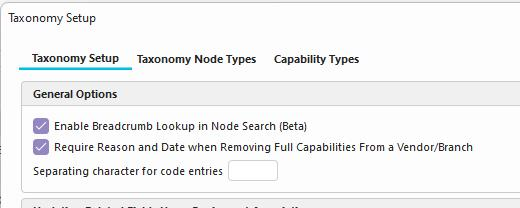
If Require Reason and Date when Removing Full Capabilities from a Vendor/Branch is enabled, then when going from "Full Capability" to "Partial" or "No Capability" the user will be prompted to enter a Capability Loss Reason.
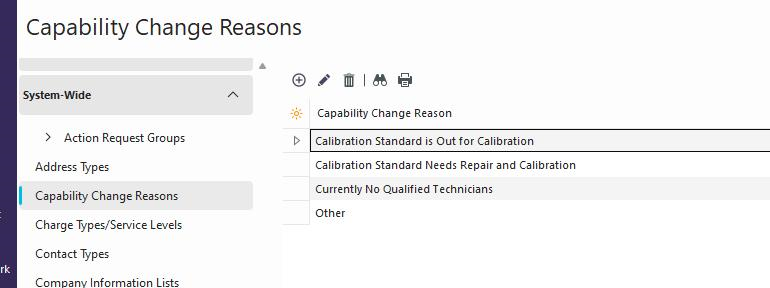
The "Reasons" come from the "Capability Change Reasons" add/edit list. Below are some examples of entries you might find or add.
Capability Batch Creation
When getting started, a team may find it beneficial to batch create capabilities for given Vendor Branches. If the user double clicks on a node within the Taxonomy Manager interface, they can navigate to the Capabilities tab and use the Batch Create button. The user will be able to create and/or update capabilities for Vendor/Branches for which they have proper Branch Administrative Access. System Administrators will be able to access any System-Wide Vendor Branches if permission is provided.
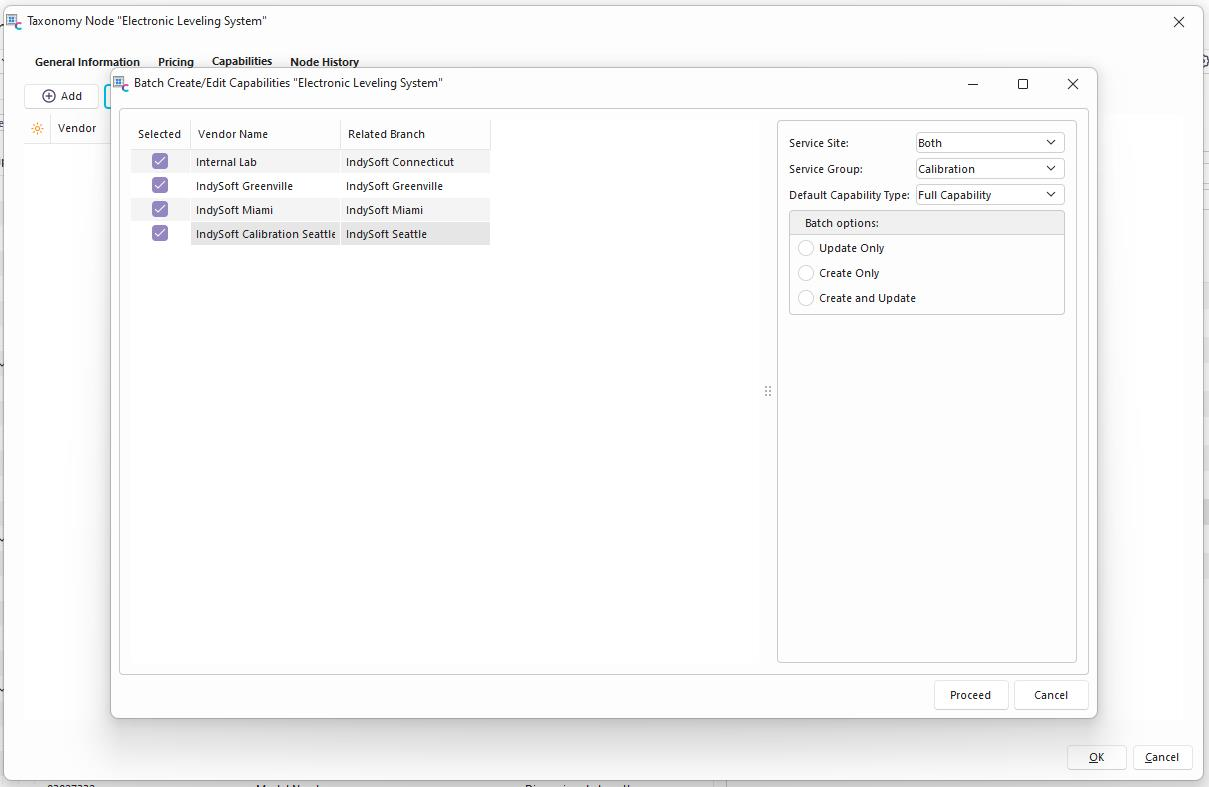
Batch creation can be done for "On-Site", "In-House", or "Both" Service Sites. The Service Group is used as a way to describe service levels and can assist with creating capabilities more quickly. The batch creation process does NOT follow the Capability Loss workflow and is generally meant as your "Getting Started" type of option.