IndySoft Registration Utility
To start the IndySoft registration process, start IndySoft, and you will be asked to register (this only occurs before registering for the first time). After registration, you can always get to this utility from the IndySoft help menu.
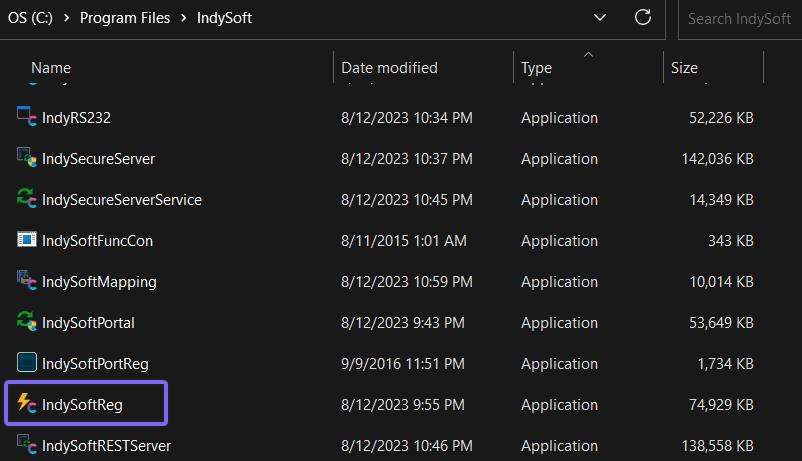
Locate 'IndySoftReg' in the file explorer
IndySoft uses software encryption to avoid unauthorized use or duplication of the software. This prevents the need for troublesome hardware security measures such as dongles or other devices. Once IndySoft has been registered on one computer on your network, the registration program will most likely never need to be re-run.
If you are using IndySoft in a multi-user setup, only one computer can be chosen as the registered computer. For ease of use, this computer should be the computer that will most frequently access IndySoft. IndySoft's licensing scheme involves at least a 90-day check of whether the registered computer is still accessing IndySoft. Suppose the registered computer has not accessed IndySoft for over 90 days. In that case, IndySoft has no way of knowing whether the registered computer is still valid and thus has no way of knowing if the other computers on the network are part of a valid installation. So, in this event, all other workstations would be disallowed access until IndySoft is re-started on the registration computer. 14 days from the 'shut off' of IndySoft, you will be notified of a warning message each time a user logs in.
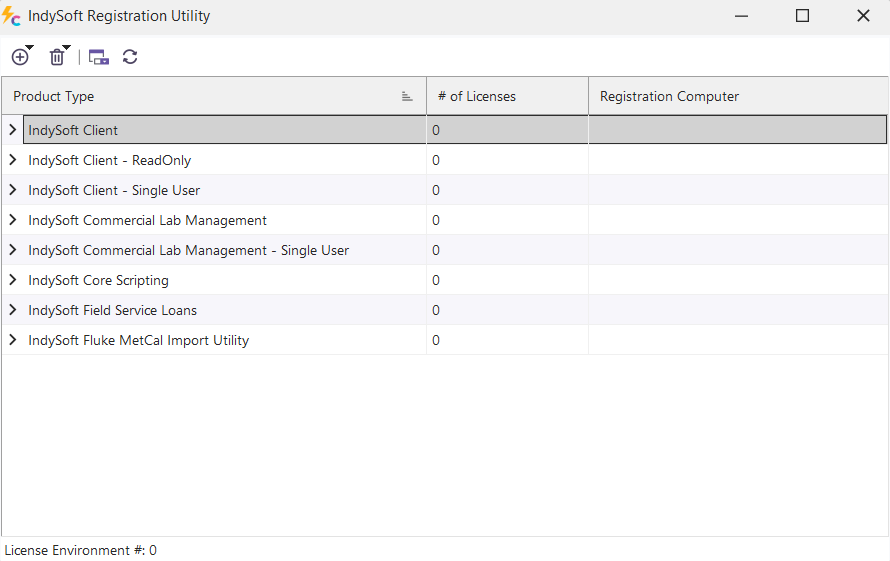
IndySoft Registration Utility Dialog
From this main screen of the IndySoft Registration Program, select the desired operation from the above grid. The available options will change according to your computer's current setup and registration state. Note that the grid lists available products that can be registered, and an embedded grid showing any license pools setup per product. License pooling is only relevant for certain core products. Editing of license pool settings will be blocked for any products that are not applicable.
Buttons / Icons:
|  | Add License(s)
| | This button will allow you to quickly toggle to the 'Add Licenses' dialog of the registration utility. There is a drop-down arrow next to the icon that will show the different types of licenses that could be added. | Remove License(s)This button will allow you to quickly toggle to the 'Remove Licenses' dialog of the registration utility. There is a drop-down arrow next to the icon that will show the different types of licenses that could be removed.
 | Edit Pool DetailsThis button will allow you to quickly toggle to the 'Edit Pool Details' dialog of the registration utility based on the highlighted product in the grid. |
IndySoft Registration Utility