Upgrading Previous Firebird 1.5 Database to Version 2.5
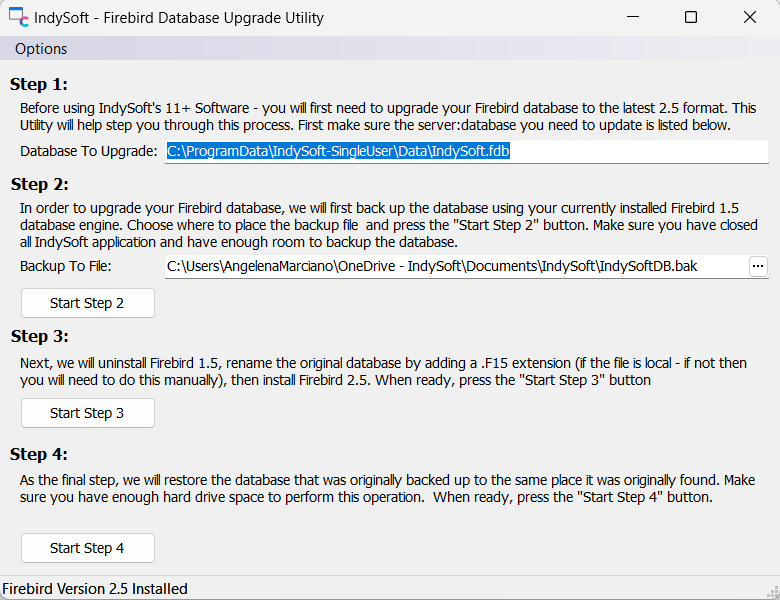
Firebird Database Upgrade Utility (FirebirdUpgrade.exe)
When first upgrading to the latest IndySoft Software version (Single User version), you will be asked to upgrade your Firebird Database to the latest Firebird 2.5.2 release. Because this new release has a different structure from Firebird version 1.5 - you will be prompted to perform several steps to walk you through this process. Please note that this is different from the "IndySoft Database Upgrade" - that process adds new tables required for the latest version - this is required on all databases (MSSQL, Oracle, and Firebird). However, this particular process is only necessary for older Firebird Databases and is done in addition to the normal database upgrade process. This utility merely helps with the complexity of restoring a database from a 1.5 database format into a 2.5 format (the standard way of upgrading a Firebird Database Structure). Users using a multi-user version of the software will use a special Firebird Database Upgrade installation to perform the same process during the upgrade.
Step 1
The first thing you'll need to do is specify where the database is currently located that you need to upgrade. If this is a multi-user database, you will need to know the server name and where the database is located on the server. The format for specifying this is "server: local path to database." If upgrading a single-user database, you can press a [...] button to select your database to upgrade, and the format will automatically be set for you.
Step 2
Next, you should specify an area to back up your database. It is essential to choose a path with enough space to back up the original database file. Press the "Start Step 2" button to begin the backup process. If you have a large database, this process could take a while. Note: This must be done using Firebird 1.5 - at the bottom of the screen, you will see in a status bar the current version you have installed. If this does not say "Firebird Version 1.5 installed," - you should choose to Install Firebird 1.5 from the Options menu before starting this process. You may need to reboot your machine after installing Firebird 1.5 to continue the upgrade.
Step 3
The next step in the upgrade process is Firebird 1.5 will be uninstalled, and Firebird 2.5.2 will be installed in its place. Also, the original database will be "backed up" by being renamed with an F15 file extension. (If the file is on a server, you must do this manually). Press the Start Step 3 button to begin this process.
Step 4
Last, the database backed up using Firebird 1.5 will be restored with the Firebird 2.5.2 engine. To do this, press the "Start Step 4" button. You will be notified when this process is complete. If you have a large database, this process could take a while. |