Choose Employees/Groups/Vendors/Companies to EMail
Emails can be sent through many IndySoft operations - notably events, alarms, reports, etc. Often these operations have custom interfaces for selecting email distribution. But there are many other places in IndySoft functionality where 'ad hoc' emails are possible. You will likely see the 'Choose Employees/Groups/Vendors/Companies to EMail' dialog in these instances. This dialog allows you to quickly select from email addresses already stored in the IndySoft database associated with particular employees, employee groups, vendors, or companies. Finally, you can specify specific addresses if required.
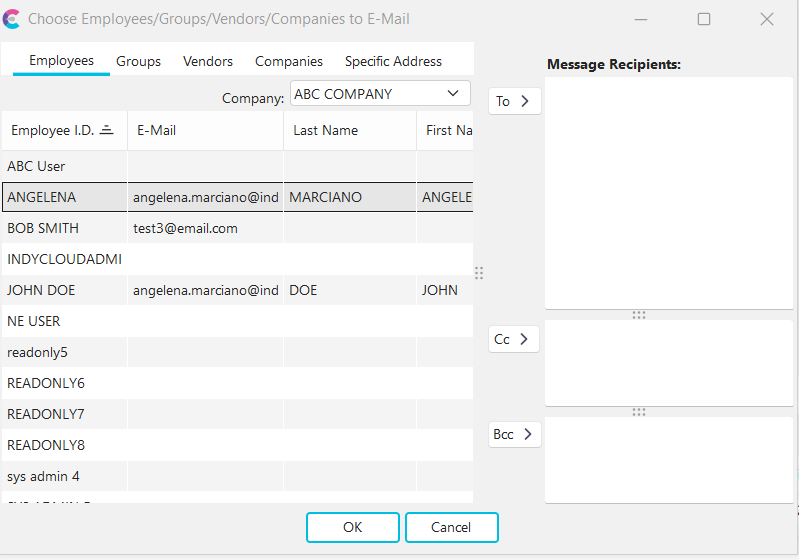
Choose Employees/Groups/Vendors/Companies to Email
The 'Employees,' 'Groups,' 'Vendors,' and 'Companies' tabs are all very similar - a grid is listed showing items that each potentially contains an associated email address. 'Employees,' 'Groups,' and 'Vendors' tabs have a 'Company' drop-down above the grid that can be used to filter the items. Note there are three boxes on the right that can populate the email distribution: 'To,' 'Cc,' and 'Bcc.'
To quickly add an email address to the 'To' listing, double-click on the record from a grid on the left or press the 'To' button while the item is selected. Use the 'Cc' and 'Bcc' buttons to add items to these listings. Double-click on the item to remove a previously selected item from any of the three listings. Press OK to send the email.
To add a specific address for someone not on your list, click the 'Specific Address' and type an email address into the 'Email Address' edit box, then press the 'To,' 'Cc,' or 'Bcc' buttons. Press OK to send the email. |