Add/Edit...Additional Info. Tab Lists...Custom 6
This list refers to the Custom 6 field, as can be displayed in the IndySoft Equipment View through the 'Custom 6 Items' dialog (see Equipment Layouts...Setup Dialogs ), or in the 'Custom 6 Items' tab. You might see a custom caption for this field - it is set up in Company Preferences. All values are specific to the selected company.
Adding to the Custom 6 List
There are multiple ways to access the Custom 6 list. The first way is through the 'Add/Edit' tab along the header. See the screenshot below for directions:

Locate Custom 6 List
Here is where you can add/edit your custom 6 list items for the desired company. See the dialog below:
 Click on this icon to add a new item to the list. The following dialog will appear:

Add User Defined 6 Item
Adding Custom 6 Items to Equipment
Once the items are added into the Custom 6 List (as shown above), we can then assign such items to specific equipment. From the Equipment View, look for 'Custom 6 Items' in the equipment view tabs. See below:
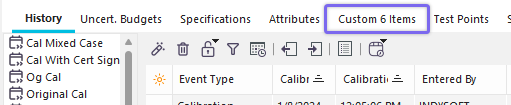
Equipment View - Locate Custom 6 Items Tab
Clicking on the tab will prompt the following dialog:

Custom 6 Items Dialog
Click on this icon to add a new item (from the company list) to the equipment list. Use the drop-down arrows to select your desired company and User Defined 6 list item, then click 'OK' to add it to the equipment. The following dialog appears:

Add User Defined 6 Item to Equipment
See User Defined 6 for more information about setting up a Custom 6 field. |