User Defined 6 Items (or Custom 6 Items)
The Company Preferences dialog allows for 6 'User Defined Fields' (Custom Captions 1 tab in Company Preferences dialog). Five of these six fields are used within Equipment Layouts (Dashboard). Additional company custom fields can be used within the Equipment Layouts. But among all these company custom fields, the 'User Defined 6' field is unique because you can associate multiple 'User Defined 6' records for each asset. With User Defined 1-5 fields, you can map them for display in your Equipment Layout and enter their single-field values for each asset.
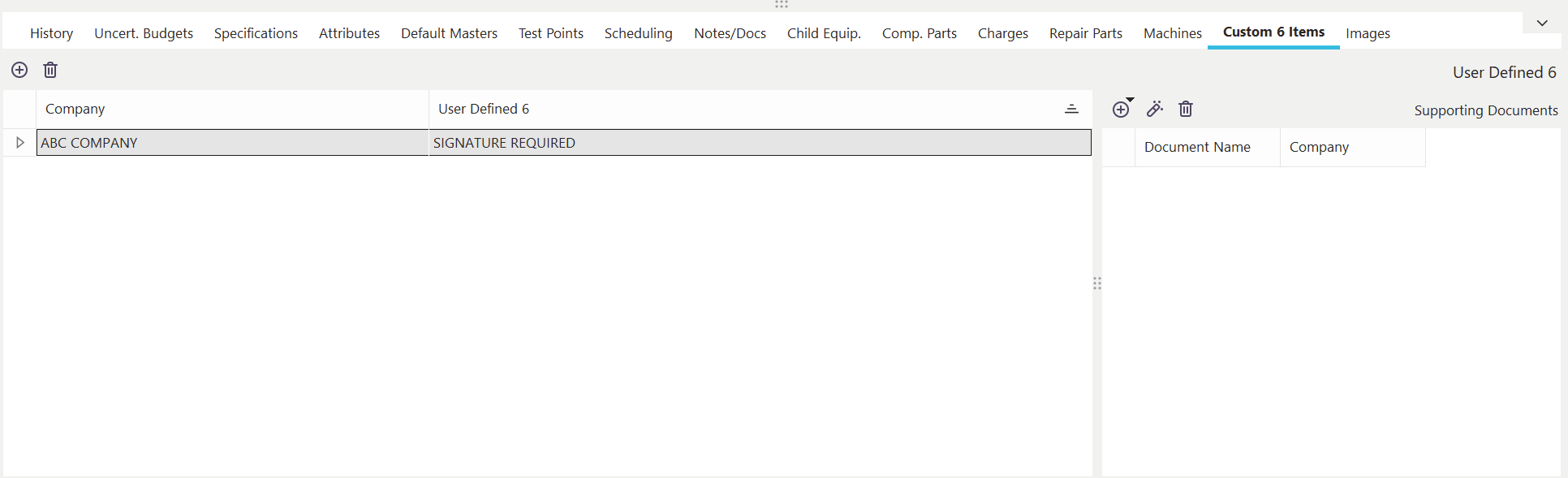
Machines Dialog/Tab
The User Defined 6 dialog/tab is used to relate equipment to one or more 'User Defined 6' values. Most likely, you will have your own caption setup on the company level - and that caption will be used onscreen instead of 'User Defined 6'. When your custom caption is set up, you will see the caption used everywhere in the dialog, even the button help hints. But for the sake of this help topic, we'll refer to the field as 'User Defined 6'.
 Productivity Tip
If you have set up a custom label for 'User Defined 6', that label will be used on this dialog. But you might notice that you also want to change the name of the 'Details' group hyperlink to match.
Use the 'Setup Dialogs' dialog (in the toolbar) within the Layout Editor to modify the caption name.The User Defined 6 Items associated with the current asset through this dialog/tab can come from the Add/Edit --> Additional Info. Tab Lists --> Custom 6 wizard, or they can be freely typed. Each User Defined 6 Item can also have unlimited Supporting Documents.
Adding/Editing/Deleting User Defined 6 Items
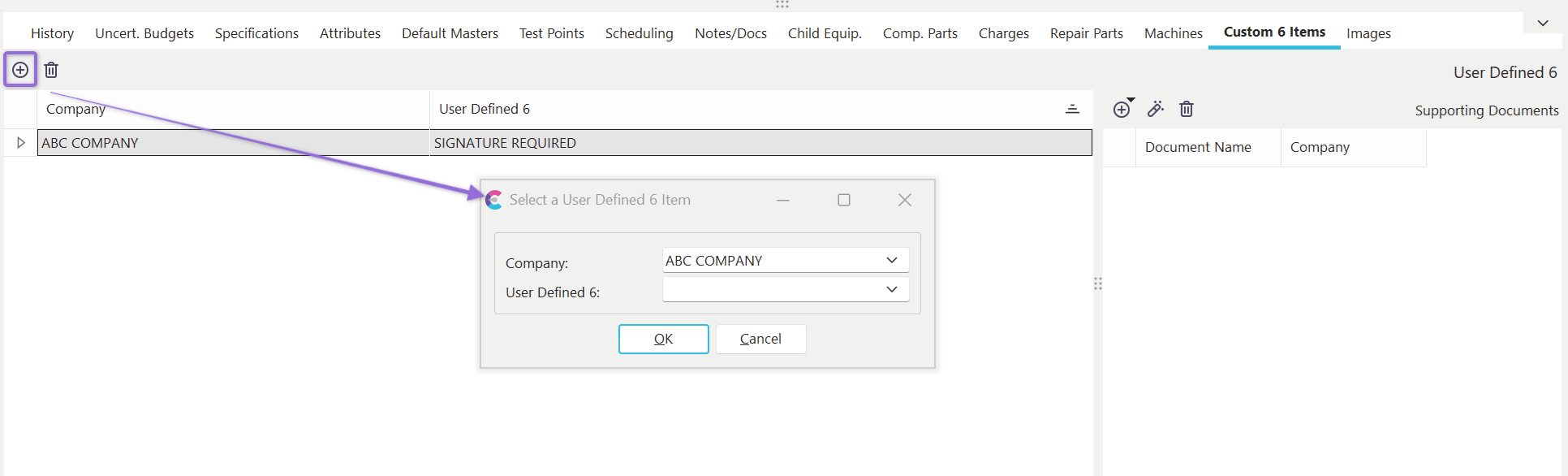
Add/Edit Custom 6 dialog
Select 'Company' from the drop-down list. Then, select the associated User Defined 6 value from the add/edit list.
 Add New User Defined 6 Item
Use this button to add a new User Defined 6 item for the selected asset.
 Delete User Defined 6
Use this button to delete the selected User Defined 6 item. You must confirm the deletion before proceeding. |